Introduction
Door Access allows your studio to grant members entry during unstaffed hours or open-gym sessions securely. Access is tied directly to active memberships or valid bookings, ensuring only entitled members can enter. Vibefam integrates with Igloohome smart locks to provide PIN-based access, giving your studio flexibility and control.
- Initial Steps to Set Up Door Access Hardware
- Setting up Igloohome Account
- Connect Vibefam to Igloohome
- Troubleshooting
Initial Steps to Set Up Door Access Hardware
Purchase the Hardware
You will need to engage an authorised distributor directly to purchase the required Igloohome hardware. You can find authorised distributors here: https://www.igloohome.co/where-to-buy
Hardware Recommendation / Site Assessment
The distributor may conduct a site visit or request photos/videos of your studio door to recommend the most suitable device for your setup.
Installation & Warranty Support
The distributor will also handle the hardware installation and provide warranty support for the device.
Setting up Igloohome Account
Prepare Your Igloohome Account
-
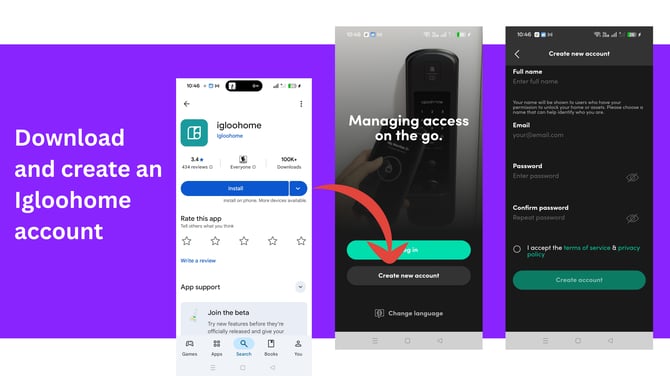
Download the Igloohome App (available on Play Store and App Store).
-
Create an Igloohome account to manage your locks.
Pair Igloohome Locks and Devices
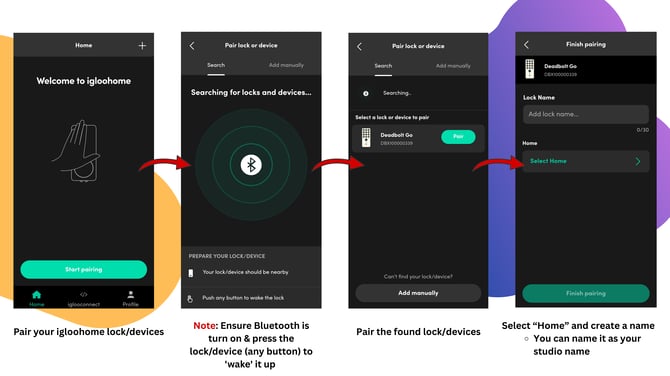
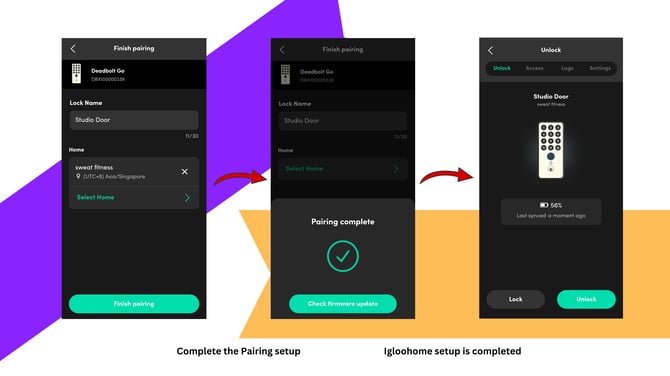
Pair your lock(s) with the Igloohome account.
-
- To search for locks and devices, you'll need to press any button on the lock to "wake" it up.
Connect Vibefam to Igloohome
Step 1: Navigate to Vibefam Door Access
-
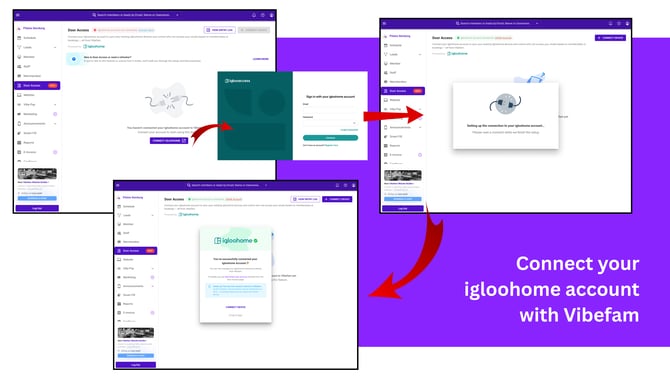
- Log in to your Vibefam account and navigate to the Door Access page.
- ℹ️ Note: Contact us to unlock this access. - Click Connect Igloohome.
- Log in with your Igloohome credentials.
- Once connected, Vibefam will sync your devices.
- Log in to your Vibefam account and navigate to the Door Access page.
Step 2: Door Access Device Selection
-
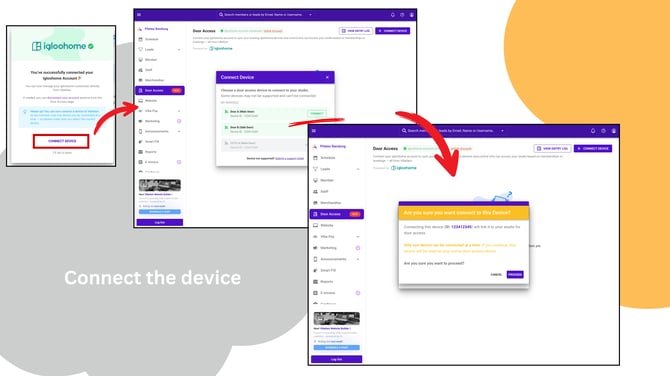
Click "Connect Device"
-
Select the device(s) you want to connect.
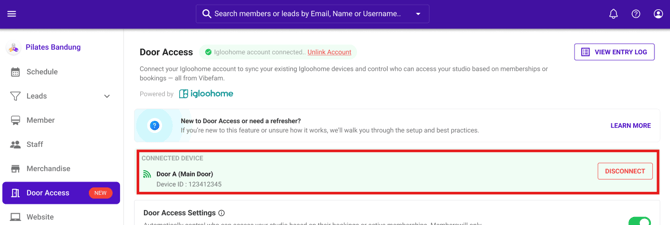
- The device will appear in your Door Access page with its name and ID.
Step 3: Configure your Door Access Settings
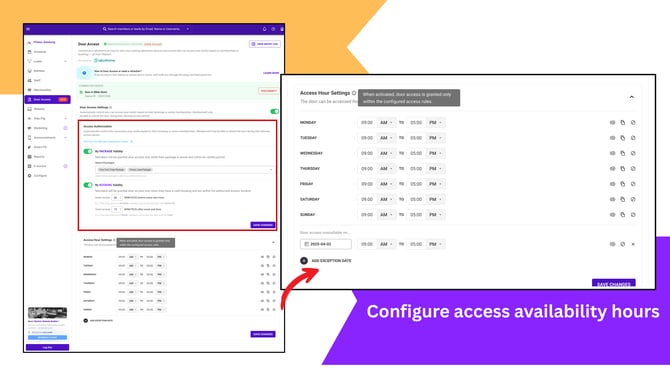
On the Door Access Settings Page, you can configure:
- Access Hours
Define when members can unlock the door (days, times, holidays). - Authorization by Package Validity
- Toggle ON to allow access only for members with active packages.
- Select “All Packages” or specific packages.
- Authorization by Booking Validity
- Toggle ON to allow access only for members with valid bookings.
- Configure buffer times (e.g., 15 minutes before and after class).
- Active Settings Toggle
Turn Door Access ON/OFF for your studio.
 Note: You can disconnect devices at any time (members will lose access if disconnected)
Step 4: Member Experience
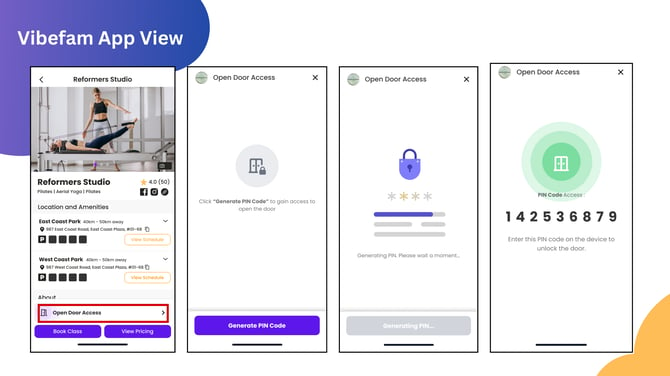
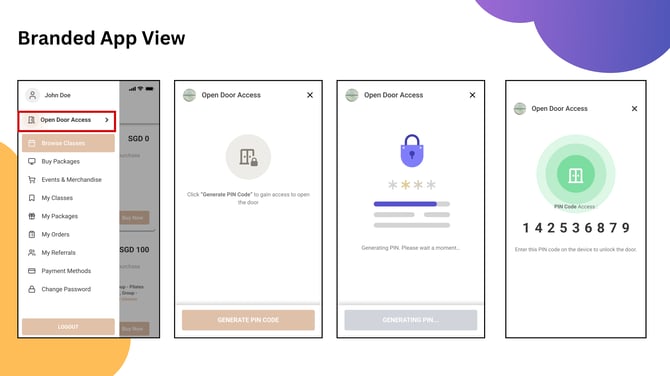
Members can access the studio via the Vibefam App or your Branded App:
- Members click on "Open Door Access"
- The system validates entitlement before generating a PIN.
- If access is denied, members will see a clear message (e.g., “Your package hasn’t started yet. You don't have an active package for door access .”).
Step 5: Monitor Entry Logs
-
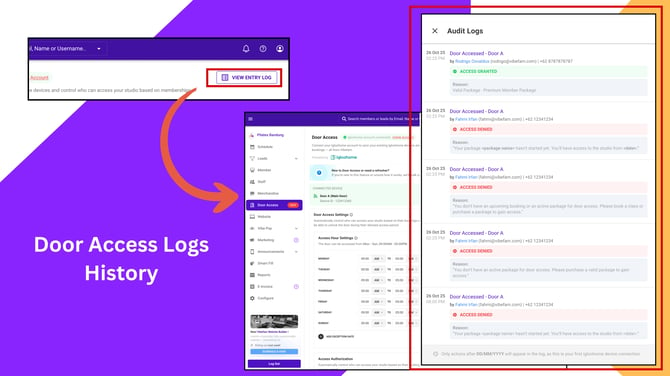
Go to Door Access > Entry Log.
-
View all access attempts in descending order by timestamp.
-
Logs include successful entries and denial reasons (e.g., expired package, outside access hours).
Troubleshooting
-
Access Denied for Members
-
Check if the member has an active package or a valid booking.
- You can go to "Entry Logs" to find the reason why the member was denied.
- You can go to "Entry Logs" to find the reason why the member was denied.
-
Verify that the studio’s access hours are correctly set.
-
Confirm that the member’s package is not paused, expired, or awaiting payment.
-
Ensure the device is properly synced between Vibefam and Igloohome.
-
Check if the studio has toggled ON either Package Validity or Booking Validity.
-
- Device Not Syncing
-
Make sure the lock is paired in the Igloohome App.
-
Re-sync the device in Vibefam by clicking Sync Device.
-
If issues persist, disconnect and reconnect the Igloohome account.
-
- System Offline / Connectivity Issue
- Verify internet connectivity on the admin portal.
- Use Igloohome’s emergency override if immediate access is required.
- Contact Igloohome support for hardware-related issues.
- Incorrect Access Window
- Double-check buffer times set for Booking Validity (e.g., minutes before/after class).
- Ensure holiday or exception settings are not blocking access unintentionally.