
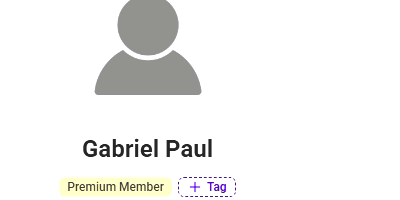
Member Tags are coloured labels you add to members, such as Knee injury, Pregnant or Gold Member. They show under the member's name on the class list and on their profile, so every instructor knows who needs extra care before class starts, even when they're covering.
- Where tags show: on the class list (Sign-ups) and on the member's profile, for group classes, private classes and appointments.
- Who sees them: your studio team in the admin portal. Members never see their tags on your booking website, in the apps or in emails.
- Plans: available on every plan.
Tags are also what Pricing Groups use to give a group of members their own price. See the Pricing Groups guide for that setup.
- Before you start: choose kind tag names
- Step 1: Create your tags
- Step 2: Tag members
- Change or remove a tag
- Ideas for tags
- FAQ
Before you start: choose kind tag names
Your team, and members standing near the front desk or an instructor's screen, may see tags. Name each tag so you'd be comfortable with the member reading it.
|
Use |
Avoid |
|---|---|
|
Knee injury |
Difficult |
|
Pregnant |
Always late |
|
First class |
Complainer |
Keep names short and factual. A tag name can be up to 30 characters.
Step 1: Create your tags
You create tags once in Settings, then add them to members whenever you need.
- Go to Settings and, under Studio Setup & Scheduling, click Member Tags. You'll see every tag, how many members have it, a preview and when it was last updated.
- Click + Add tag.
- Enter a Tag name (up to 30 characters) and pick one of the 8 colours. The Preview shows how the tag will look.
- Click Add tag. The Add members to [tag] window opens.
- Search for members by name, email or mobile, select them, and click Done. You can also skip this and tag members later.

Step 2: Tag members
You can tag a member from three places. Use whichever fits the moment.
From Settings (many members at once)
- In Settings > Member Tags, click the number in the Members column for a tag.
- The Members tagged window shows everyone with that tag. Click + Add member to add more.

From a member's profile
- Go to Members and open the member.
- Click + Tag under their name, tick the tags you want, and click Save.
From the class list (before or during class)
- Go to Schedule and open the class.
- On the Sign-ups tab, click + Tag under the member's name.
- Tick a tag to add it, or untick it to remove it. To make a new tag on the spot, type its name in Search or create a tag.
- Click Save. The tags now show under the member's name for every instructor.

Change or remove a tag
When a member's situation changes, such as an injury healing or a membership tier changing, update their tags so instructors aren't working from old information.
On the class list or profile
- Click the tag under the member's name.
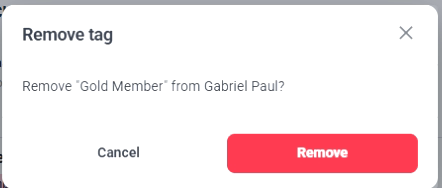
- Choose Change tag to swap it for a different tag, or Remove tag to take it off the member.
- If you chose Remove tag, confirm by clicking Remove.

In Settings
In Settings > Member Tags, click the number in the Members column, then click × next to a member to remove the tag from them.
Ideas for tags
Start with a few tags your instructors would act on in class, then add more as you go.
|
What you want instructors to know |
Example tags |
|---|---|
|
Extra care |
Knee injury, Back injury, Pregnant (2nd trimester) |
|
New to the studio |
First class, Trial member |
|
Personal goals |
Marathon training, Post-rehab |
|
Membership level |
VIP, Gold Member, Silver Member, Student |
|
Partners |
Corporate partner, Ambassador |
|
Martial arts levels |
Yellow belt, Green belt, Black belt |
FAQ
Can members see their own tags? No. Tags never appear on your booking website, in the Vibefam app or your branded app, or in emails. Only your team sees them in the admin portal. Members standing near a screen may still see them, so keep names kind.
Do tags show for private classes and appointments? Yes. Tags show on the class list for group classes, private classes and appointments, and on the member's profile.
Can a member have more than one tag? Yes. Add as many as are useful. They show side by side under the member's name.
Can I create a tag without going to Settings? Yes. When you click + Tag on the class list, type a new name in Search or create a tag.
Which plans include Member Tags? Every plan.
How do Member Tags relate to Pricing Groups? Pricing Groups use your tags to give members with a tag, such as Gold Member, their own price on packages and memberships. See the Pricing Groups guide.