---
title: Selling merchandise in Vibefam
description: Merchandise lets you sell physical products (apparel, equipment, retail items) from Vibefam — keep a product catalogue, track stock, record sales against a member's account, and report on what sold. Available on the Professional plan and above.
---
[Skip to content](https://support.vibefam.com/selling-merchandise-in-vibefam#main-content)
English
Show submenu for translations
[Request for Support](https://support.vibefam.com/kb-tickets/new?hsLang=en)
[](https://support.vibefam.com/?hsLang=en)
- Topics
Show submenu for Topics
- [Getting started](https://support.vibefam.com/support-knowledge/getting-started)
- [Classes, Courses & Appointments](https://support.vibefam.com/support-knowledge/classes-courses-appointments)
- [Packages](https://support.vibefam.com/support-knowledge/packages-payments#packages)
- [Payments](https://support.vibefam.com/support-knowledge/packages-payments#payments)
- [Booking & Scheduling](https://support.vibefam.com/support-knowledge/booking-scheduling)
- [Staff & Instructors](https://support.vibefam.com/support-knowledge/staff-instructors)
- [Members & Family Accounts](https://support.vibefam.com/support-knowledge/members-family-accounts)
- [Notifications & Marketing](https://support.vibefam.com/support-knowledge/notifications-marketing)
- [Integrations & Advanced Features](https://support.vibefam.com/support-knowledge/integrations-advanced-features)
- [Reports & Insights](https://support.vibefam.com/support-knowledge/reports-insights)
- [Schedule a call with us](https://meetings-na2.hubspot.com/vibefam-support/customer-success-meeting-scheduler)
Open main navigation
Close main navigation
- Topics
Show submenu for Topics
- [Getting started](https://support.vibefam.com/support-knowledge/getting-started)
- [Classes, Courses & Appointments](https://support.vibefam.com/support-knowledge/classes-courses-appointments)
- [Packages](https://support.vibefam.com/support-knowledge/packages-payments#packages)
- [Payments](https://support.vibefam.com/support-knowledge/packages-payments#payments)
- [Booking & Scheduling](https://support.vibefam.com/support-knowledge/booking-scheduling)
- [Staff & Instructors](https://support.vibefam.com/support-knowledge/staff-instructors)
- [Members & Family Accounts](https://support.vibefam.com/support-knowledge/members-family-accounts)
- [Notifications & Marketing](https://support.vibefam.com/support-knowledge/notifications-marketing)
- [Integrations & Advanced Features](https://support.vibefam.com/support-knowledge/integrations-advanced-features)
- [Reports & Insights](https://support.vibefam.com/support-knowledge/reports-insights)
- [Schedule a call with us](https://meetings-na2.hubspot.com/vibefam-support/customer-success-meeting-scheduler)
- English
Show submenu for translations
- [Request for Support](https://support.vibefam.com/kb-tickets/new)
How can we help you?
- There are no suggestions because the search field is empty.
1. [Support Knowledge Centre](https://support.vibefam.com/?hsLang=en)
2. [Integrations & Advanced Features](https://support.vibefam.com/integrations-advanced-features?hsLang=en)
# Selling merchandise in Vibefam
**Plan availability:** Merchandise is available on the **Professional plan and above**.
The Merchandise module lets you keep a catalogue of physical products (apparel, equipment, retail items), track stock levels, record sales against a member's account, and review sales and inventory movement over a date range.
**Where to find it:** In the left-hand sidebar, click **Merchandise** (`app.vibefam.com/merchandise`).
The page has three tabs:
| Tab | What it's for |
| --- | --- |
| **Products** | Your product catalogue — add products, manage categories, adjust stock, control visibility |
| **Orders** | Every merchandise order — create manual orders, update order status, download receipts |
| **Reports** | Sales and inventory movement over a date range |
---
### **Part 1 — Products**
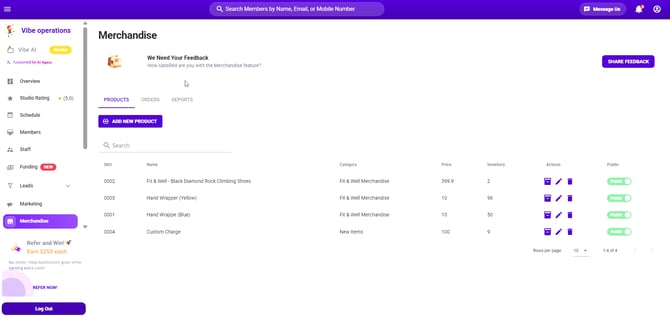
The Products tab lists your catalogue with the following columns:
- **SKU** — your unique product code
- **Name**
- **Category**
- **Price**
- **Inventory** — current stock on hand
- **Actions** — Inventory, Edit, Delete
- **Public** — visibility toggle
Use the **Search** field above the table to find a product, and **Rows per page** at the bottom to page through a longer catalogue.
#### **Add a new product**
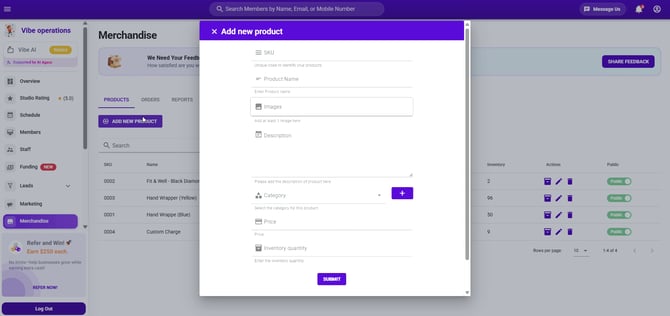
1. Go to **Merchandise → Products**.
2. Click **ADD NEW PRODUCT**.
3. Fill in the form:
| Field | Helper text in the form | Notes |
| --- | --- | --- |
| **SKU** | Unique code to identify your products | Your own product code, e.g. `0012` |
| **Product Name** | Enter Product name | The name members and staff will see |
| **Images** | Add at least 1 image here | Click the field to open your file browser and select an image |
| **Description** | Please add the description of product here | Free text |
| **Category** | Select the category for this product | Choose an existing category, or click **+** to create a new one |
| **Price** | Price | Numeric value in your studio's currency |
| **Inventory quantity** | Enter the inventory quantity | Starting stock level |
Click **SUBMIT**.
#### **Create a product category**
Categories group products together and are used in reporting.
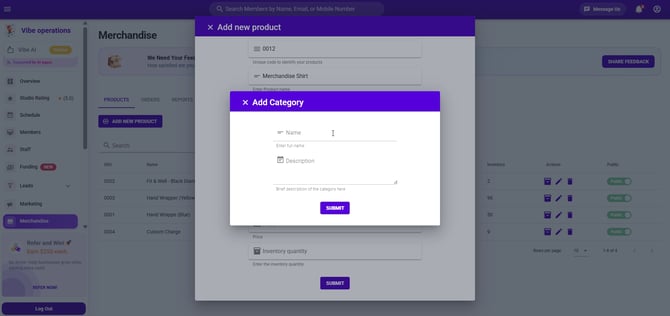
1. In the **Add new product** (or **Edit product**) form, click the **+** button beside the **Category** dropdown.
2. In the **Add Category** window, enter:
- **Name** — *Enter full name*
- **Description** — *Brief description of the category here*
3. Click **SUBMIT**.
The new category becomes selectable in the **Category** dropdown straight away.
#### **Edit a product**
1. On the product row, click the **pencil** icon under **Actions**.
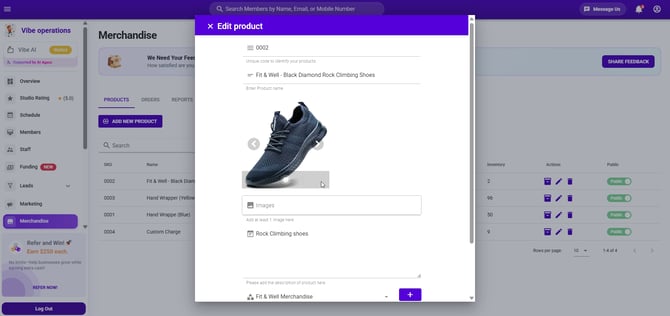
2. The **Edit product** window opens with the same fields as the add form, plus a preview carousel of the product's existing images — use the **‹** and **›** arrows to move between them.
3. Make your changes and submit.
#### **Adjust inventory**
Inventory is adjusted by *change amount*, not by typing a new total.
1. On the product row, click the first **Actions** icon (tooltip: **Inventory**).
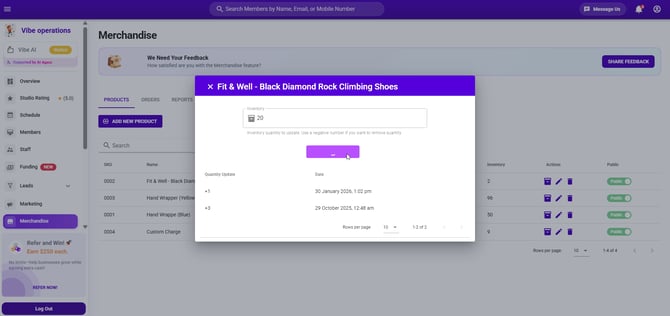
2. A window opens titled with the product name and an **Inventory** field. The helper text reads: *Inventory quantity to update. Use a negative number if you want to remove quantity.*
3. Enter the amount to add — or a negative number to remove stock.
4. Click the button below the field. Its label reflects what you typed, e.g. **ADD 1 QUANTITY**.
5. A green **Success!** message confirms the change and the **Inventory** column updates.
The same window shows a running history of adjustments in a **Quantity Update / Date** table (e.g. `+1 — 30 January 2026, 1:02 pm`), so you can see when stock was added or removed.
### 
#### **Make a product public**
Each product row has a toggle in the **Public** column. Use it to control whether the product is visible to members.
#### **Delete a product**
1. Click the **trash** icon under **Actions**.
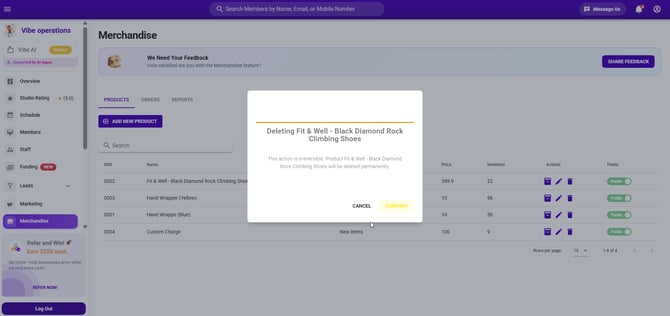
2. A confirmation window appears: *"This action is irreversible. Product \[name\] will be deleted permanently."*
3. Click **CONFIRM** to delete, or **CANCEL** to keep the product.
**
---
### **Part 2 — Orders**
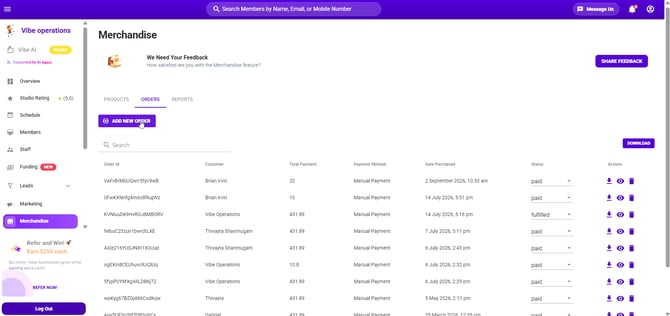
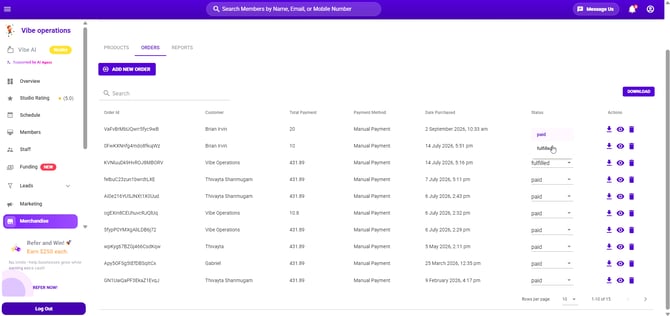
The Orders tab lists every merchandise order with these columns:
- **Order Id**
- **Customer**
- **Total Payment**
- **Payment Method**
- **Date Purchased**
- **Status** — an editable dropdown (values seen: `paid`, `fulfilled`)
- **Actions** — Download Receipt, View, Delete
Use **Search** to find an order, and the **DOWNLOAD** button on the right to export the order list.
#### **Create an order manually**
Use this when a member buys something in person at the front desk.
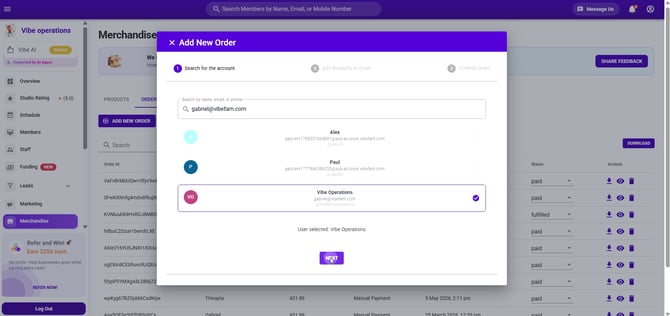
**Step 1 — Search for the account**
1. Click **ADD NEW ORDER**.
2. In **Search by name, email, or phone**, type the member's details.
3. Select the correct account from the results — the selection is confirmed below the list (*"User selected: \[name\]"*).
4. Click **NEXT**.
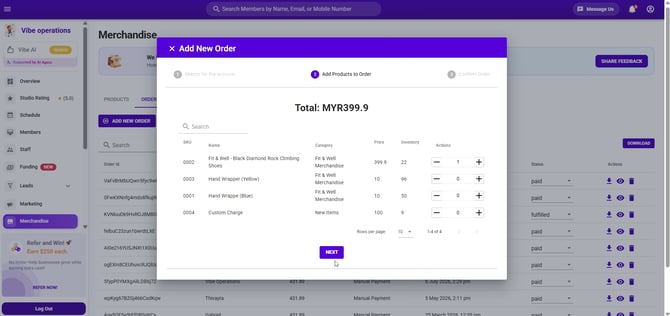
**Step 2 — Add products to order**
1. Find the product in the list (there's a **Search** field above the table).
2. Use **−** and **+** in the **Actions** column to set the quantity.
3. The running **Total** is shown at the top of the window.
4. Click **NEXT**.
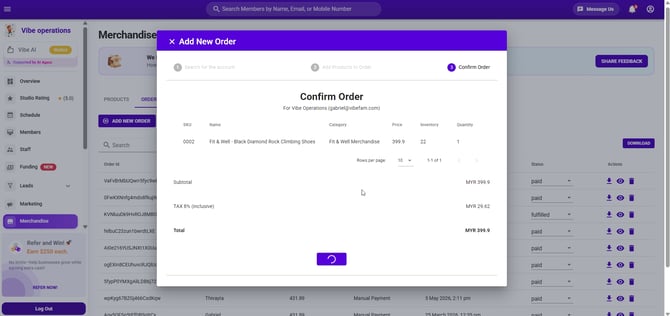
**Step 3 — Confirm order**
1. Review the summary: the account the order is for, the line items, **Subtotal**, **TAX**, and **Total**.
2. Click the submit button to complete the order.
A green **Success!** message appears and the new order is added to the top of the Orders list. Stock is deducted from the product's inventory.
**
#### **Update an order's status**
In the **Status** column, click the dropdown on the order row and choose the new status (e.g. change `paid` to `fulfilled` once the member has collected the item).
#### **Order row actions**
| Icon | Tooltip | What it does |
| --- | --- | --- |
| Download arrow | **Download Receipt** | Downloads the receipt for that order |
| Eye | **Order infomation** | To view the order details |
| Trash | **Delete** | Deletes the order |
---
### **Part 3 — Reports**
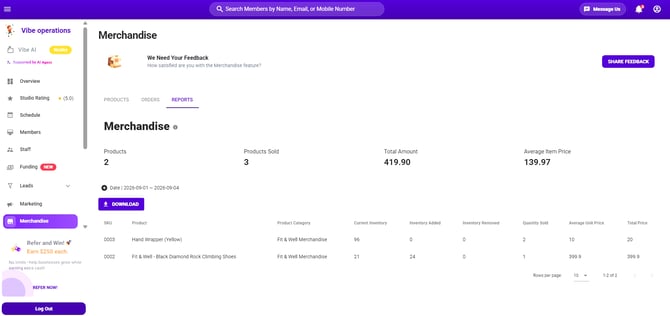
The Reports tab summarises merchandise performance for a selected date range.
**Summary figures** across the top:
- **Products** — number of distinct products sold in the period
- **Products Sold** — total units sold
- **Total Amount** — total sales value
- **Average Item Price**
**Filtering by date**
1. Click the **Date | YYYY-MM-DD ~ YYYY-MM-DD** chip.
2. In the **Filter by Date** panel, set the **Date Range**.
3. Click **APPLY**.
The summary figures and the table below both update to the selected range.
**Detail table columns:** SKU · Product · Product Category · Current Inventory · Inventory Added · Inventory Removed · Quantity Sold · Average Unit Price · Total Price
Click **DOWNLOAD** to export the report.
**
---
O
- [Getting started](https://support.vibefam.com/getting-started?hsLang=en)
- [Classes, Courses & Appointments](https://support.vibefam.com/classes-courses-appointments?hsLang=en)
- [Packages & Payments](https://support.vibefam.com/packages-payments?hsLang=en#main-content)
- [Packages](https://support.vibefam.com/packages-payments?hsLang=en#packages)
- [Payments](https://support.vibefam.com/packages-payments?hsLang=en#payments)
- [Booking & Scheduling](https://support.vibefam.com/booking-scheduling?hsLang=en)
- [Staff & Instructors](https://support.vibefam.com/staff-instructors?hsLang=en)
- [Members & Family Accounts](https://support.vibefam.com/members-family-accounts?hsLang=en)
- [Notifications & Marketing](https://support.vibefam.com/notifications-marketing?hsLang=en#main-content)
- [Marketing](https://support.vibefam.com/notifications-marketing?hsLang=en#marketing)
- [Notifications](https://support.vibefam.com/notifications-marketing?hsLang=en#notifications)
- [Integrations & Advanced Features](https://support.vibefam.com/integrations-advanced-features?hsLang=en)
- [Reports & Insights](https://support.vibefam.com/reports-insights?hsLang=en)
[](https://vibefam.com/)
Fitness management system for top fitness businesses
[mailto:help@vibefam.com](mailto:help@vibefam.com)
Copyright © 2026, Vibefam