Overview
Mass retail lets you sell several packages and courses to one member in a single checkout, instead of assigning them one at a time. You open it from the member's profile through + Add Multiple Item.
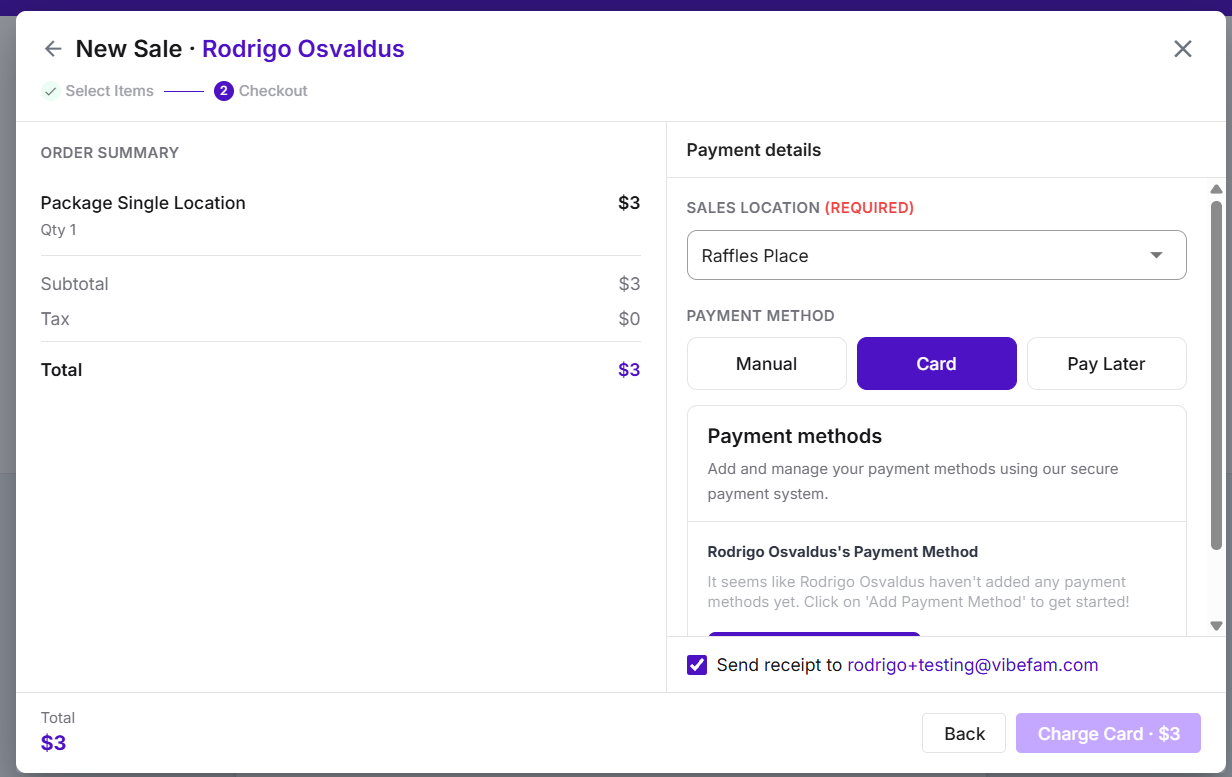
Mass Retail has two steps, shown at the top of the window: 1 Select Items and 2 Checkout. In step 1 you build a cart; in step 2 you take payment.
Use mass retail when a member buys more than one item at the counter, for example a class package plus a course. To assign a single package or course, the existing Add Package and Add Course windows still work as before.
Open Mass Retail from a member's profile
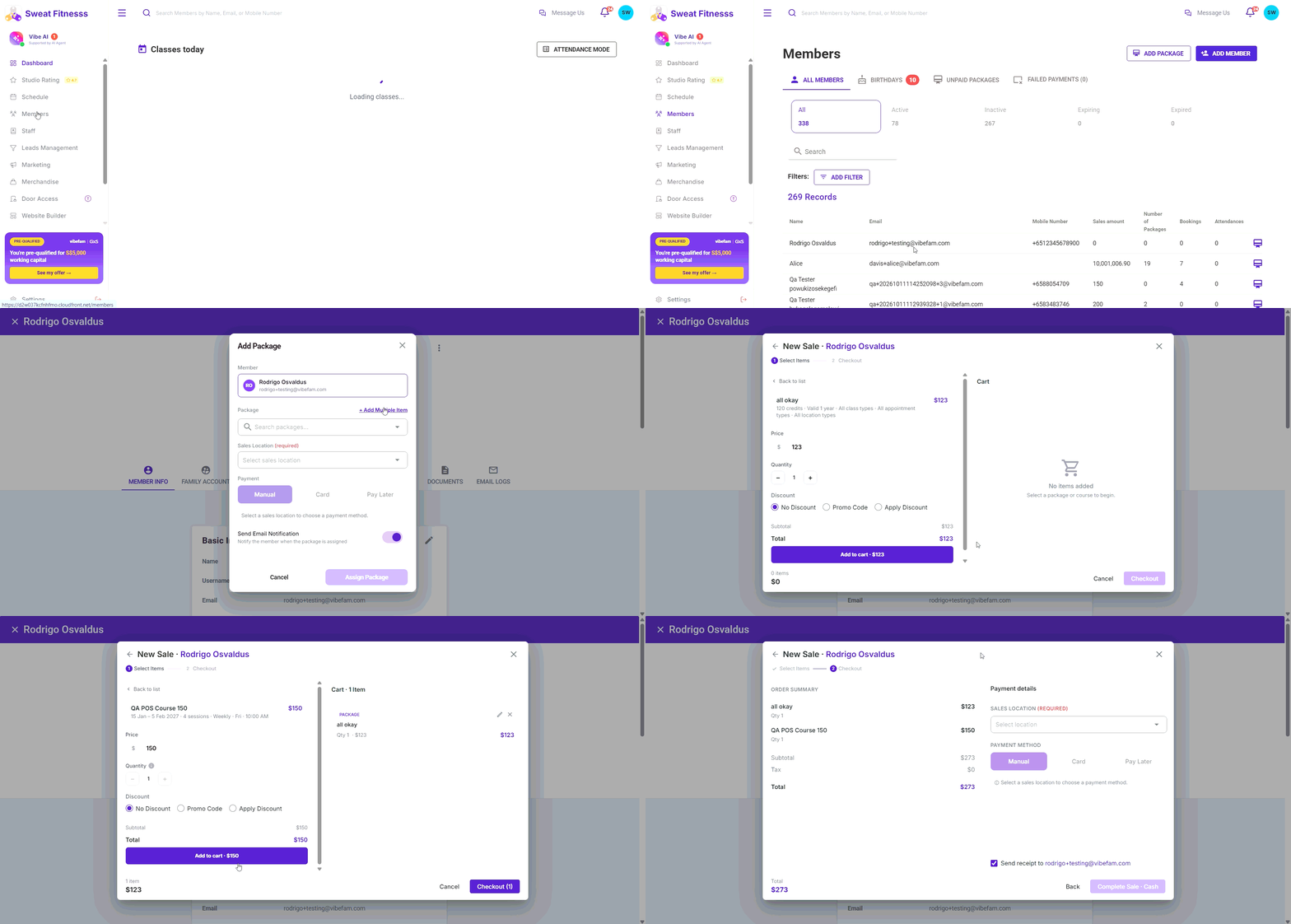
- In the left menu, go to Members.
- Search for the member and open their profile.
- Click Add Package (or Add Course) under the member's name.
- In the window that opens, click + Add Multiple Item next to the Package (or Course) field.
The [member name] window opens on step 1 Select Items, with the item list on the left and the Cart on the right.
Add packages to the cart
- Make sure the Packages tab is selected.
- Find the package in the list, or type its name in Search packages. Each package shows its price, credits, validity and the class, appointment and location types it covers.
- Click the package to open its details.
- Adjust the sale if needed:
- Price: edit the amount to charge for this sale.
- Quantity: use – and + to sell more than one of the same package.
- Discount: choose No Discount, Promo Code (enter the code and click Apply) or Apply Discount.
- Check the Subtotal and Total, then click Add to cart. The button shows the amount, for example Add to cart · $123.
The package now appears in the Cart and is marked Added · Click to add another in the list. Click it again to add another copy. Click Back to list at any time to return to the list without adding the item.
Add courses to the cart
- Switch to the Courses tab. Your cart is kept when you switch tabs.
- Find the course in the list, or type its name in Search courses. Each course shows its price, date range, number of sessions, frequency, day and start time.
- Click the course to open its details.
- Adjust Price and Discount as needed. Quantity is fixed at 1 for courses.
- Click Add to cart.
Courses you can't sell are greyed out and can't be selected:
|
Label |
Meaning |
|---|---|
|
Enrollment closed |
The course is no longer open for new sign-ups. |
|
Course full |
All places in the course are taken. |
Review and edit the cart
The Cart on the right lists every item with its type (Package or Course), quantity and price. The item count and running total show at the bottom left, for example 2 items · $273.
- To change an item, click the pencil icon next to it.
- To remove an item, click the × icon next to it.
When the cart is ready, click Checkout. The button shows how many items are in the cart, for example Checkout (2).
Note: Clicking the back arrow or Cancel - closes and returns you to the Add Package or Add Course window.