- Click on Configure and you will land on the Essentials page.
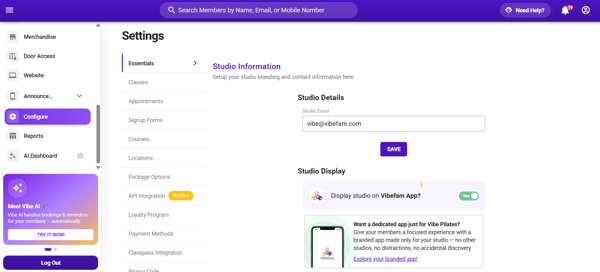
- Under Studio Email, confirm that your registered email address is entered correctly. If it is incorrect, return to this page to update it.
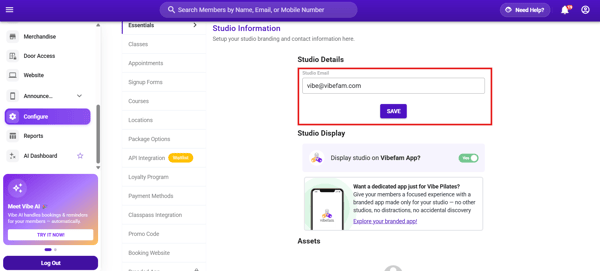
Take Note: The email address must be a new email address and has never been registered with the system, as the system will reject any email address that has been registered with the system before. -
By default, your studio is searchable on the Vibefam app. To hide your studio from the app, toggle the visibility switch off.
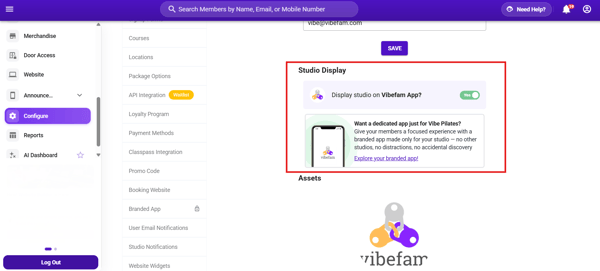
- Under "Assets" click on "Logo" to upload your studio logo.
- Your studio logo will appear on your members receipt.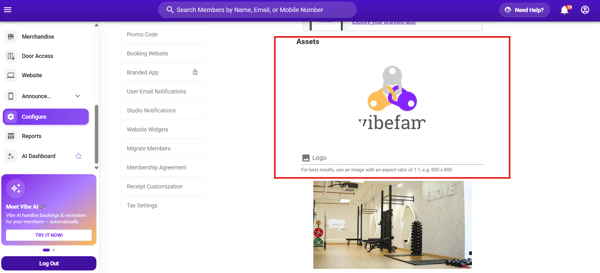
- To upload your studio image. Under "Assets" click on "Photo" to upload your studio photo.
- Your studio photo will appear as a banner image in the Vibefam app.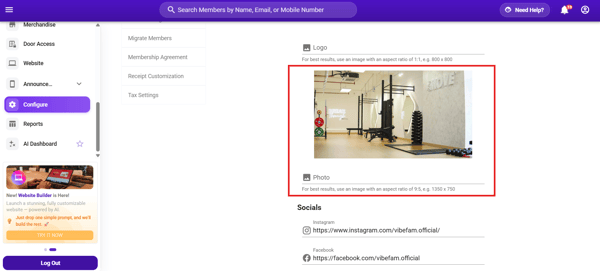
- To update your studio social channels, such as your Instagram, Facebook page, and your website link . Go to the "Socials" section under Essentials and input your social links.
- Be sure to also include the "http" to ensure your social link is working.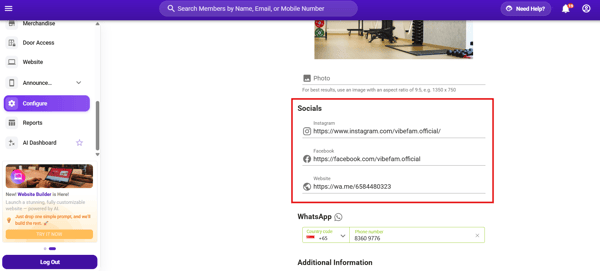
- You can update your studio WhatsApp number by inserting your WhatsApp number, and there will be a small WhatsApp icon at the bottom of the booking website.
This allows members to contact your studio directly via WhatsApp.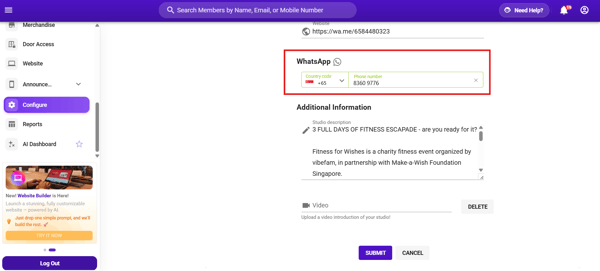
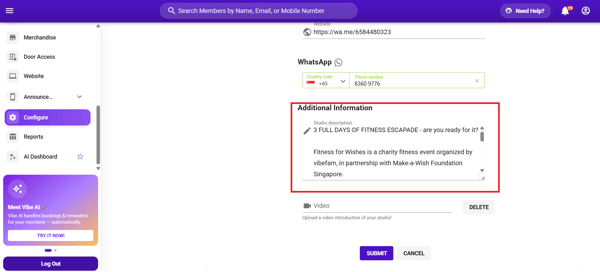
- To update your studio description, go to Additional Information and enter a short description under Studio Description to introduce your studio.
- Optional: If you have a studio introductory video. You can upload your studio video under the "video" section.
- The video will be displayed whenever a member searches for your studio on the Vibefam app.
English