---
title: Setting Up Online Payments (Stripe)
description: Vibefam uses Stripe to securely collect card and online payments from your members. Setup is a one-time process that takes a few minutes, and once it's done you can accept online payments, save member cards, and run recurring memberships.
---
[Skip to content](https://support.vibefam.com/setting-up-online-payments-stripe#main-content)
English
Show submenu for translations
[Request for Support](https://support.vibefam.com/kb-tickets/new?hsLang=en)
[](https://support.vibefam.com/?hsLang=en)
- Topics
Show submenu for Topics
- [Getting started](https://support.vibefam.com/support-knowledge/getting-started)
- [Classes, Courses & Appointments](https://support.vibefam.com/support-knowledge/classes-courses-appointments)
- [Packages](https://support.vibefam.com/support-knowledge/packages-payments#packages)
- [Payments](https://support.vibefam.com/support-knowledge/packages-payments#payments)
- [Booking & Scheduling](https://support.vibefam.com/support-knowledge/booking-scheduling)
- [Staff & Instructors](https://support.vibefam.com/support-knowledge/staff-instructors)
- [Members & Family Accounts](https://support.vibefam.com/support-knowledge/members-family-accounts)
- [Notifications & Marketing](https://support.vibefam.com/support-knowledge/notifications-marketing)
- [Integrations & Advanced Features](https://support.vibefam.com/support-knowledge/integrations-advanced-features)
- [Reports & Insights](https://support.vibefam.com/support-knowledge/reports-insights)
- [Studio FAQs](https://support.vibefam.com/studio-owners-faq)
- [Schedule a call with us](https://meetings-na2.hubspot.com/vibefam-support/customer-success-meeting-scheduler)
Open main navigation
Close main navigation
- Topics
Show submenu for Topics
- [Getting started](https://support.vibefam.com/support-knowledge/getting-started)
- [Classes, Courses & Appointments](https://support.vibefam.com/support-knowledge/classes-courses-appointments)
- [Packages](https://support.vibefam.com/support-knowledge/packages-payments#packages)
- [Payments](https://support.vibefam.com/support-knowledge/packages-payments#payments)
- [Booking & Scheduling](https://support.vibefam.com/support-knowledge/booking-scheduling)
- [Staff & Instructors](https://support.vibefam.com/support-knowledge/staff-instructors)
- [Members & Family Accounts](https://support.vibefam.com/support-knowledge/members-family-accounts)
- [Notifications & Marketing](https://support.vibefam.com/support-knowledge/notifications-marketing)
- [Integrations & Advanced Features](https://support.vibefam.com/support-knowledge/integrations-advanced-features)
- [Reports & Insights](https://support.vibefam.com/support-knowledge/reports-insights)
- [Studio FAQs](https://support.vibefam.com/studio-owners-faq)
- [Schedule a call with us](https://meetings-na2.hubspot.com/vibefam-support/customer-success-meeting-scheduler)
- English
Show submenu for translations
- [Request for Support](https://support.vibefam.com/kb-tickets/new)
How can we help you?
- There are no suggestions because the search field is empty.
1. [Support Knowledge Centre](https://support.vibefam.com/?hsLang=en)
2. [Packages & Payments](https://support.vibefam.com/packages-payments?hsLang=en)
3. [Payments](https://support.vibefam.com/packages-payments?hsLang=en#payments)
# Setting Up Online Payments (Stripe)
Vibefam uses **Stripe** to securely collect card and online payments from your members. Setup is a one-time process that takes a few minutes, and once it's done you can accept online payments, save member cards, and run recurring memberships.
- [Set up Stripe](https://support.vibefam.com/setting-up-online-payments-stripe#set_up_stripe)
- [Turn on online payments and customise checkout](https://support.vibefam.com/setting-up-online-payments-stripe#turn_on_online_payments_customer_checkout)
- [Managing payments, refunds, and payouts](https://support.vibefam.com/setting-up-online-payments-stripe#managing_payments_refunds_payout)
- [Connect multiple bank accounts](https://support.vibefam.com/setting-up-online-payments-stripe#connect_multiple_bank_accounts)
- [FAQs](https://support.vibefam.com/setting-up-online-payments-stripe#faqs)
Online payments are optional. If you only take payment in person, you don't have to complete Stripe setup — but you'll need it for saved cards, recurring memberships, and any online checkout.
---
### **Set up Stripe**
1. Go to **Schedule** and click **Set Up Stripe** in the orange banner at the top of the screen.

2. **Enter your email** to get started.

- Already have a Stripe account? Enter it to speed things up.
- New to Stripe? Use the same email as your Vibefam admin account, so everything stays together.
3. **UEN** — if you're a registered company, select **"I have a UEN."** Otherwise select **"I do not have a UEN."**

4. **Fill in your personal information.** If you're in Singapore, you can pull your details via **Singpass** to speed this up.

5. **Industry** — select **"Health and Wellness Coaching"** as the closest fit.

6. **Website & description:**
- Enter your website if you have one — or your new Vibefam booking site, or your Instagram page.
- The product description is a simple one-liner (e.g. *"Yoga studio in Singapore"*). It's for Stripe only and isn't shown to members.
7. **Bank account** — enter the account where you'd like your payouts sent.

8. Submit to complete setup.
#### **After setup**
**Most studios need one extra verification step.** Stripe often emails you to request documents (ID, business registration, and so on) before you can collect payments live. Watch your inbox and complete it promptly.
Once verified, you're live. **Most studios start collecting online payments within 1–2 business days** of completing verification.
> **When do I get paid?** Payouts are typically transferred to your bank **7 calendar days** after a member's payment — though this may vary depending on your Stripe account and region. You can track payouts and transfers anytime in the [Stripe dashboard](https://dashboard.stripe.com/).
---
### **Turn on online payments and customise checkout**
After Stripe setup, enable online payments and control how members pay.
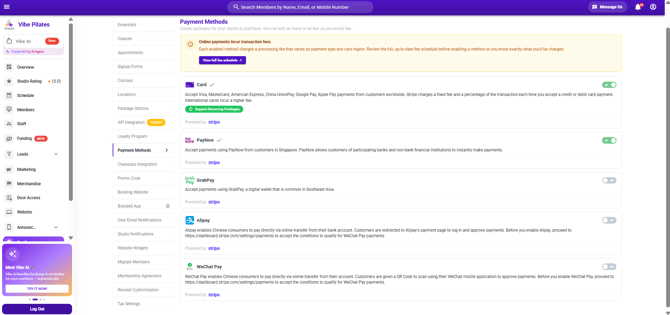
Customising member payment options is available on the **Most Popular** and **Professional** plans.
1. Go to **Configure → Payment Methods**.
2. **Toggle each payment type on or off** depending on what you want to accept.
3. **Transaction fees** for each method are shown right on the dashboard, so you can see the cost before enabling one.
4. Use **checkout page branding** to make the checkout match your studio's look.
---
### **Managing payments, refunds, and payouts**
Day-to-day payment management happens in the [Stripe dashboard](https://dashboard.stripe.com/) (or the Stripe app for [iOS](https://apps.apple.com/app/stripe-dashboard/id978516833) / [Android](https://play.google.com/store/apps/details?id=com.stripe.android.dashboard)). There you can:
- Check successful and failed payments
- Issue partial or full refunds
- Monitor payouts to your bank account
**Failed recurring payments:** when a recurring membership fails to renew, Vibefam emails your studio admin address. Check the reason in the Stripe dashboard — common causes include **insufficient funds**, an expired card, or the card issuer declining the charge.
⚠️ **Refunds don't return the transaction fee.** You can refund a member through Stripe, but Stripe's processing fee on the original payment isn't returned to you.
---
### **Connect Multiple Bank Accounts**
If you run several locations from **one Vibefam dashboard** but want each location's money to land in **its own bank account**, you can connect multiple bank accounts — one per location.
#### **Why use multiple bank accounts**
Running all locations from a single dashboard while routing funds to the right account is ideal when each location has its own business entity or owner: every entity automatically receives what it's owed, and your end-of-period accounting is far simpler. It also lets you offer a single membership (e.g. an Unlimited pass) that works across all — or selected — locations, without duplicating it across separate dashboards.
> **Franchises:** a single shared dashboard may not be the right fit. Contact us about **Corporate dashboard access** instead.
Because Stripe allows only **one bank account per Stripe account**, each business entity needs its own Stripe account. ***Creating a Stripe account is free.***
#### **Before you start**
- Each location needing a separate bank account requires **its own Stripe account** (free to create).
- **Once a Stripe account is linked to a location, you can't change the link yourself** — contact support for changes.
- **Saved cards are per Stripe account.** A card a member saved at Location A can't be used at Location B — they'll need to save it again at each location.
### **How to set it up**
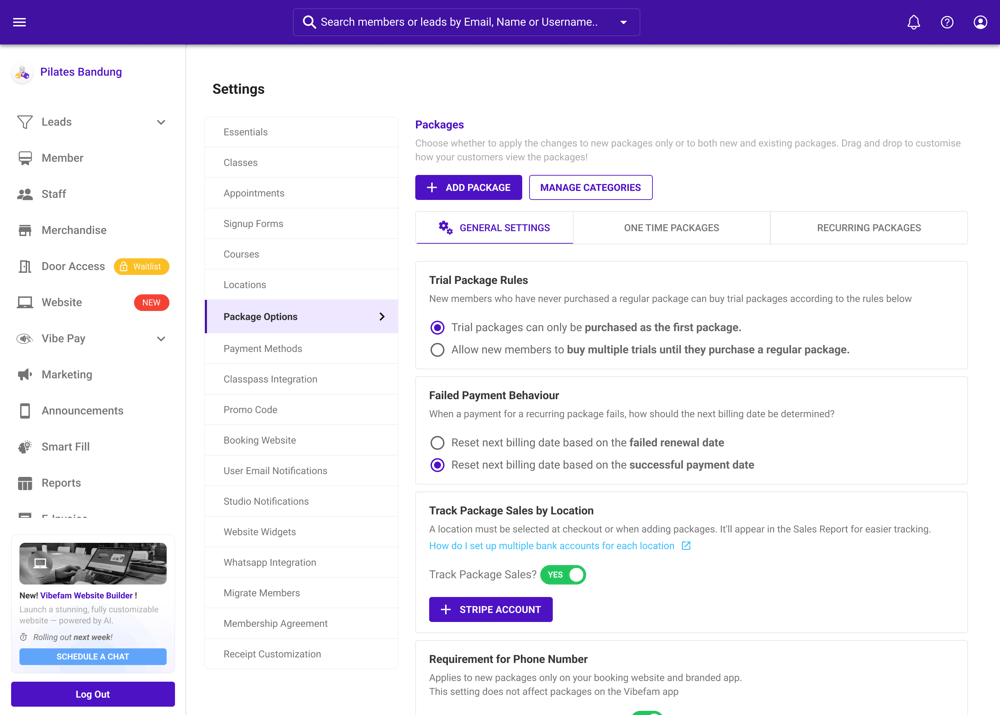
#### **Step 1 — Enable Track Package Sales by Location**
Go to **Configure → Package Options → Track Package Sales by Location** and switch it on.
#### **Step 2 — Add your Stripe accounts**
Go to **Configure → Payment Integration → Add Stripe Account**, then follow the prompts to create the account. Repeat for each location that needs its own bank account.
> Your Stripe accounts appear in a table showing the **Stripe Account ID**, linked location, and setup status. If one is incomplete, use **Continue Setup** to resume anytime.
#### **Step 3 — Submit a support ticket**
Once all accounts are created, send a [support ticket](https://support.vibefam.com/?hsLang=en) with your **Stripe Account IDs and the matching location names**:
| Location | Stripe Account ID |
| --- | --- |
| Jurong West | acct\_1x |
| Tampines | acct\_2x |
#### **Step 4 — We link them up**
Our team verifies each Stripe account — including its KYC (identity verification) — then links each one to the correct location. This typically takes 1–2 business days.
#### **Step 5 — You're live**
We'll notify you when it's done. From then on, payments at each location route automatically to that location's Stripe account and bank.
### **Adding a new location later**
If you add a location after your multi-account setup is live, its payments **default to your primary Stripe account** until a new Stripe account is linked — and an alert reminds you of this when you add the location. To route it elsewhere, follow **Step 2** above and submit a new ticket.
### **Limitations & Unsupported Actions**
Contact support if you need any of these — they're handled case by case:
- Turning off Track Package Sales by Location once multi-Stripe is enabled
- Deleting a location linked to a Stripe account
- Moving a Stripe account from one location to another
- Migrating active recurring packages to a new Stripe account
### **FAQs**
**What happens to existing recurring packages when I add multi-Stripe?** They keep renewing on the Stripe account they were originally set up on. To migrate them to a new account, contact support — it's handled case by case.
**Can members use the same saved card across all locations?** No. Cards are saved per Stripe account, so if your locations use different Stripe accounts, members save their card separately at each.
- [Getting started](https://support.vibefam.com/getting-started?hsLang=en)
- [Classes, Courses & Appointments](https://support.vibefam.com/classes-courses-appointments?hsLang=en)
- [Packages & Payments](https://support.vibefam.com/packages-payments?hsLang=en#main-content)
- [Packages](https://support.vibefam.com/packages-payments?hsLang=en#packages)
- [Payments](https://support.vibefam.com/packages-payments?hsLang=en#payments)
- [Booking & Scheduling](https://support.vibefam.com/booking-scheduling?hsLang=en)
- [Staff & Instructors](https://support.vibefam.com/staff-instructors?hsLang=en)
- [Members & Family Accounts](https://support.vibefam.com/members-family-accounts?hsLang=en)
- [Notifications & Marketing](https://support.vibefam.com/notifications-marketing?hsLang=en)
- [Integrations & Advanced Features](https://support.vibefam.com/integrations-advanced-features?hsLang=en)
- [Reports & Insights](https://support.vibefam.com/reports-insights?hsLang=en)
[](https://vibefam.com/)
Fitness management system for top fitness businesses
[mailto:help@vibefam.com](mailto:help@vibefam.com)
Copyright © 2026, Vibefam