
Overview
SMS Notifications send automatic text messages to your members for key booking and package events, such as class reminders, waitlist promotions, and cancellations. Messages are sent from a dedicated phone number registered for your studio, and members don't need the Vibefam app to receive them.
This article covers how to register your sending number, which notifications are supported, how SMS credits work, and what happens when a member unsubscribes.
Availability: SMS Notifications are currently available to studios operating in the United States only.
Before you start
You'll need the following on hand to register:
- Your legal business name and business entity type
- Your EIN (Employer Identification Number)
- Your business address, exactly as it appears on official records
- Your business website URL
- An active Vibefam subscription that includes SMS credits.
Important: US mobile carriers verify every business that sends text messages. Your address and website are checked against carrier records, so make sure they match your official business registration. A mismatch is the most common reason registration fails.
Step 1: Register a sending number
- In the left sidebar, click Inbox.
- Click the gear icon at the top of the Inbox panel to open Settings.
- Under Sending Phone Number, click Register a sending number.
- Complete the Registration required for SMS services form (fields below).
- Click Submit.
You can also start from Configure → SMS Notifications and click Set up now in the yellow banner.
Your sending number is provided free of charge.
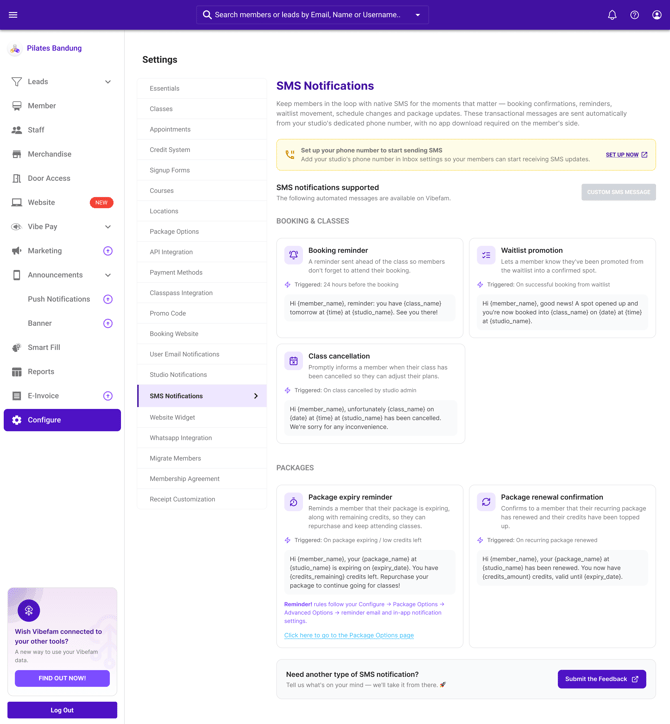
Registration form fields
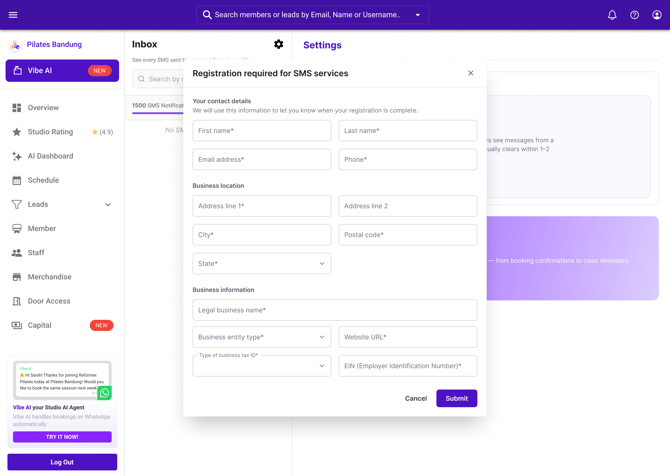
Vibefam uses your contact details to let you know when your registration is complete.
Step 2: Wait for approval
After you submit, your registration goes through carrier review. Approval usually takes 1–2 weeks. You'll be notified at the email address you entered in the form once it's complete.
You can check your status anytime under Inbox → Settings (gear icon) → Sending Phone Number.
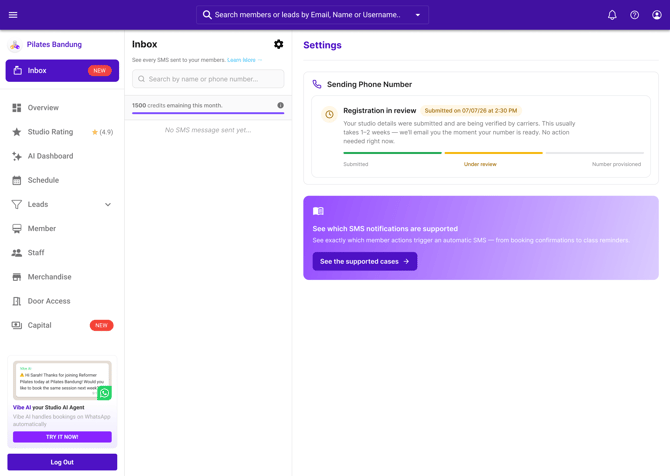
| Status | What it means | What to do |
|---|---|---|
| Not set up | You haven't registered a sending number yet. | Click Register a sending number. |
| Pending | Your registration is under carrier review. | No action needed. Wait for the approval email. |
| Active | Your number is approved and members are receiving SMS. | No action needed. |
| Failed | The carrier couldn't verify your details. | See If your registration fails below. |
If your registration fails
If you see We couldn't provision a number with a Failed status, the address you provided couldn't be verified against carrier records.
- Click Review & resubmit.
- Double-check your business address and website URL against your official business registration.
- Correct any differences and click Submit.
If resubmitting doesn't resolve it, click Contact support.
Step 3: Confirm SMS is active
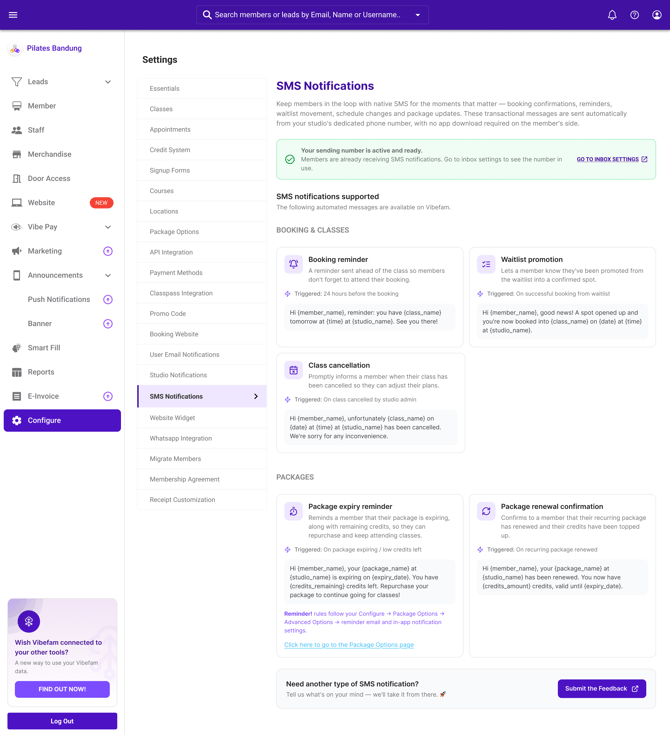
Go to Configure → SMS Notifications. When your number is approved, you'll see a green banner: Your sending number is active and ready. Click Go to inbox settings to see the number in use.
From this point, supported SMS notifications are sent automatically. There's nothing to switch on per notification.
SMS credits
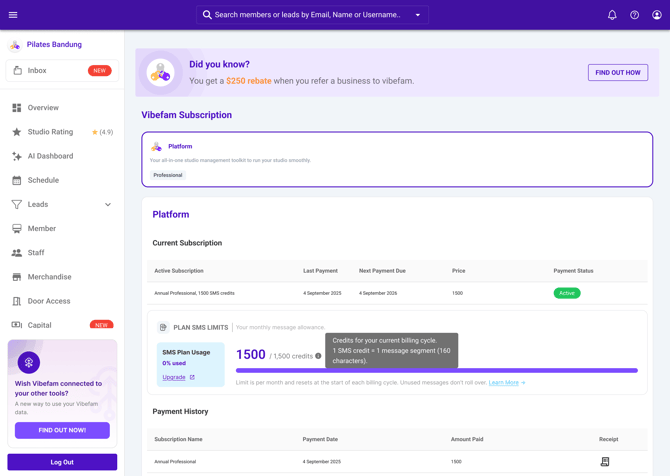
Each SMS uses credits from your plan's monthly allowance.
- 1 SMS credit = 1 message segment (160 characters). Longer messages, for example ones with long class or package names, use more than one credit.
- Your allowance resets at the start of each billing cycle. Unused credits don't roll over.
- Your remaining credits are shown at the top of the Inbox, and in full on your subscription page under Plan SMS Limits.
- To get more credits, click Upgrade under SMS Plan Usage.
How your subscription affects SMS
| Subscription status | What happens to SMS |
|---|---|
| Active | SMS sends normally using your plan's credits. |
| Unpaid (payment failed) | A warning appears under Plan SMS Limits. Click Retry payment to keep SMS Notifications running. |
| Expired | SMS Notifications are turned off. Click Purchase subscription or Subscribe to reactivate. |
Viewing sent messages
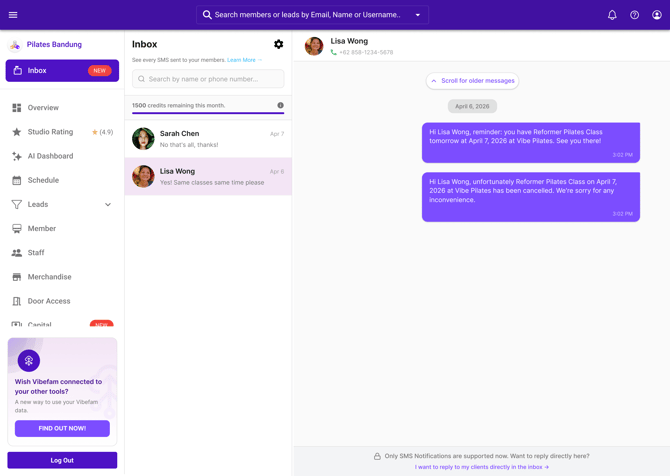
Every SMS sent to your members appears in the Inbox.
- Use the search bar to find a member by name or phone number.
- Click a member to see the messages sent to them, grouped by date.
The Inbox currently supports notifications only. You can't reply to members from the Inbox.
When a member unsubscribes
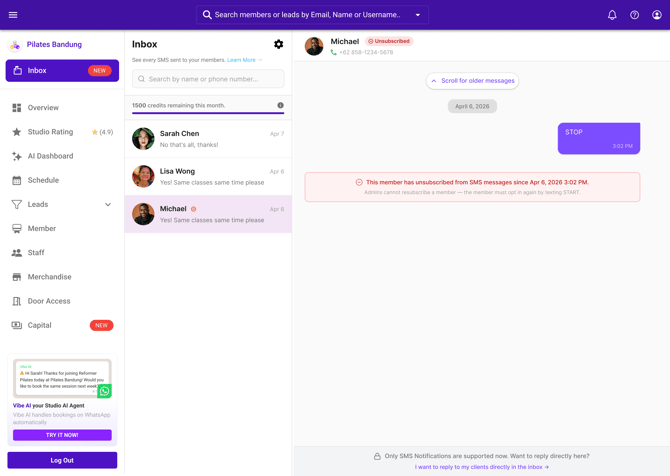
Members can stop receiving SMS from your studio at any time by replying STOP.
When this happens:
- The member is marked Unsubscribed in the Inbox, with the date and time they opted out.
- They no longer receive SMS notifications from your studio.
- Admins can't resubscribe a member. The member must opt back in themselves by texting START to your studio's sending number.
FAQ
-
Do members need the Vibefam app to receive SMS? No. SMS is sent directly to the member's phone number.
- Is the sending number free? Yes. Your studio's dedicated sending number is free. SMS messages use credits from your plan.
- Can I use my studio's existing phone number? Yes. As long the number have not tie or has been used in another platform.
- Can I reply to members by SMS? Not at the moment. The Inbox shows notifications sent to members, but two-way messaging isn't supported yet.
- Can I edit the SMS message wording? Not at the moment.
- Does SMS replace email notifications? Email will still be sent out.
- Is SMS available outside the US? No. SMS Notifications are currently available to US studios only.