
Stripe Setup
- Click on "Schedule" then click on "Set Up Stripe" in the orange banner at the top of the screen

- You will be prompted to get started by keying in your email address
- If you already have a Stripe account, you can key in your existing Stripe account to shorten the setup time
- if you don't have a Stripe account, we recommend you use the same email address you used to setup your vibefam admin account

- If you're a registered company, select "I have a UEN", otherwise select "I do not have a UEN"

- Fill up your personal information as prompted. If you are based in Singapore, there is an option for you to retrieve your information through Singpass to quicken the process

- Next, you will be prompted on your industry. Select "Health and Wellness Coaching" as the closest fit to your business
- Key in your website if you have one. Otherwise, you can also key in the new website you have created on vibefam, or your instagram page
- The product description can be a simple one-liner introduction of your services. Don't worry as this will not be published for members to view
- For example, "Yoga Studio in Singapore"

- The final step requires you to fill in your bank account details where you would like your payouts to be transferred\
IMPORTANT: Payouts are transferred 7 calendar days after the payment has been made by your member. You can track your payouts and payment transfers from the Stripe dashboard.

- Once this step is completed, your Stripe setup is complete!
- For most of our partners, there will be an additional verification step that you need to complete before you can start collecting payments live. Keep a lookout for your email as Stripe will be requesting for additional verification documents such as a copy of your NRIC, scanned copy of your business documents etc.
Most studios go live and start collecting online payments within 1-2 calendar days after completing the Stripe setup
Customize payment options for members
This section guides you on how you can restrict members to specific payment methods when they checkout.
*Customizing payment options for members is only available to studios on the Most Popular and Professional plans
- On the main admin dashboard, select "Configure" > "Payment Methods"
- Switch "on" the payment type if you'd like to accept the payment method, and switch "off" if you'd like to disable it
- View the transaction fees directly on the dashboard
- Customize how your checkout page looks by configuring the "checkout page branding"

That's it! You're ready to start collecting online payments from your members.
Go to the Stripe Dashboard if you need to check successful or failed payments*, issue partial or full refunds, or monitor the Stripe payouts to your bank account. You can also manage this directly on the Stripe mobile app which you can download on the Appstore or Playstore.
*For failed payments from recurring memberships, vibefam will send a notification to the studio admin email address. You can check the reasons for these failed payments in the Stripe dashboard. The most common reason for recurring memberships failing to renew is due to insufficient funds in the debit card of the member.
⚠️Take note that while refunds can be made through Stripe, the transaction fees will not be refunded to you.
Why use multiple bank accounts?
Running multiple locations under one dashboard works best when all your locations operate under the same brand. For example, it allows you to offer a single Unlimited membership that works across all — or selected — locations, without duplicating or managing it across separate dashboards. If your business operates as a franchise, a single dashboard may not be the right fit — please reach out to us to learn more about Corporate dashboard access.
At this time, multiple bank accounts are only supported when using Stripe as your payment processor. Since Stripe allows only one bank account per Stripe account, you'll need to create a separate Stripe account for each of your business entities. Creating a Stripe account is free.
Important Things to Know Before You Start
- Each location that requires a separate bank account needs its own Stripe account.
- Creating a Stripe account is free.
- Once a Stripe account is linked to a location, the link cannot be self-edited. Contact support for any changes.
- Members save their payment methods per Stripe account. A card saved at Location A (Stripe A) cannot be used at Location B (Stripe B) — members will need to save their card at each location separately.
How do I set up multiple bank accounts?
Step 1: Enable Track Package Sales by Location
- Go to "Configure" -> "Package Options" -> Track Package Sales by Location in your Vibefam dashboard.
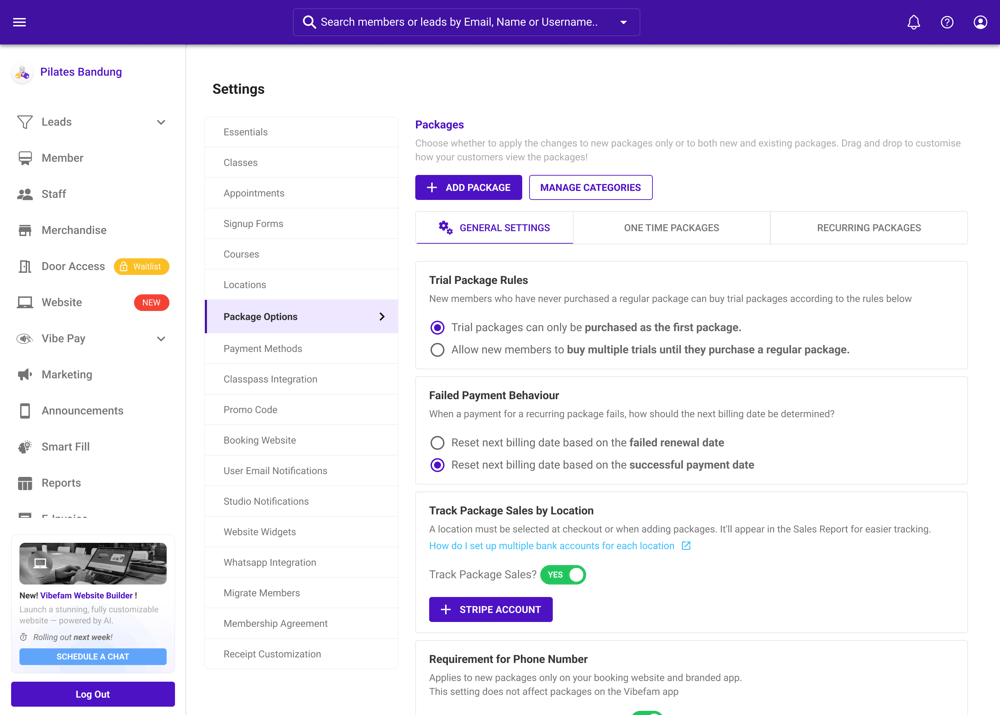
Step 2: Add Your Stripe Accounts
- Go to Configure > Payment Integration -> Click Add Stripe Account.
- Confirm and follow the prompts to complete Stripe account creation.
- Repeat for each location that requires a separate bank account.
ℹ️ Your Stripe accounts will appear in a table showing the Stripe Account ID, linked location, and setup status. If a setup is incomplete, you will see a Continue Setup option to resume at any time.
Step 3: Submit a Support Ticket
Once all your Stripe accounts have been created, submit a support ticket to the Vibefam support team with the following details:
- Your Stripe Account IDs and the corresponding location names
Example:
| Location | Stripe Account ID |
|---|---|
| Jurong West | acct_1x |
| Tampines | acct_2x |
Step 4: Our Team Gets to Work
Once your ticket is received, our team will:
- Verify that all Stripe accounts have been set up and KYC (identity verification) has been completed.
- Coordinate with our dev team to link each Stripe account to the correct location.
Step 5: You're All Set!
Our team will notify you once everything is live. From that point forward, payments collected at each location will be automatically routed to the corresponding Stripe account and bank.
Adding a New Location After Setup
If you add a new location after your multi-outlet Stripe setup is live, please note that payments for the new location will default to your primary Stripe account until a new Stripe account is linked. An alert will remind you of this when you add a new location. If you'd like to route payments for the new location to a different bank account, please refer to Step 2 above and submit a new support ticket.
Limitations & Unsupported Actions
The following actions are not supported in the current release. Please contact support if you need assistance. Our team will evaluate these on a case-by-case basis:
- Turning off Track Package Sales by Location once multi-Stripe is enabled
- Deleting a location that is linked to a Stripe account
- Moving a Stripe account from one location to another
- Migrating active recurring packages to a new Stripe account
Frequently Asked Questions
What happens to existing recurring packages?
Existing recurring packages will continue to renew at the Stripe account they were originally set up on. If you need to migrate recurring packages to a new Stripe account, please contact support. This is handled on a case-by-case basis.
Can members use the same saved card across all locations?
No. Payment methods are saved per Stripe account. If your locations use different Stripe accounts, members will need to save their card separately at each location.