---
title: Edit classes in bulk
description: Bulk edit lets you update multiple classes in one go, instead of opening them one by one.
---
[Skip to content](https://support.vibefam.com/support-knowledge/edit-classes-in-bulk#main-content)
English
Show submenu for translations
[Request for Support](https://support.vibefam.com/support-knowledge/kb-tickets/new?hsLang=en)

- Topics
Show submenu for Topics
- [Getting started](https://support.vibefam.com/support-knowledge/getting-started)
- [Classes, Courses & Appointments](https://support.vibefam.com/support-knowledge/classes-courses-appointments)
- [Packages](https://support.vibefam.com/support-knowledge/packages-payments#packages)
- [Payments](https://support.vibefam.com/support-knowledge/packages-payments#payments)
- [Booking & Scheduling](https://support.vibefam.com/support-knowledge/booking-scheduling)
- [Staff & Instructors](https://support.vibefam.com/support-knowledge/staff-instructors)
- [Members & Family Accounts](https://support.vibefam.com/support-knowledge/members-family-accounts)
- [Notifications & Marketing](https://support.vibefam.com/support-knowledge/notifications-marketing)
- [Integrations & Advanced Features](https://support.vibefam.com/support-knowledge/integrations-advanced-features)
- [Reports & Insights](https://support.vibefam.com/support-knowledge/reports-insights)
- [Studio FAQs](https://support.vibefam.com/studio-owners-faq)
- [Instructor](https://support.vibefam.com/instructors-sign-up)
- [Members](https://support.vibefam.com/members-guide)
Open main navigation
Close main navigation
- Topics
Show submenu for Topics
- [Getting started](https://support.vibefam.com/support-knowledge/getting-started)
- [Classes, Courses & Appointments](https://support.vibefam.com/support-knowledge/classes-courses-appointments)
- [Packages](https://support.vibefam.com/support-knowledge/packages-payments#packages)
- [Payments](https://support.vibefam.com/support-knowledge/packages-payments#payments)
- [Booking & Scheduling](https://support.vibefam.com/support-knowledge/booking-scheduling)
- [Staff & Instructors](https://support.vibefam.com/support-knowledge/staff-instructors)
- [Members & Family Accounts](https://support.vibefam.com/support-knowledge/members-family-accounts)
- [Notifications & Marketing](https://support.vibefam.com/support-knowledge/notifications-marketing)
- [Integrations & Advanced Features](https://support.vibefam.com/support-knowledge/integrations-advanced-features)
- [Reports & Insights](https://support.vibefam.com/support-knowledge/reports-insights)
- [Studio FAQs](https://support.vibefam.com/studio-owners-faq)
- [Instructor](https://support.vibefam.com/instructors-sign-up)
- [Members](https://support.vibefam.com/members-guide)
- English
Show submenu for translations
- [Request for Support](https://support.vibefam.com/support-knowledge/kb-tickets/new)
How can we help you?
- There are no suggestions because the search field is empty.
1. [Support Knowledge Centre](https://support.vibefam.com/support-knowledge?hsLang=en)
2. [Classes, Courses & Appointments](https://support.vibefam.com/support-knowledge/classes-courses-appointments?hsLang=en)
# Edit classes in bulk
## Bulk edit lets you update multiple classes in one go, instead of opening them one by one.
Made a mistake across a whole run of classes, or need to change something for many sessions at once — a new instructor, a room change, a different time? Bulk edit lets you update multiple classes in one go, instead of opening them one by one.
Navigate to the **Schedule** tab.
---
### **How bulk edit works**
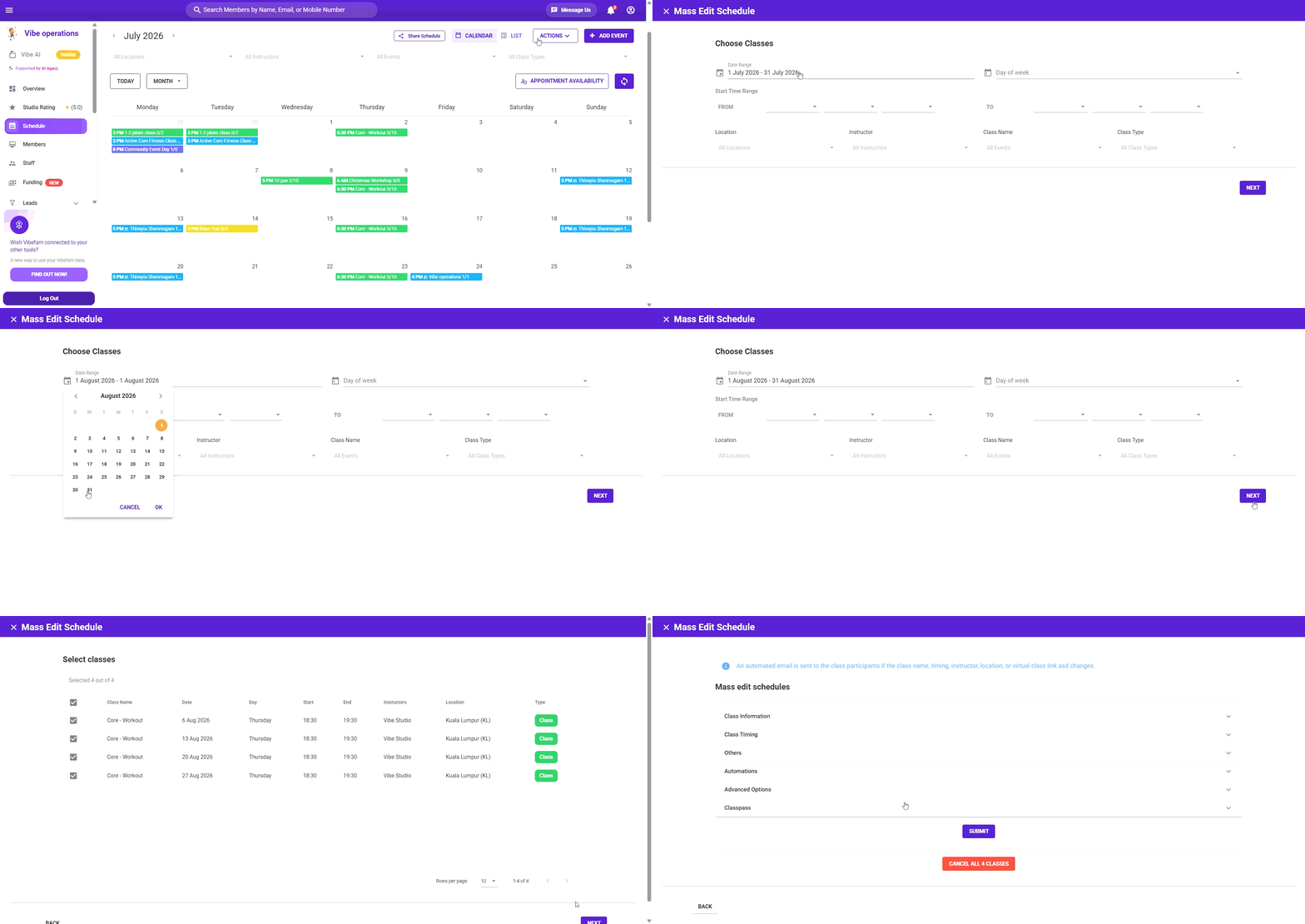
Bulk editing is a short guided flow: you **filter** to find the classes you want, **select** which of them to change, then **specify** the change and apply it.
#### **Step 1: Open the bulk editor**
Click **Actions → Edit Schedule**.
#### **Step 2: Filter to the classes you want**
Narrow down to the classes you intend to change using the filters:
- **Date Range**
- **Day of Week**
- **Time**
- **Class Name**
- **Instructor**
- **Location**
- **Class Type**
You don't need to fill in every filter — just the ones relevant to what you're looking for. For example, to move every Monday 6 PM Yoga class to a new instructor, filter by Day of Week, Time, and Class Name.
Click **Next** when your filters are set.
#### **Step 3: Select the classes to edit**
You'll see the classes that match your filters. Select the specific ones you want to change — this lets you exclude any matches you'd rather leave alone — then click **Next**.
#### **Step 4: Specify your changes**
Choose what to update for the selected classes, and enter the new value. The change applies to every class you selected.
#### **Step 5: Save**
Click **Submit** to apply your changes.
---
### **Tips**
- **Filter narrow, then deselect.** It's often quickest to filter broadly to catch everything, then untick the few classes you don't want to change at the selection step.
- **Check the match count before applying.** Bulk changes affect every selected class at once, so glance over the list at Step 3 to be sure you're not catching classes you didn't intend to.
- **Published classes with bookings** — if you're changing the time or instructor of classes members have already booked, make sure your members are notified. Check how this interacts with your notification settings before applying large changes.
- **Recurring classes** — bulk edit is the tool for changing many existing sessions at once. To change the underlying recurrence going forward, edit the class series itself.
---
*Remember to click **Submit** for any changes to be saved.*
- [Getting started](https://support.vibefam.com/support-knowledge/getting-started?hsLang=en)
- [Classes, Courses & Appointments](https://support.vibefam.com/support-knowledge/classes-courses-appointments?hsLang=en)
- [Packages & Payments](https://support.vibefam.com/support-knowledge/packages-payments?hsLang=en#main-content)
- [Packages](https://support.vibefam.com/support-knowledge/packages-payments?hsLang=en#packages)
- [Payments](https://support.vibefam.com/support-knowledge/packages-payments?hsLang=en#payments)
- [Booking & Scheduling](https://support.vibefam.com/support-knowledge/booking-scheduling?hsLang=en)
- [Staff & Instructors](https://support.vibefam.com/support-knowledge/staff-instructors?hsLang=en)
- [Members & Family Accounts](https://support.vibefam.com/support-knowledge/members-family-accounts?hsLang=en)
- [Notifications & Marketing](https://support.vibefam.com/support-knowledge/notifications-marketing?hsLang=en)
- [Integrations & Advanced Features](https://support.vibefam.com/support-knowledge/integrations-advanced-features?hsLang=en)
- [Reports & Insights](https://support.vibefam.com/support-knowledge/reports-insights?hsLang=en)
[](https://vibefam.com/)
Fitness management system for top fitness businesses
[mailto:help@vibefam.com](mailto:help@vibefam.com)
Copyright © 2026, Vibefam