---
title: Members Migration
description: This article walks through migrating your existing members and their active packages, so you transition without losing member details
---
[Skip to content](https://support.vibefam.com/support-knowledge/members-migration#main-content)
English
Show submenu for translations
[Request for Support](https://support.vibefam.com/support-knowledge/kb-tickets/new?hsLang=en)

- Topics
Show submenu for Topics
- [Getting started](https://support.vibefam.com/support-knowledge/getting-started)
- [Classes, Courses & Appointments](https://support.vibefam.com/support-knowledge/classes-courses-appointments)
- [Packages](https://support.vibefam.com/support-knowledge/packages-payments#packages)
- [Payments](https://support.vibefam.com/support-knowledge/packages-payments#payments)
- [Booking & Scheduling](https://support.vibefam.com/support-knowledge/booking-scheduling)
- [Staff & Instructors](https://support.vibefam.com/support-knowledge/staff-instructors)
- [Members & Family Accounts](https://support.vibefam.com/support-knowledge/members-family-accounts)
- [Notifications & Marketing](https://support.vibefam.com/support-knowledge/notifications-marketing)
- [Integrations & Advanced Features](https://support.vibefam.com/support-knowledge/integrations-advanced-features)
- [Reports & Insights](https://support.vibefam.com/support-knowledge/reports-insights)
- [Studio FAQs](https://support.vibefam.com/studio-owners-faq)
- [Instructor](https://support.vibefam.com/instructors-sign-up)
- [Members](https://support.vibefam.com/members-guide)
Open main navigation
Close main navigation
- Topics
Show submenu for Topics
- [Getting started](https://support.vibefam.com/support-knowledge/getting-started)
- [Classes, Courses & Appointments](https://support.vibefam.com/support-knowledge/classes-courses-appointments)
- [Packages](https://support.vibefam.com/support-knowledge/packages-payments#packages)
- [Payments](https://support.vibefam.com/support-knowledge/packages-payments#payments)
- [Booking & Scheduling](https://support.vibefam.com/support-knowledge/booking-scheduling)
- [Staff & Instructors](https://support.vibefam.com/support-knowledge/staff-instructors)
- [Members & Family Accounts](https://support.vibefam.com/support-knowledge/members-family-accounts)
- [Notifications & Marketing](https://support.vibefam.com/support-knowledge/notifications-marketing)
- [Integrations & Advanced Features](https://support.vibefam.com/support-knowledge/integrations-advanced-features)
- [Reports & Insights](https://support.vibefam.com/support-knowledge/reports-insights)
- [Studio FAQs](https://support.vibefam.com/studio-owners-faq)
- [Instructor](https://support.vibefam.com/instructors-sign-up)
- [Members](https://support.vibefam.com/members-guide)
- English
Show submenu for translations
- [Request for Support](https://support.vibefam.com/support-knowledge/kb-tickets/new)
How can we help you?
- There are no suggestions because the search field is empty.
1. [Support Knowledge Centre](https://support.vibefam.com/support-knowledge?hsLang=en)
2. [Members & Family Accounts](https://support.vibefam.com/support-knowledge/members-family-accounts?hsLang=en)
# Members Migration
Moving to Vibefam from another platform? This article walks through migrating your existing members and their active packages, so you transition without losing member details.
- [What can be migrated](https://support.vibefam.com/support-knowledge/members-migration#what_can_be_migrated)
- [Migration process](https://support.vibefam.com/support-knowledge/members-migration#migration_process)
- [CSV rules — read before you upload](https://support.vibefam.com/support-knowledge/members-migration#csv_rules_before_upload)
- [Migrating recurring memberships](https://support.vibefam.com/support-knowledge/members-migration#migrating_recurring_memberships)
- [The Migrated Members list](https://support.vibefam.com/support-knowledge/members-migration#migrated_members_list)
- [ClassPass migration](https://support.vibefam.com/support-knowledge/members-migration#classpass_migration)
- [FAQs](https://support.vibefam.com/support-knowledge/members-migration#FAQs)
Migration is usually done as a bulk upload from a report on your current platform. Our Sales team can support you through it — get in touch before you start.
---
### **What can be migrated**
- **Member name**
- **Member email**
- **Active packages**, including:
- Purchase date
- Expiry date
- Number of sessions remaining
- **Card details** — only if your members are on a recurring plan **and your current system uses Stripe** (see [Migrating recurring memberships](https://support.vibefam.com/support-knowledge/members-migration#recurring-memberships))
What **can't** be migrated: members' phone numbers (they're prompted for these at signup), and past class attendance history.
---
### **Migration process**
**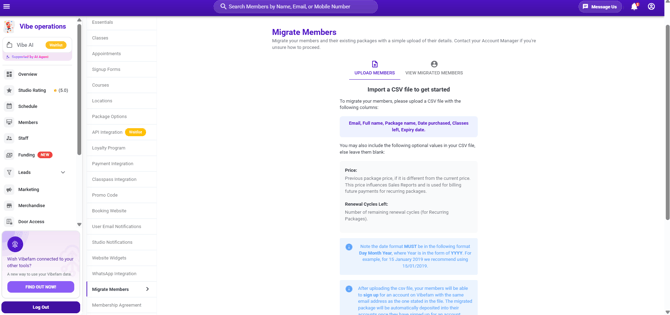**
1. Go to **Configure → Migrate Members**.
2. Click **Download Sample** to get the CSV template. The columns in the template are exactly the data you need to fill in.
3. Fill in the template with your member data. If you're coming from another booking system (Glofox, Punchpass, PushPress, Mindbody, Zingfit, Acuity, Fit by Wix, and others), you can usually export a report and copy the data across.
4. Save as a **CSV** and upload it under **Configure → Migrate Members**.
5. Optionally, turn on **Send Email to Members** to automatically email members when the upload completes.

6. A progress bar appears while the migration runs.
Stuck exporting data from your current system? Your account manager can help you find the right report.
---
### **CSV rules — read before you upload**
Most failed migrations come down to one of these. The template has six columns — **Email, Full name, Package name, Date purchased, Classes left, Expiry date** — and each has rules:
 **Package name — must be an EXACT match (case sensitive)** This is the most common cause of failure. The package name in your CSV must match a package name configured under **Configure → Package Options**, character for character.
- It doesn't matter whether the package is public or hidden, on or off — only the name has to match.
- *If your package is named "Trial Package," then "Trial package," "trial package," and "TrialPackage" will all **fail**.* Copy the name directly from Package Options to be safe.
**Date purchased — must be in the past** Use **DD/MM/YYYY** format. It can't be a future date.
**Classes left — must be fewer than the package's total** *Migrating a 10-class package? Classes left can't be 12.* It has to be within what the package allows.
**Expiry date — must be in the future** Use **DD/MM/YYYY** format. It can't be a past date.
**Migrating inactive members you still want on record?** Set the expiry date to **1 day after the migration date** with **0 classes left**. They can't book anything, but their records move into Vibefam so you keep the history.
**Don't rename the column headers.** Editing the headers is the other common failure — if you see *"Csv file format incorrect,"* your headers no longer match the template. Restore them exactly (case sensitive): Email, Full name, Package name, Date purchased, Classes left, Expiry date.
---
### **Migrating recurring memberships**
Recurring memberships carry extra requirements, because you're moving live payment relationships, not just records.
#### **Prerequisites**
1. **Your current provider must use Stripe** as their payment gateway. If they don't, recurring payment details can't be migrated.
2. **The member must have a Vibefam account with their card linked.** A recurring membership can only continue billing once the member has created their Vibefam account and added their card to their profile — so recurring members need to sign up before their renewal can process on Vibefam.
3. **Not all providers allow payment-data export.** The steps below tell you whether yours does.
#### **Copying your Stripe data across**
If you were using Stripe with your old provider, you copy your customer data from that Stripe account into your new Vibefam Stripe account:
1. Log in to your [Stripe dashboard](https://dashboard.stripe.com/) and open the **Customers** tab.

2. Click **Copy → Copy all Customers**.
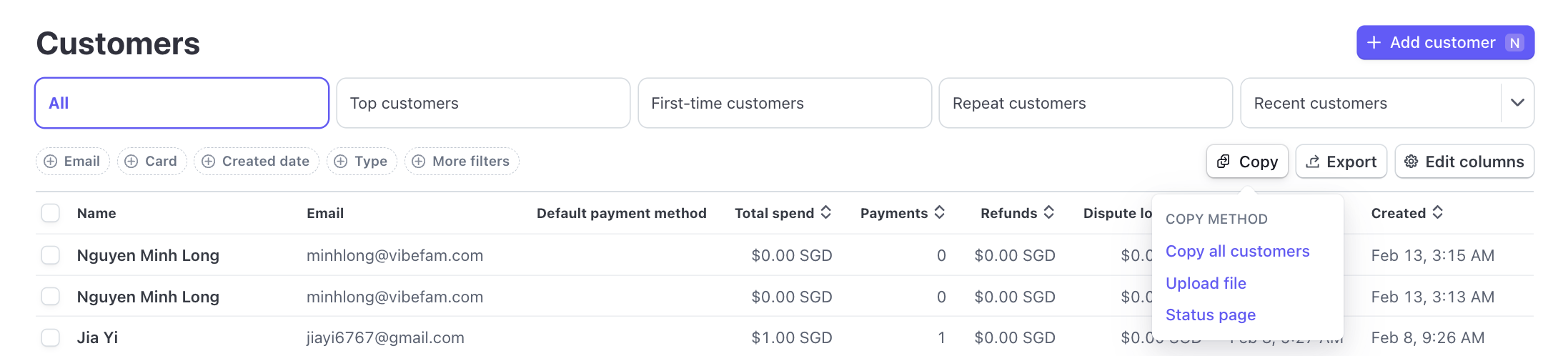
- If the **Copy** button is greyed out, your old provider has restricted payment data from being migrated. Speak to your Vibefam account manager about next steps.
3. Stripe's own guide to this is here: [Copy existing account data to a new Stripe account](https://support.stripe.com/questions/copy-existing-account-data-to-a-new-stripe-account).
Because this step needs your new Vibefam account ID, we recommend a **short call with your account manager** to do the copy together.

Finally, upload your migration sheet as in the [Migration process](https://support.vibefam.com/support-knowledge/members-migration#migration-process) above. Memberships renew according to the **Expiry Date** in your CSV.
---
### **The Migrated Members list**
After a successful migration, your members appear under **View Migrated Members**.
**The count here won't match how many you migrated — that's expected.** This list only shows members who **haven't yet created a Vibefam account**. It's a "still to sign up" list, not a record of everyone migrated.
Here's the flow:
1. A migrated member sits in the **Migrated Members** list.
2. When they **sign up** for a Vibefam account (using the email on the migration sheet), they move to the **Members** tab.
3. At that point they're **removed from the Migrated Members list** automatically.
So the Migrated Members list should shrink over time as people sign up — that's the migration working, not members going missing.
> **Members must sign up, not log in.** A migrated member has no password yet, so tell them to **sign up** with their migrated email — not log in. Trying to log in is the most common post-migration confusion.
To chase members who haven't signed up yet, click **Send Email** to send a customised reminder using the email editor. You can even include a step-by-step sign-up poster — there's a [Canva template](https://www.canva.com/design/DAF8okzf4fk/yhdCQZQu-9zLIMZfYkPw8w/edit) you can customise.
---
### **ClassPass migration**
If you use ClassPass, you migrate that connection separately:
1. Your studio must be a listed ClassPass partner.
2. Submit a migration request on the [ClassPass partner form](https://classpass.my.site.com/help/s/contact-partner-support): choose **"I need help with my third-party schedule integrator" → "I'm switching my scheduling platform."** You'll hear back within about 3 working days.

3. ClassPass will ask for your **venue ID**. In Vibefam, go to **Configure → ClassPass Integration**, enable the relevant locations, and copy the text in the grey box to send to your ClassPass account manager.
4. Give ClassPass your desired migration date.
**Important:** all existing ClassPass bookings made through your old provider are **cancelled after the migration date**. Decide your migration date early, and remove any classes after that date from ClassPass in advance to minimise disruption.
---
### **FAQs**
- **Can I migrate members' phone numbers?** No — but members are prompted to enter their number when they sign up on your Vibefam booking site, and can update it later in the app. So you keep phone records as long as members sign up after migration.
- **Can I migrate past classes members attended?** No, past attendance history from your previous provider isn't migrated.
- **I see "Some entries are invalid, please scroll down to view the errors."** The system lists the rows that need fixing. **Add 1 to the row number shown** — it doesn't count the header row, so an error on "row 1" means row 2 in your CSV. The cause is almost always one of the [CSV rules](https://support.vibefam.com/support-knowledge/members-migration#csv-rules) above — usually a package name that doesn't match exactly.
- **Why doesn't the Migrated Members count match how many I migrated?** Because that list only shows members who haven't signed up yet. See [The Migrated Members list](https://support.vibefam.com/support-knowledge/members-migration#migrated-members-list).
- **My members can't log in even with their migrated email.** They need to **sign up**, not log in — migrated members don't have a password until they create their account.
- [Getting started](https://support.vibefam.com/support-knowledge/getting-started?hsLang=en)
- [Classes, Courses & Appointments](https://support.vibefam.com/support-knowledge/classes-courses-appointments?hsLang=en)
- [Packages & Payments](https://support.vibefam.com/support-knowledge/packages-payments?hsLang=en#main-content)
- [Packages](https://support.vibefam.com/support-knowledge/packages-payments?hsLang=en#packages)
- [Payments](https://support.vibefam.com/support-knowledge/packages-payments?hsLang=en#payments)
- [Booking & Scheduling](https://support.vibefam.com/support-knowledge/booking-scheduling?hsLang=en)
- [Staff & Instructors](https://support.vibefam.com/support-knowledge/staff-instructors?hsLang=en)
- [Members & Family Accounts](https://support.vibefam.com/support-knowledge/members-family-accounts?hsLang=en)
- [Notifications & Marketing](https://support.vibefam.com/support-knowledge/notifications-marketing?hsLang=en)
- [Integrations & Advanced Features](https://support.vibefam.com/support-knowledge/integrations-advanced-features?hsLang=en)
- [Reports & Insights](https://support.vibefam.com/support-knowledge/reports-insights?hsLang=en)
[](https://vibefam.com/)
Fitness management system for top fitness businesses
[mailto:help@vibefam.com](mailto:help@vibefam.com)
Copyright © 2026, Vibefam