---
title: Scheduling Courses
description: Courses are for classes sold as a set — a fixed series of sessions members pay for upfront, rather than booking individually with package credits.
---
[Skip to content](https://support.vibefam.com/support-knowledge/scheduling-courses#main-content)
English
Show submenu for translations
[Request for Support](https://support.vibefam.com/support-knowledge/kb-tickets/new?hsLang=en)

- Topics
Show submenu for Topics
- [Getting started](https://support.vibefam.com/support-knowledge/getting-started)
- [Classes, Courses & Appointments](https://support.vibefam.com/support-knowledge/classes-courses-appointments)
- [Packages](https://support.vibefam.com/support-knowledge/packages-payments#packages)
- [Payments](https://support.vibefam.com/support-knowledge/packages-payments#payments)
- [Booking & Scheduling](https://support.vibefam.com/support-knowledge/booking-scheduling)
- [Staff & Instructors](https://support.vibefam.com/support-knowledge/staff-instructors)
- [Members & Family Accounts](https://support.vibefam.com/support-knowledge/members-family-accounts)
- [Notifications & Marketing](https://support.vibefam.com/support-knowledge/notifications-marketing)
- [Integrations & Advanced Features](https://support.vibefam.com/support-knowledge/integrations-advanced-features)
- [Reports & Insights](https://support.vibefam.com/support-knowledge/reports-insights)
- [Studio FAQs](https://support.vibefam.com/studio-owners-faq)
- [Instructor](https://support.vibefam.com/instructors-sign-up)
- [Members](https://support.vibefam.com/members-guide)
Open main navigation
Close main navigation
- Topics
Show submenu for Topics
- [Getting started](https://support.vibefam.com/support-knowledge/getting-started)
- [Classes, Courses & Appointments](https://support.vibefam.com/support-knowledge/classes-courses-appointments)
- [Packages](https://support.vibefam.com/support-knowledge/packages-payments#packages)
- [Payments](https://support.vibefam.com/support-knowledge/packages-payments#payments)
- [Booking & Scheduling](https://support.vibefam.com/support-knowledge/booking-scheduling)
- [Staff & Instructors](https://support.vibefam.com/support-knowledge/staff-instructors)
- [Members & Family Accounts](https://support.vibefam.com/support-knowledge/members-family-accounts)
- [Notifications & Marketing](https://support.vibefam.com/support-knowledge/notifications-marketing)
- [Integrations & Advanced Features](https://support.vibefam.com/support-knowledge/integrations-advanced-features)
- [Reports & Insights](https://support.vibefam.com/support-knowledge/reports-insights)
- [Studio FAQs](https://support.vibefam.com/studio-owners-faq)
- [Instructor](https://support.vibefam.com/instructors-sign-up)
- [Members](https://support.vibefam.com/members-guide)
- English
Show submenu for translations
- [Request for Support](https://support.vibefam.com/support-knowledge/kb-tickets/new)
How can we help you?
- There are no suggestions because the search field is empty.
1. [Support Knowledge Centre](https://support.vibefam.com/support-knowledge?hsLang=en)
2. [Classes, Courses & Appointments](https://support.vibefam.com/support-knowledge/classes-courses-appointments?hsLang=en)
# Scheduling Courses
Courses are for classes sold as a set — a fixed series of sessions members pay for upfront, rather than booking individually with package credits. Use them for terms, workshops, multi-day events, or guest-instructor series.
The key difference from a group class: members **purchase the course as a whole and pay upfront**, rather than booking each session with package credits. If you want members to book a single session using their package, use a [group class](https://support.vibefam.com/studio-owners-add-class-schedule?hsLang=en) instead.
- [When to use a course](https://support.vibefam.com/support-knowledge/scheduling-courses#when_to_use_course)
- [Create a course](https://support.vibefam.com/support-knowledge/scheduling-courses#create_course)
- [Course sessions and recurrence](https://support.vibefam.com/support-knowledge/scheduling-courses#course_session_recurrence)
- [Capacity, family bookings, and late enrolment](https://support.vibefam.com/support-knowledge/scheduling-courses#capacity_family_bookings_late_enrollment)
***Courses*** - Only available on the ***Professional Plan*** onwards
---
### **When to use a course**
A course suits anything that runs across a set of dates and is bought as one purchase:
- Term-based classes — e.g. an 8-week beginners' series
- Multi-day events or workshops
- Guest-instructor series
- Progressive programmes where sessions build on each other, common in dance schools and sports academies
---
### **Create a course**
**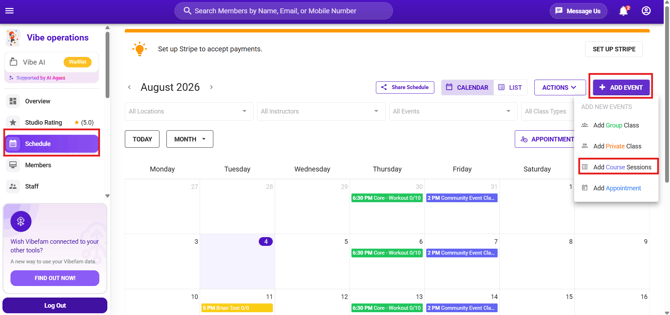**
1. Go to the **Schedule** tab.
2. Click **Add Event → Add Course Session**.
3. Fill in the course details (below).
4. Click **Submit** to save.
#### **Course details**
- **Course Name** — pick from your existing course types, or click **Add New Course Type** to create one. A course type has a name and a colour, and is used for filtering your schedule and reports — add as many or as few as you like.
- **Course Image** — optional. Use a 2:1 aspect ratio, max 5 MB (.jpg, .jpeg, or .png).
- **Price** — what members pay for the whole course, upfront.
- **Instructor** — who runs the course.
- **Location** — which venue it's held at.
- **Description** — members see this before signing up, so make it appealing.
- **Select Colour** — how the course appears on your calendar.
---
### **Course sessions and recurrence**
Under **Course Sessions**, you define the dates the course runs. Choose a **Frequency**:
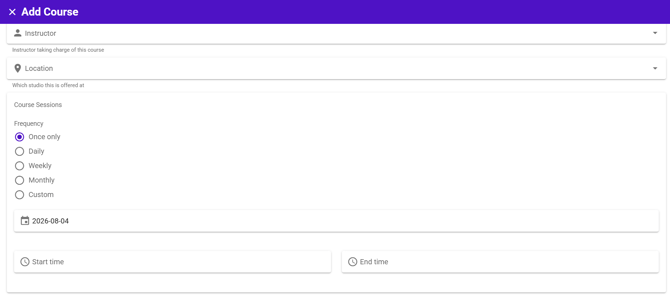
- **Once only** — a single session
- **Daily**
- **Weekly**
- **Monthly**
- **Custom** — for irregular dates that don't follow a fixed pattern
For repeating frequencies, set the **start date**, **start and end time**, and the **Number of recurring sessions**. Vibefam shows you a running summary — e.g. *"Course sessions will be scheduled monthly for 8 times in total"* — and builds the full session list for you, which you can review in the sessions table before saving.
#### **Release period**
Set how many days before the first session the course is published for booking — shown as *"Course is published X days before first course session"* (14 days by default). Members can book the course from that point onward.
---
### **Capacity, family bookings, and late enrolment**
Three more settings sit at the bottom of the form:
- **Capacity** — the maximum number of members who can join. Optional — leave it blank for unlimited.
- **Enable Family Bookings** — lets members book the course on behalf of their linked sub-accounts, so a parent can enrol their children. See [Setting up family accounts](https://support.vibefam.com/studio-owners-add-members-and-managing-family-member?hsLang=en).
- **Allow users to join the course after the course has started** — turn this **on** to let members enrol partway through (e.g. joining a term in week 3). Leave it **off** for progressive programmes where later sessions depend on the earlier ones.
Click **Submit** to create the course. It'll appear on your **Schedule** calendar alongside your classes — use the filter bar to show Courses specifically.
- [Getting started](https://support.vibefam.com/support-knowledge/getting-started?hsLang=en)
- [Classes, Courses & Appointments](https://support.vibefam.com/support-knowledge/classes-courses-appointments?hsLang=en)
- [Packages & Payments](https://support.vibefam.com/support-knowledge/packages-payments?hsLang=en#main-content)
- [Packages](https://support.vibefam.com/support-knowledge/packages-payments?hsLang=en#packages)
- [Payments](https://support.vibefam.com/support-knowledge/packages-payments?hsLang=en#payments)
- [Booking & Scheduling](https://support.vibefam.com/support-knowledge/booking-scheduling?hsLang=en)
- [Staff & Instructors](https://support.vibefam.com/support-knowledge/staff-instructors?hsLang=en)
- [Members & Family Accounts](https://support.vibefam.com/support-knowledge/members-family-accounts?hsLang=en)
- [Notifications & Marketing](https://support.vibefam.com/support-knowledge/notifications-marketing?hsLang=en)
- [Integrations & Advanced Features](https://support.vibefam.com/support-knowledge/integrations-advanced-features?hsLang=en)
- [Reports & Insights](https://support.vibefam.com/support-knowledge/reports-insights?hsLang=en)
[](https://vibefam.com/)
Fitness management system for top fitness businesses
[mailto:help@vibefam.com](mailto:help@vibefam.com)
Copyright © 2026, Vibefam