---
title: Setting up your studio account profile
description: Setting up your studio profile such as studio logo, studio image and studio descriptions
---
[Skip to content](https://support.vibefam.com/support-knowledge/seting-up-your-studio-account-profile#main-content)
English
Show submenu for translations
[Request for Support](https://support.vibefam.com/support-knowledge/kb-tickets/new?hsLang=en)

- Topics
Show submenu for Topics
- [Getting started](https://support.vibefam.com/support-knowledge/getting-started)
- [Classes, Courses & Appointments](https://support.vibefam.com/support-knowledge/classes-courses-appointments)
- [Packages](https://support.vibefam.com/support-knowledge/packages-payments#packages)
- [Payments](https://support.vibefam.com/support-knowledge/packages-payments#payments)
- [Booking & Scheduling](https://support.vibefam.com/support-knowledge/booking-scheduling)
- [Staff & Instructors](https://support.vibefam.com/support-knowledge/staff-instructors)
- [Members & Family Accounts](https://support.vibefam.com/support-knowledge/members-family-accounts)
- [Notifications & Marketing](https://support.vibefam.com/support-knowledge/notifications-marketing)
- [Integrations & Advanced Features](https://support.vibefam.com/support-knowledge/integrations-advanced-features)
- [Reports & Insights](https://support.vibefam.com/support-knowledge/reports-insights)
- [Studio FAQs](https://support.vibefam.com/studio-owners-faq)
- [Instructor](https://support.vibefam.com/instructors-sign-up)
- [Members](https://support.vibefam.com/members-guide)
Open main navigation
Close main navigation
- Topics
Show submenu for Topics
- [Getting started](https://support.vibefam.com/support-knowledge/getting-started)
- [Classes, Courses & Appointments](https://support.vibefam.com/support-knowledge/classes-courses-appointments)
- [Packages](https://support.vibefam.com/support-knowledge/packages-payments#packages)
- [Payments](https://support.vibefam.com/support-knowledge/packages-payments#payments)
- [Booking & Scheduling](https://support.vibefam.com/support-knowledge/booking-scheduling)
- [Staff & Instructors](https://support.vibefam.com/support-knowledge/staff-instructors)
- [Members & Family Accounts](https://support.vibefam.com/support-knowledge/members-family-accounts)
- [Notifications & Marketing](https://support.vibefam.com/support-knowledge/notifications-marketing)
- [Integrations & Advanced Features](https://support.vibefam.com/support-knowledge/integrations-advanced-features)
- [Reports & Insights](https://support.vibefam.com/support-knowledge/reports-insights)
- [Studio FAQs](https://support.vibefam.com/studio-owners-faq)
- [Instructor](https://support.vibefam.com/instructors-sign-up)
- [Members](https://support.vibefam.com/members-guide)
- English
Show submenu for translations
- [Request for Support](https://support.vibefam.com/support-knowledge/kb-tickets/new)
How can we help you?
- There are no suggestions because the search field is empty.
1. [Support Knowledge Centre](https://support.vibefam.com/support-knowledge?hsLang=en)
2. [Getting started](https://support.vibefam.com/support-knowledge/getting-started?hsLang=en)
# Setting up your studio account profile
## Set up the essentials like your studio logo, studio image, and studio description
1. Click on **Configure** and you will land on the **Essentials** page.
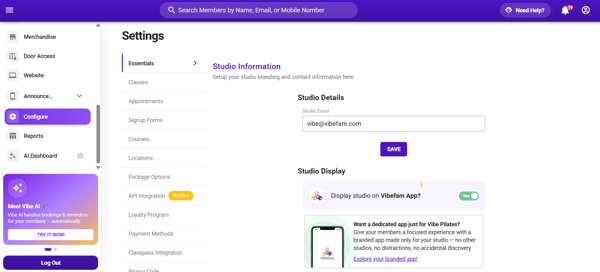
2. Under **Studio Email**, confirm that your registered email address is entered correctly. If it is incorrect, return to this page to update it.
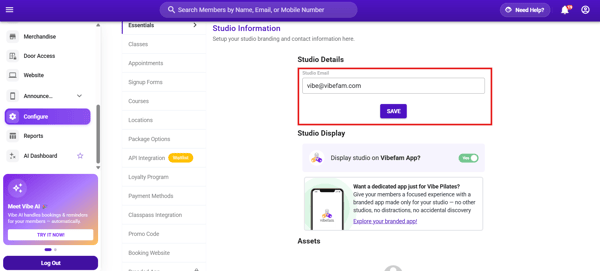
***Take Note:** The email address must be a **new email address** and has never been registered with the system, as the system will reject any email address that has been registered with the system before.*
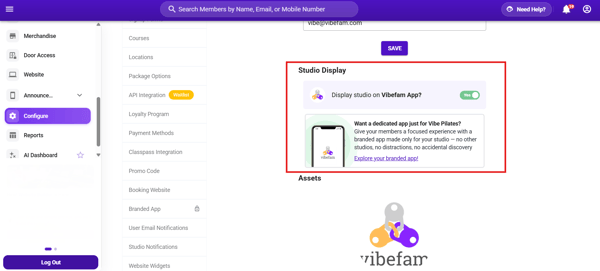
3. By default, your studio is searchable on the Vibefam app. To hide your studio from the app, toggle the visibility switch off.
4. Under "Assets" click on "Logo" to upload your **studio logo**.
- Your studio logo will appear on your members receipt.
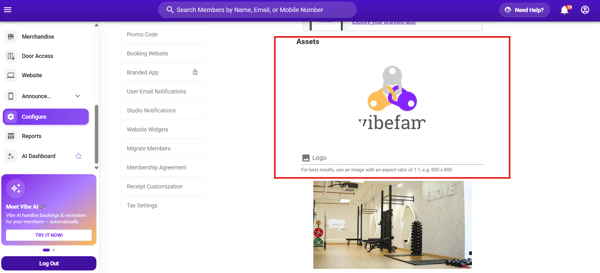
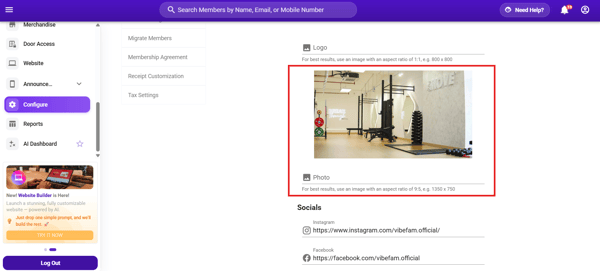
5. To **upload your studio image**. Under "Assets" click on "Photo" to upload your studio photo.
- Your studio photo will appear as a banner image in the Vibefam app.
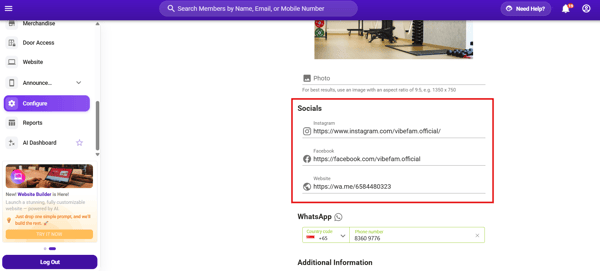
6. To update your **studio social channels**, such as your Instagram, Facebook page, and your website link . Go to the "Socials" section under Essentials and input your social links.
- Be sure to also include the "http" to ensure your social link is working.
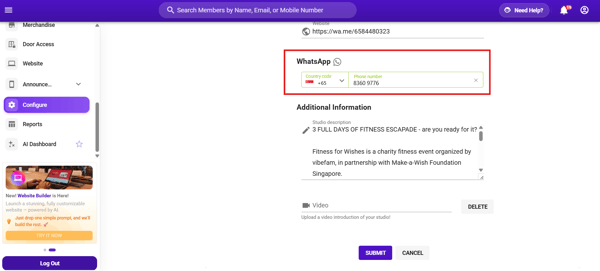
7. You can update your **studio WhatsApp number** by inserting your WhatsApp number, and there will be a small WhatsApp icon at the bottom of the booking website.
This allows members to contact your studio directly via WhatsApp.
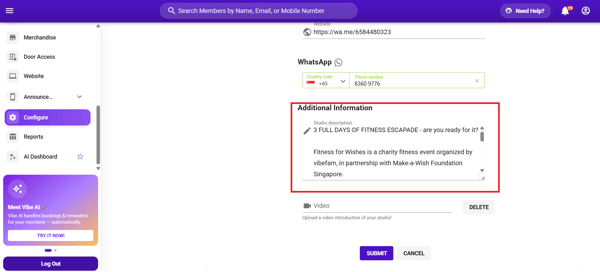
8. To update your studio description, go to **Additional Information** and enter a short description under **Studio Description** to introduce your studio.
9. *Optional: * If you have a **studio introductory video**. You can upload your studio video under the "video" section.
- The video will be displayed whenever a member searches for your studio on the Vibefam app.
- [Getting started](https://support.vibefam.com/support-knowledge/getting-started?hsLang=en)
- [Classes, Courses & Appointments](https://support.vibefam.com/support-knowledge/classes-courses-appointments?hsLang=en)
- [Packages & Payments](https://support.vibefam.com/support-knowledge/packages-payments?hsLang=en#main-content)
- [Packages](https://support.vibefam.com/support-knowledge/packages-payments?hsLang=en#packages)
- [Payments](https://support.vibefam.com/support-knowledge/packages-payments?hsLang=en#payments)
- [Booking & Scheduling](https://support.vibefam.com/support-knowledge/booking-scheduling?hsLang=en)
- [Staff & Instructors](https://support.vibefam.com/support-knowledge/staff-instructors?hsLang=en)
- [Members & Family Accounts](https://support.vibefam.com/support-knowledge/members-family-accounts?hsLang=en)
- [Notifications & Marketing](https://support.vibefam.com/support-knowledge/notifications-marketing?hsLang=en)
- [Integrations & Advanced Features](https://support.vibefam.com/support-knowledge/integrations-advanced-features?hsLang=en)
- [Reports & Insights](https://support.vibefam.com/support-knowledge/reports-insights?hsLang=en)
[](https://vibefam.com/)
Fitness management system for top fitness businesses
[mailto:help@vibefam.com](mailto:help@vibefam.com)
Copyright © 2026, Vibefam