
Step 1: Open the Vibefam Website Builder
Log in to your Vibefam account and navigate to the Website Builder page. You’ll see a prompt where you can provide instructions and information for the AI.
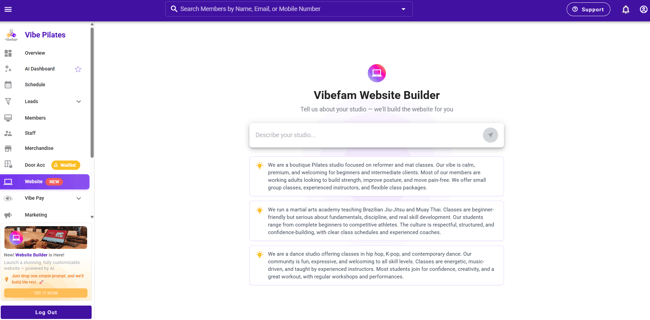
Step 2: Describe Your Studio to the AI
Enter key details about your studio, such as:
-
Your brand or studio vibe
-
What you offer (classes, packages, memberships)
-
How your branches operate and how members engage with your studio
Once done, click the button to submit this information to the AI.
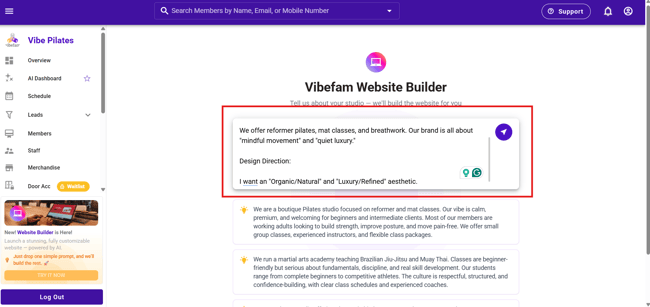
Step 3: Let the AI Generate Your Website
Vibefam’s AI will begin creating your website. During this process, the AI automatically pulls information from your Vibefam studio profile, including:
-
Classes and schedules
-
Memberships and packages
-
Studio locations and amenities
-
Logos and branding assets
This ensures the website matches your brand and what your members are looking for.
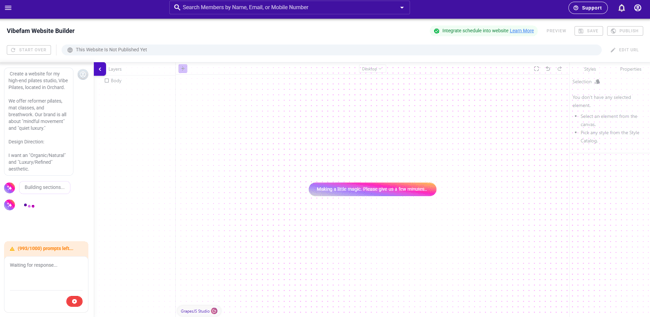
Step 4: Edit Your Website (Optional)
Once the website is generated, you’ll see an editing panel on the left. You can:
-
Make edits directly using the editor
-
Drag and drop sections
-
Adjust or rewrite content if needed
You’re not locked into the AI version—everything is fully editable.
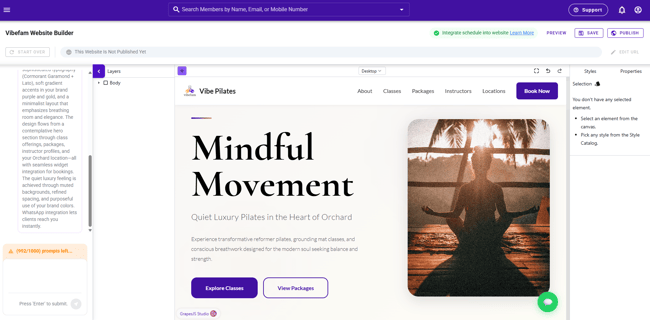
Step 5: Preview Your Website
Before going live, click Preview to see how your website looks.
Your website may include sections such as:
-
About your studio
-
Classes and offerings
-
Amenities
-
Instructors
-
Memberships and packages
-
Studio locations
Members can easily navigate through these sections based on what they’re interested in.
In addition, do check on the Mobile Compatibility view as well.
Your website is fully mobile-friendly. Members can view all details seamlessly on their phones, just like on desktop.
Step 6: Publish Your Website & Start Accepting Bookings/Payments
When you’re ready, click Publish.
Your website will go live immediately at your custom Vibefam domain (e.g. vibepilates.vibefam.com).
Once published, members can:
-
Visit your website instantly
-
View your offerings
-
Book classes
-
Make payments
All bookings and payments are fully integrated with Vibefam.
Step 1: Purchase Your Domain (via Namecheap)
We recommend Namecheap for reliability and ease of use.
- Navigate to: https://www.namecheap.com/domains/registration
- Search your desired domain
- Example:
vibefamstudio.com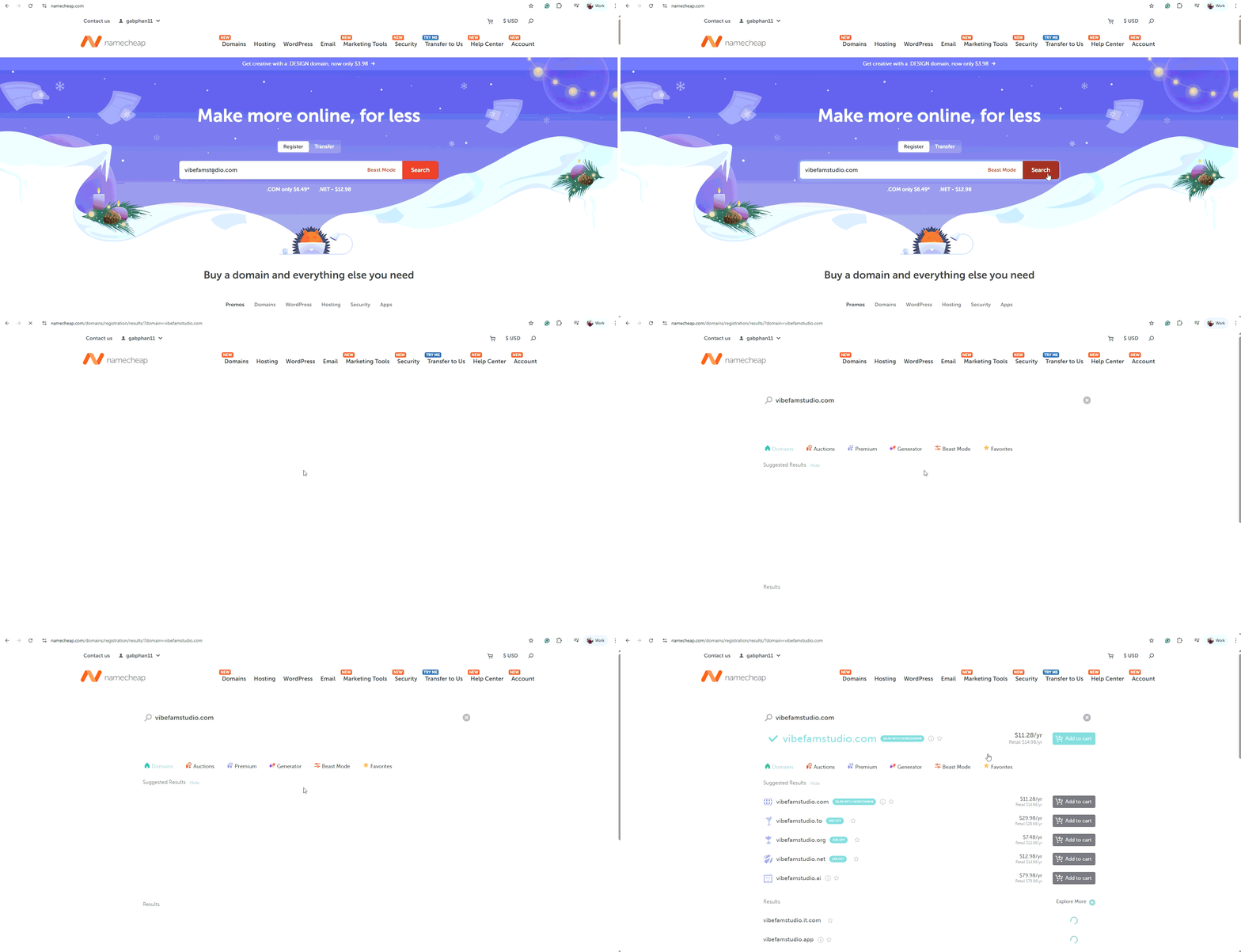
- Example:
- Check availability & pricing
- If available, click Add to Cart
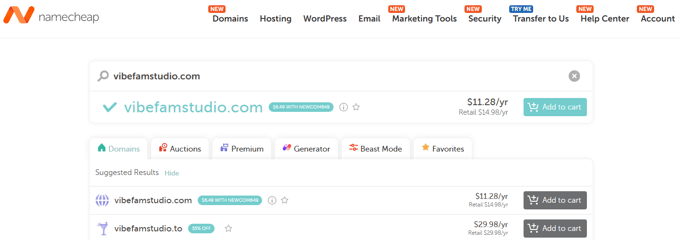
- The price is dependent on the popularity of your website, and may be higher or lower than the price you see above.
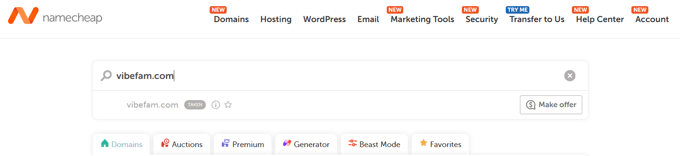
- Sometimes, it may already be taken, and it will look like the picture below, and you can try a different URL, or a different ending (such as .net, .org, .co)
- If available, click Add to Cart
Step 2: Checkout & Register
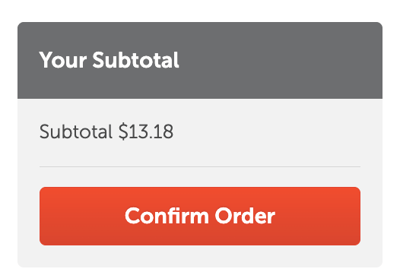
- Once you have added the domain to the cart, you will see the example below:
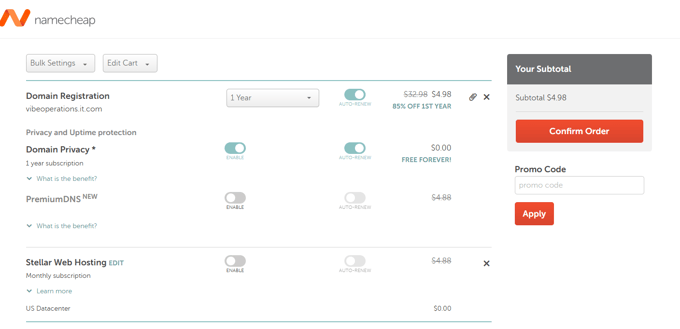
- Make sure domain registration and domain privacy is switched on.

- Click Confirm Order and Proceed
-
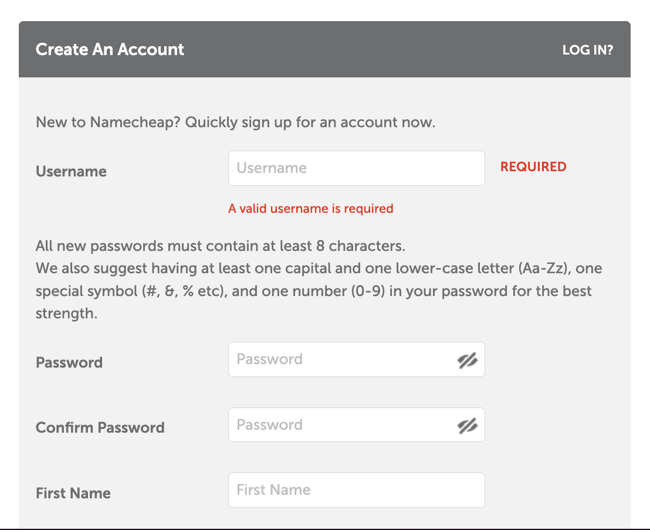
Next, proceed to create an account.
- Create / Log in to your Namecheap account
- Create / Log in to your Namecheap account
-
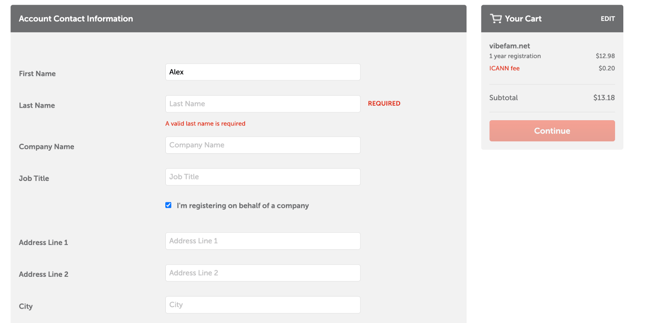
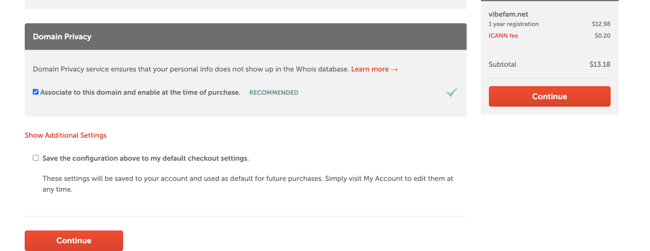
Click next, and you will see a summary. Scroll down and click “Continue”.
- Enter payment details
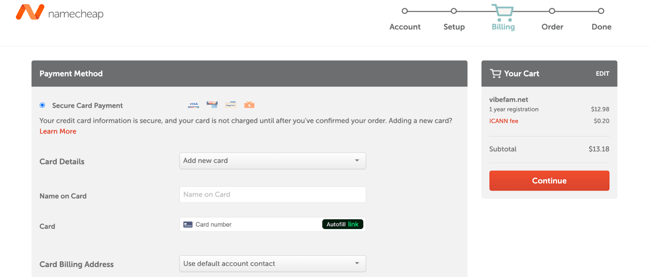
-
Ensure auto-renew is turned on for Domain Registration and Domain Privacy
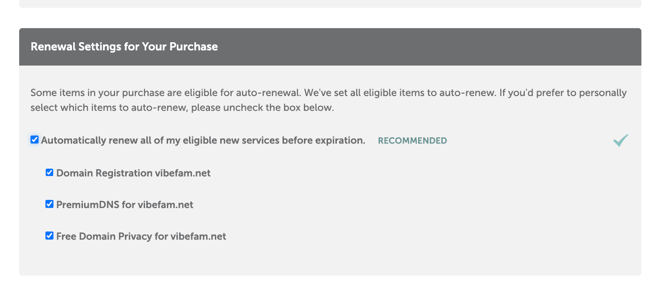
-
Ensure this is checked as well
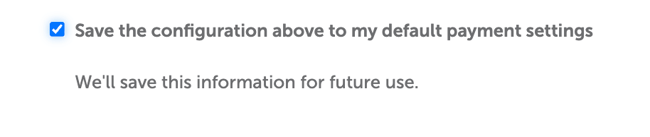
- Create / Log in to your Namecheap account
Step 3: Point Domain to Vibefam
- Now go back to https://ap.www.namecheap.com/domains/list/ and click on the domain you just purchased.
-
Click your purchased domain → Manage

- Open Advanced DNS

-
Click on Add New Record
- Add first record

- Choose A record, then type “@” in the second textbox, and 76.76.21.21 in the third textbox
- Click tick to confirm - Add second record

- Click Add New Record again to add another record
- Now choose A record, type “www” in the second textbox, and 76.76.21.21 in the third textbox |
|
- Click tick to confirm
- Add first record
-
Verify the final outcome looks like this:

Step 4: Inform Vibefam
Once DNS is set, submit your domain to us so we can complete the connection.
📩 Send us:
-
Your purchased domain (e.g.,
mystudio.com)
👉 Contact Support: [Vibefam Support]
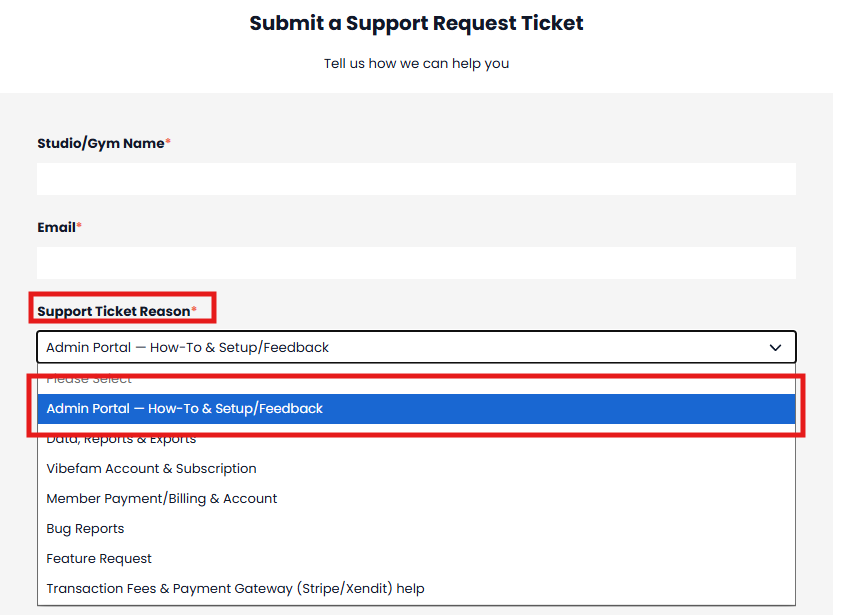
Our team will finalize the linking on our end.