
The General Settings tab controls the rules that apply across all your packages — trial eligibility, failed payment handling, sales tracking, and booking windows. Individual packages are created under the One Time Packages and Recurring Packages tabs.
Navigate to Configure → Package Options → General Settings.
Trial Package Rules
Controls how many trial packages a new member can buy before they commit to a regular package. This applies only to members who have never purchased a regular package.
| Option | What it does |
|---|---|
| Trial packages can only be purchased as the first package | A member can buy one trial only. After that, trials are hidden from them. |
| Allow new members to buy multiple trials until they purchase a regular package | A member can buy trials repeatedly until they purchase a regular package, at which point trials become unavailable to them. |
Choose the first option if you want trials to be a strict one-time offer. Choose the second if you run several different intro offers and want new members to sample more than one.

Failed Payment Behaviour
Applies to recurring packages only. When a member's renewal payment fails and is later recovered, this setting decides what the next billing date becomes.
| Option | What it does |
|---|---|
| Reset the next billing date based on the failed renewal date | The billing cycle stays anchored to the original renewal date. The member keeps their existing billing day even if payment was recovered late. |
| Reset the next billing date based on the successful payment date | The billing cycle shifts to the date the payment actually went through. The member's billing day moves accordingly. |

Track Package Sales by Location
When enabled, a location must be selected at checkout or whenever a package is added manually by an admin. The location is then recorded against the sale and appears in your Sales Report, so you can see revenue broken down by venue.
This is useful if you run more than one venue and want to attribute revenue accurately, or if each location has its own bank account.
Before you can assign a Stripe account to a location, you need a default Stripe account connected. If the Stripe Account button is greyed out, go to Configure → Payment Integration and complete your default Stripe setup first, then return here.

Requirement for Phone Number
When enabled, members must provide a phone number before they can purchase a package.
Two important scopes to note:
- It applies to new packages only — packages already purchased are unaffected.
- It applies to your booking website and branded app only. Purchases made through the Vibefam app are not affected by this setting.
Enable this if you rely on phone numbers for class reminders, WhatsApp communication, or emergency contact.

Booking Window
Controls how far in advance members can book a class. Use it to give premium package holders early access to popular classes.
Default Window — applies to all packages that don't have a custom window. For example, with a 14-day window, if a class starts on 23 Aug, members can book from 9 Aug at 12:00 AM onward.
Custom Window — lets you assign a longer (or shorter) window to specific packages. Click Add Custom Booking Window, name the rule, set the number of days, and select which packages it applies to. A member holding one of those packages books using the custom window instead of the default.
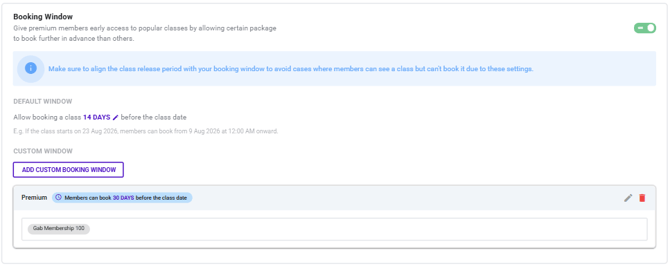
Align this with your class release period. If classes are only published 7 days ahead but your booking window is 30 days, members won't see anything to book. Your booking window should be equal to or shorter than the period you publish classes for.