
A Custom Charge lets you bill a member for a one-off amount that isn't a package, course, or piece of merchandise — a late fee, a workshop, an event, an equipment charge, a private session, or anything else outside your normal offerings. You can record it as a cash/offline payment, or charge the member's saved card.
Navigate to Members, then open the member's profile.
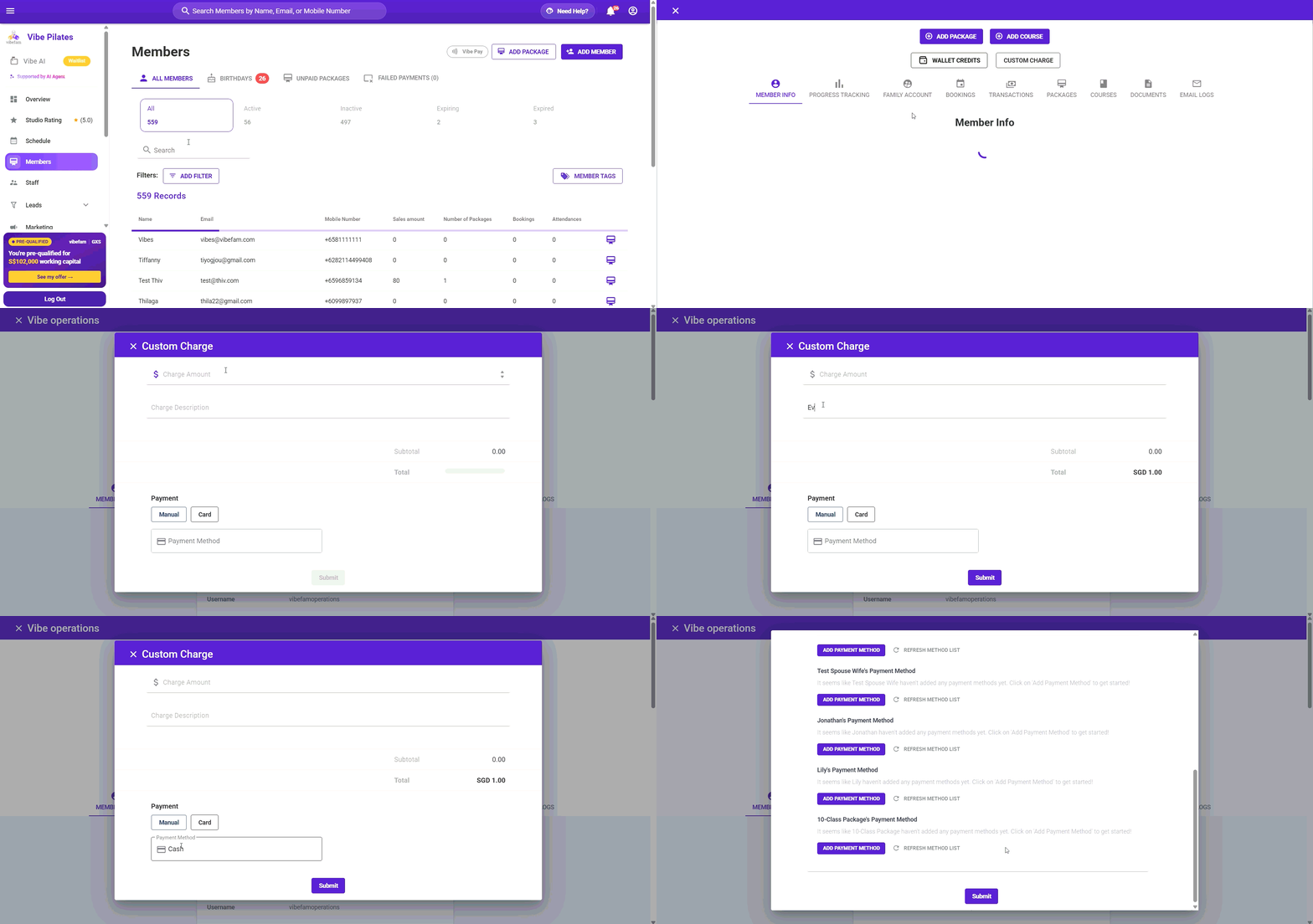
Creating a custom charge
- Go to Members and open the profile of the member you want to charge.
- Click Custom Charge (next to Add Package, Add Course, and Wallet Credits).
- Enter the Charge Amount.
- Add a Charge Description — e.g. Workshop, Event, Late fee. This is what identifies the charge on the member's record, so make it clear.
- The Subtotal and Total update as you type, in your studio's currency.
- Choose how it's paid (below).
- Click Submit.
Manual vs. Card
Under Payment, choose how the charge is settled:
Manual
Use Manual to record a payment the member makes outside Vibefam — for example cash at the front desk, or a bank transfer.
- Select the Payment Method (e.g. Cash).
- Vibefam records the charge against the member; it doesn't move any money itself.
Manual is for keeping your records complete when a member pays you directly.
Card
Use Card to charge the member's saved card through Vibefam.
- You'll see the payment methods saved on the member's profile (and their family sub-accounts, if any).
- Select the card to charge.
The member needs a saved card for this. If the profile shows "…haven't added any payment methods yet," there's no card to charge. Click Add Payment Method to add one first, or use Manual if they're paying another way.
Where the charge appears
Once submitted, the custom charge is recorded on the member's profile under the Transactions tab, and appears in your studio's sales records like any other payment.
Limitation: Currently receipt generation is not supported for this feature.
Tips
- Write a clear description. "Custom charge" on a receipt confuses members; "Reformer workshop – 12 Aug" doesn't. The description is what they'll see and what you'll recognise later.
- Manual doesn't collect money — it only records that a payment happened. Make sure you've actually received the cash or transfer before recording it.
- Card needs consent and a saved card. Only charge a card the member has agreed to be charged, and remember the card must already be saved to their profile.
- For refunds or corrections, check the member's Transactions tab rather than creating a second offsetting charge.