
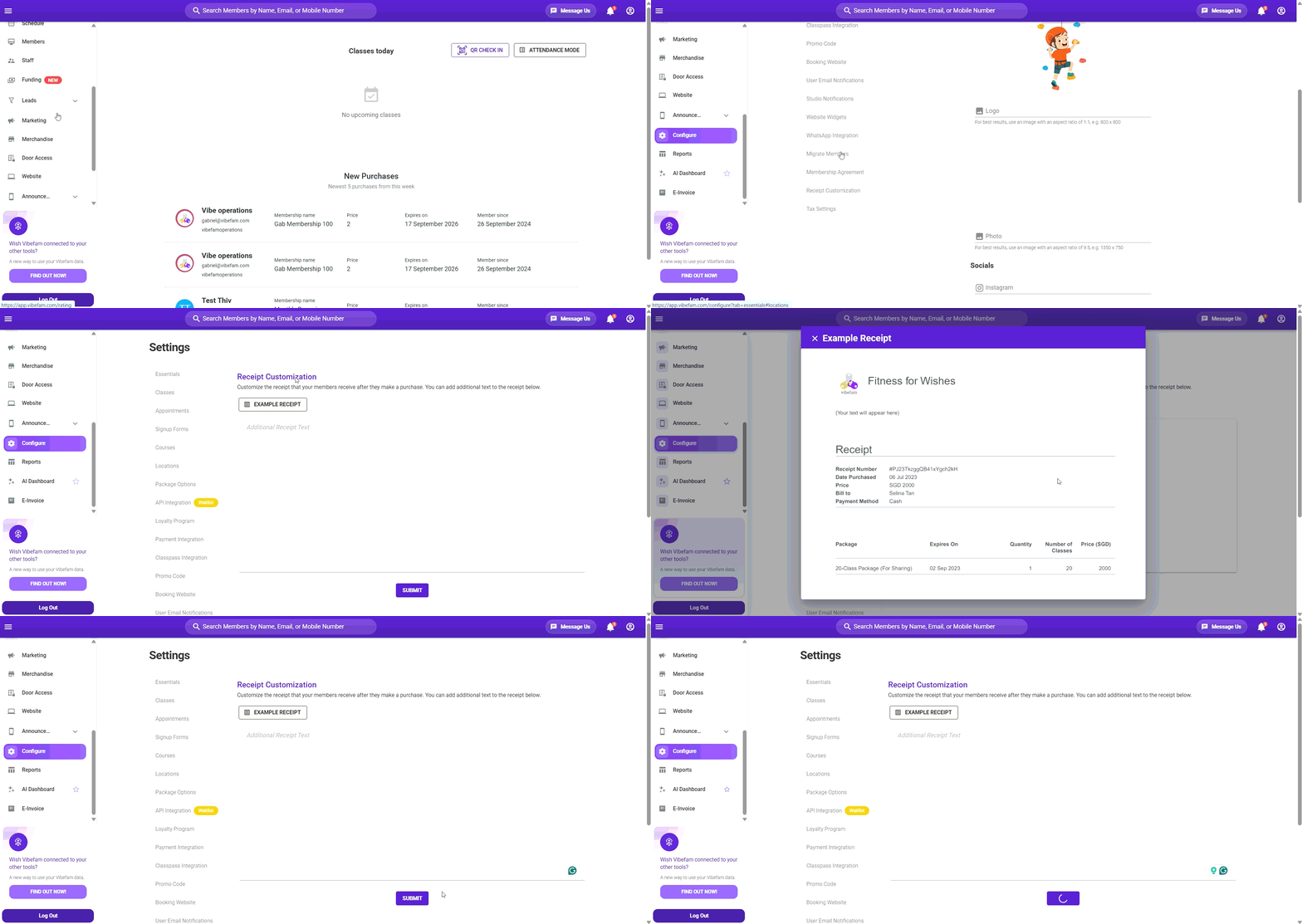
Every member receives a receipt after making a purchase. You can add your own text to that receipt — a thank-you note, a reminder of your policies, or details your members often ask about.
Navigate to Configure → Receipt Customization.
What you can and can't change
You can add your own text to the receipt.
You can't change the receipt template itself. The layout, and the purchase details Vibefam fills in automatically — package name, price, date, member details — are fixed. Your text is added alongside them.
Think of it as a free-text space on a standard receipt, rather than a receipt builder.
Adding your text
- Go to Configure → Receipt Customization.
- Enter the text you want to appear on your members' receipts.
- Click Submit to save.
Changes apply to receipts issued from that point onward. Receipts already sent to members are not updated.
What to put in it
| Use it for | Example |
|---|---|
| A thank-you note | A short line of appreciation makes an automated email feel like it came from your studio. |
| Next steps | Tell members how to book their first class — the most common question after a purchase. |
| Policy reminders | Cancellation windows, late arrival rules, or expiry terms, so members see them without digging. |
| Contact details | Where to reach you if something's wrong with the purchase. |
| Business details | Your registered business name, address, or registration number, if your members need them for expense claims. |
| Social handles | A light prompt to follow your studio. |
Keep it short. A receipt is a transactional email — a few lines are read, several paragraphs are not.
If you need tax or invoice details on your receipts, check Configure → Tax Settings first. This free-text field is not a substitute for proper tax configuration, and adding a tax number as plain text may not meet invoicing requirements in your market.