
Made a mistake across a whole run of classes, or need to change something for many sessions at once — a new instructor, a room change, a different time? Bulk edit lets you update multiple classes in one go, instead of opening them one by one.
Navigate to the Schedule tab.
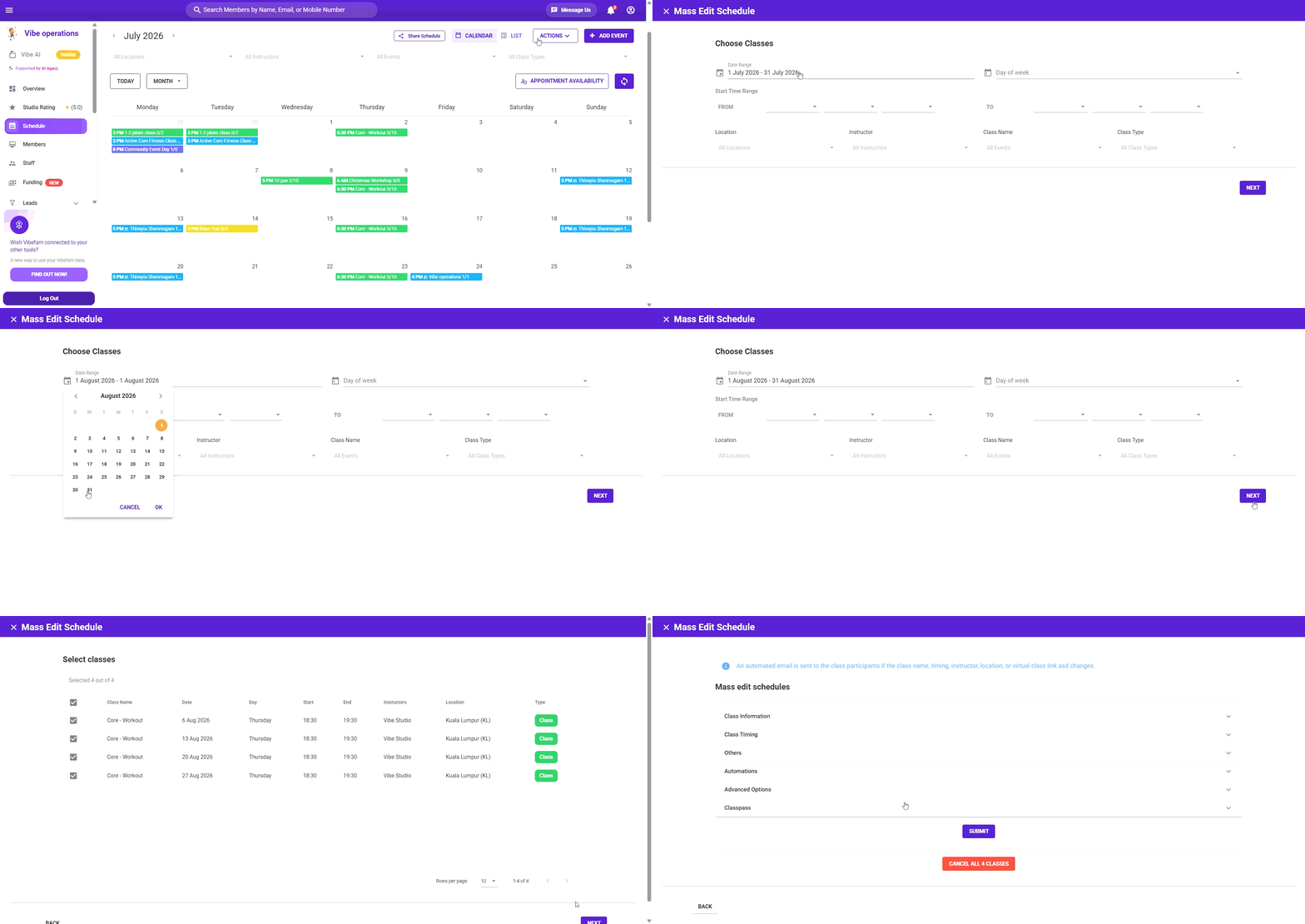
How bulk edit works
Bulk editing is a short guided flow: you filter to find the classes you want, select which of them to change, then specify the change and apply it.
Step 1: Open the bulk editor
Click Actions → Edit Schedule.
Step 2: Filter to the classes you want
Narrow down to the classes you intend to change using the filters:
- Date Range
- Day of Week
- Time
- Class Name
- Instructor
- Location
- Class Type
You don't need to fill in every filter — just the ones relevant to what you're looking for. For example, to move every Monday 6 PM Yoga class to a new instructor, filter by Day of Week, Time, and Class Name.
Click Next when your filters are set.
Step 3: Select the classes to edit
You'll see the classes that match your filters. Select the specific ones you want to change — this lets you exclude any matches you'd rather leave alone — then click Next.
Step 4: Specify your changes
Choose what to update for the selected classes, and enter the new value. The change applies to every class you selected.
Step 5: Save
Click Submit to apply your changes.
Tips
- Filter narrow, then deselect. It's often quickest to filter broadly to catch everything, then untick the few classes you don't want to change at the selection step.
- Check the match count before applying. Bulk changes affect every selected class at once, so glance over the list at Step 3 to be sure you're not catching classes you didn't intend to.
- Published classes with bookings — if you're changing the time or instructor of classes members have already booked, make sure your members are notified. Check how this interacts with your notification settings before applying large changes.
- Recurring classes — bulk edit is the tool for changing many existing sessions at once. To change the underlying recurrence going forward, edit the class series itself.
Remember to click Submit for any changes to be saved.