
Some studios let one member's package credits be used by another person — a shared class pack between friends, a couple, or family members. As an admin, you enable sharing on the package itself, then allocate credits to specific members from the member's profile.
Sharing works in two stages:
- Turn on sharing for the package and set how many other members it can be shared with (Configure → Package Options).
- Allocate credits from the owner's profile to the members you want to share with (Members → Packages).
Step 1: Enable sharing on the package
Sharing is off by default. It's a per-package setting, so you only need to enable it on the packages you actually want to be shareable.
- In the left sidebar, go to Configure.
- Open Package Options.
- Select the One Time Packages or Recurring Packages tab, depending on where your package sits.
- Find the package you want to make shareable and click Edit Package.
- Scroll to the bottom of the package form and expand Advanced Options using the + icon.
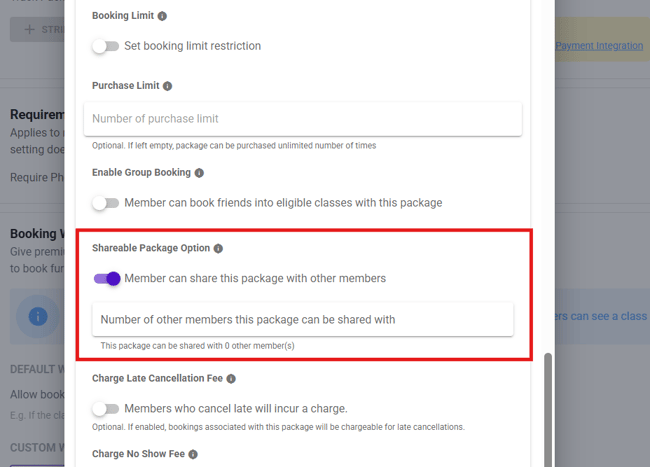
- Under Shareable Package Option, turn on Member can share this package with other members.
- A new field appears: Number of other members this package can be shared with. Enter the maximum number of people the package owner can share credits with. The helper text below updates to confirm the value — for example, This package can be shared with 2 other member(s).
- Click Submit.
Note on existing packages: the Edit Package button has a dropdown arrow next to it. Use it to choose whether your change applies to new packages only or to both new and already-purchased packages. If members have already bought this package and you want their existing packages to become shareable, choose the option that applies to purchased packages as well.
You can set the same option while creating a package — the Advanced Options section appears at the bottom of the Add a new package form too.
Step 2: Share credits with another member
Once the package is shareable, credits are allocated from the profile of the member who owns the package.
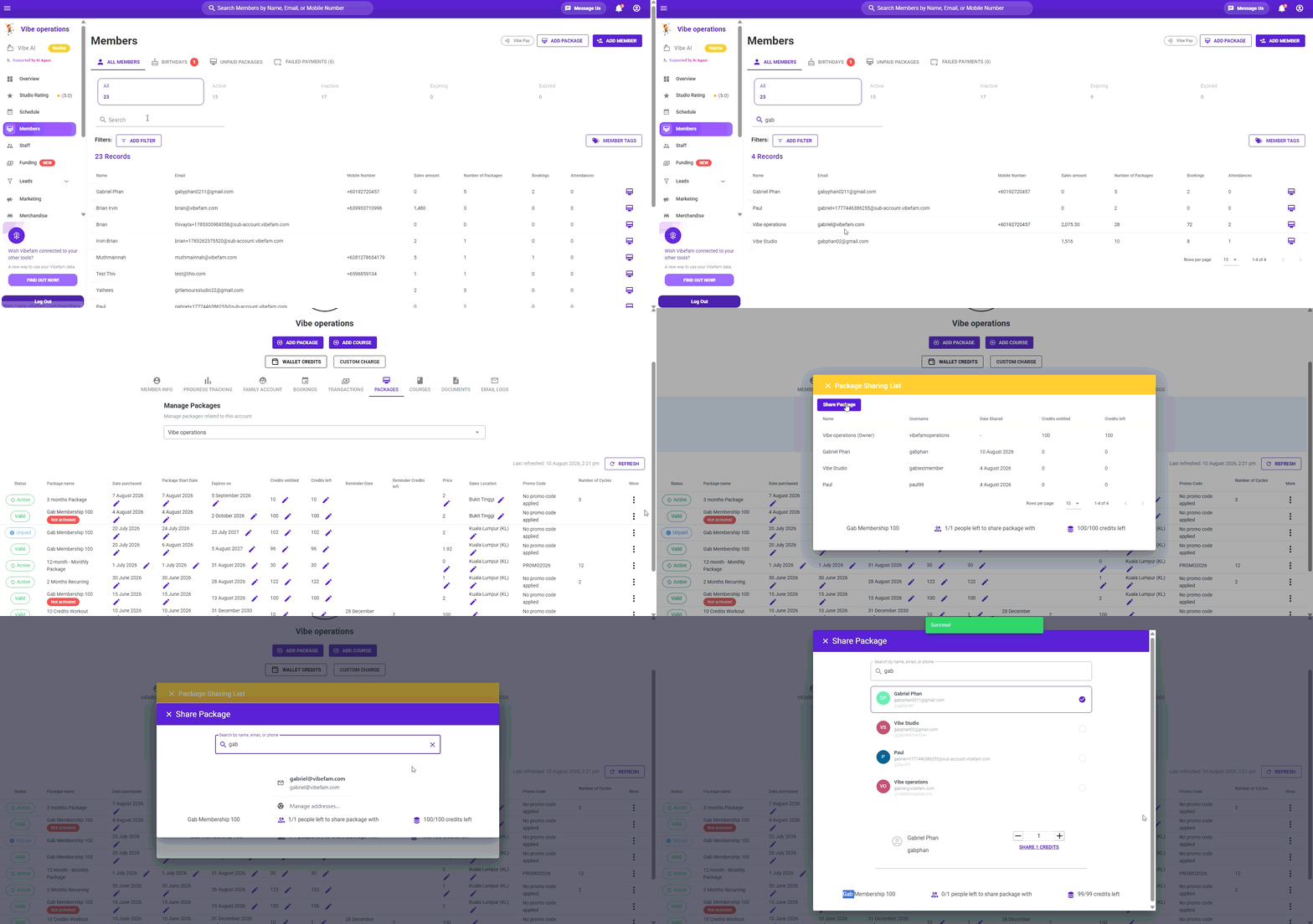
- Go to Members in the left sidebar.
- Search for and open the member who owns the package.
- Open the Packages tab. The Manage Packages table lists every package on the account.
- Find the package row you want to share, then click the three-dot (⋮) menu in the More column.
- Under Package Details, select View Shared Members.
- The Package Sharing List opens. Click Share Package.
- Search for the member you want to share with by name, email, or phone, then select them from the results.
- Use the – and + stepper to set how many credits to give that member.
- Click Share [n] credits.
A Success! confirmation appears and the member is added to the Package Sharing List.
What happens to the credits: shared credits are moved out of the owner's balance, not duplicated. If a 100-credit package owner shares 5 credits, the owner is left with 95 and the shared member is entitled to 5.
Step 3: Review and manage shared credits
The Package Sharing List is the record of everyone the package has been shared with. It shows:
| Column | What it shows |
|---|---|
| Name | The member's name. The package owner appears at the top, marked (Owner) |
| Username | The member's Vibefam username |
| Date Shared | When credits were allocated. Blank for the owner |
| Credits entitled | Credits allocated to that member |
| Credits left | Credits that member still has to use |
At the bottom of the panel you'll see two running counters:
- [n]/[n] people left to share package with — how many sharing slots remain against the limit you set in Step 1.
- [n]/[n] credits left — the owner's remaining credits.
Returning credits to the owner
To take shared credits back:
- Open the Package Sharing List for the package.
- On the shared member's row, click the back-arrow (↩) icon next to Credits left. Hovering over it shows Share credits back to the original owner.
- Set the number of credits to return using the – and + stepper.
- Click Share [n] credits.
The credits return to the owner's balance, and the sharing slot is freed up.
Troubleshooting
-
"You have reached the limit for number of other users you can share this package with!"
The package has hit the sharing limit set in Advanced Options. Either raise the Number of other members this package can be shared with on the package, or return credits from an existing shared member to free up a slot. - "View Shared Members" isn't in the three-dot menu
Sharing hasn't been enabled on that package. Go back to Step 1. If the member bought the package before you turned sharing on, make sure your edit was applied to purchased packages and not new packages only. - Don't confuse sharing with "Assign Package to"
- The same three-dot menu contains Assign Package to, which moves the entire package to another profile in the member's Family Account.
- That's a transfer, not a share — the confirmation dialog warns that the action can't be undone. Use View Shared Members when you want to split credits between people while the original owner keeps the package.