
Applies to: Studios operating in Malaysia Role required: Admin (Vibefam) + company director or sole proprietor (MyTax)
Vibefam can submit your monthly consolidated e-Invoice to LHDN on your behalf, so you don't have to compile every transaction manually. This article explains what an e-Invoice is, how to get the credentials LHDN requires, and how to make a submission from Vibefam.
What is an e-Invoice?
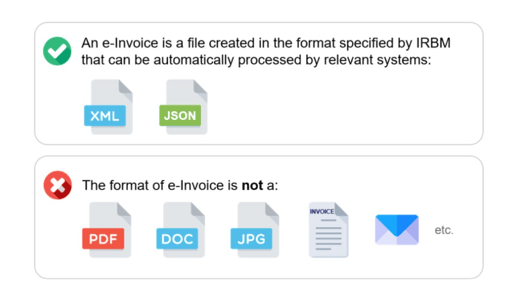
An e-Invoice is a structured data file in the format specified by IRBM (LHDN) that government and business systems can read automatically. It is not a PDF, DOC, JPG or an emailed invoice document.
Why do I need to do this?
The Malaysian government has mandated e-Invoicing to make reporting of revenue and expenses easier and more consistent.
There are two scenarios you may fall into:
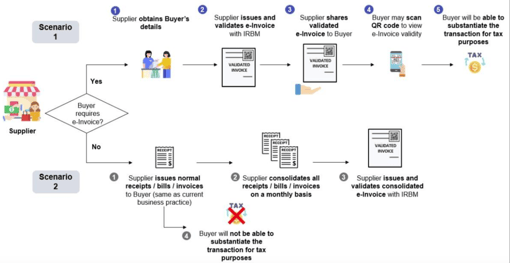
Scenario 1 — The buyer requires an e-Invoice. The customer will ask you for one directly. This is uncommon for studios, and generally only happens when your customer is also a company.
Scenario 2 — The buyer does not require an e-Invoice. Every month you must submit a consolidated e-Invoice covering all your sales for that month, by the 7th of the following month.
- Scenario 2 is supported by Vibefam. We can submit your transaction data on your behalf so you don't need to consolidate anything by hand. To do this, we need your Client ID and Client Secret from the MyInvois portal — the guide below shows how to get them.
What about receipts for my customers?
Nothing changes. Vibefam will continue to send PDF receipts to your members as usual. e-Invoicing and traditional receipts co-exist.
Part 1 — Get your Client ID and Client Secret from MyTax
You only need to do this once (or again whenever your ERP registration expires).
1. Log in to MyTax with your ID number
Go to the MyTax portal and log in using your identification type and identification number.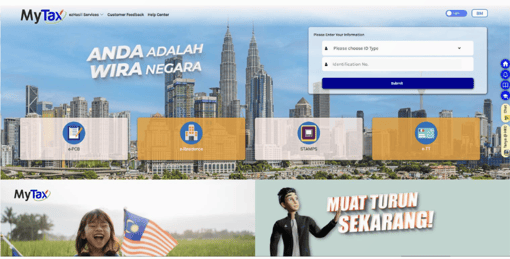
2. Set up your digital certificate if prompted
Follow the on-screen prompts to complete this step.
3. Click "Profile" after logging in
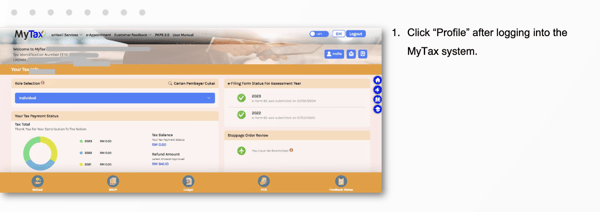
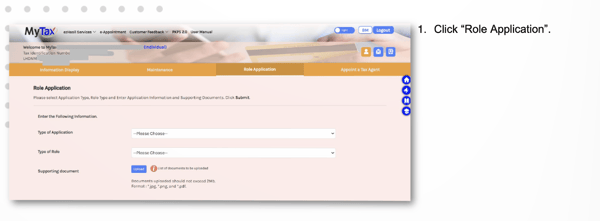
4. Click "Role Application" at the top
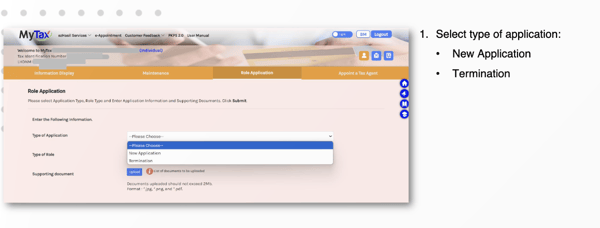
5. Select "New Application"
6. Select your role
Choose Director of the company, or business owner if you are a sole proprietorship.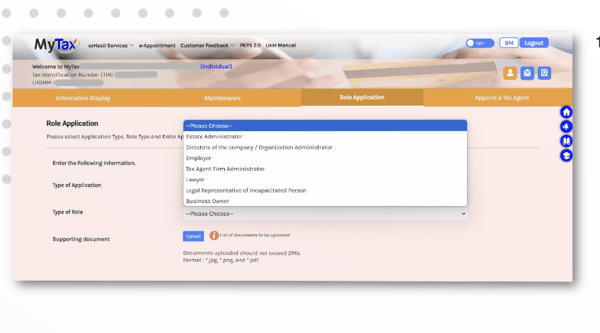 7. Upload your SSM document
Attach your SSM registration document to support the application.
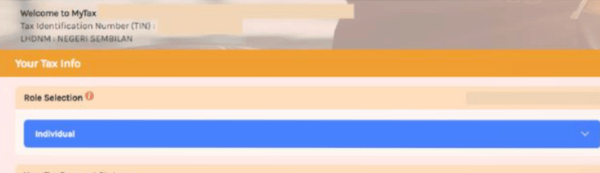
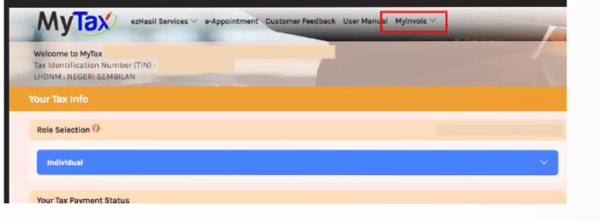
8. Switch from "Individual" to your company
Return to the home page and change the profile selector from Individual to your company.
9. Click "MyInvois" at the top
This takes you to the MyInvois portal.
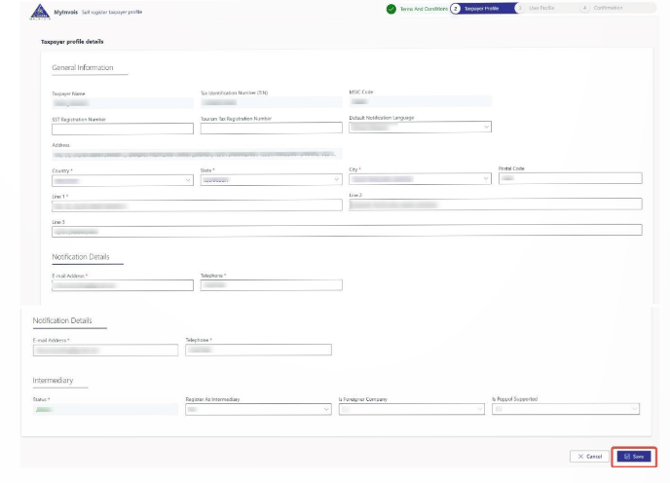
10. Set up your taxpayer profile
Fill in your business information.
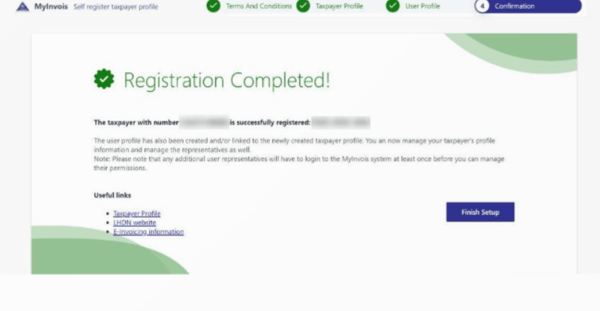
11. Confirm registration is complete
You should see a confirmation that registration is complete.
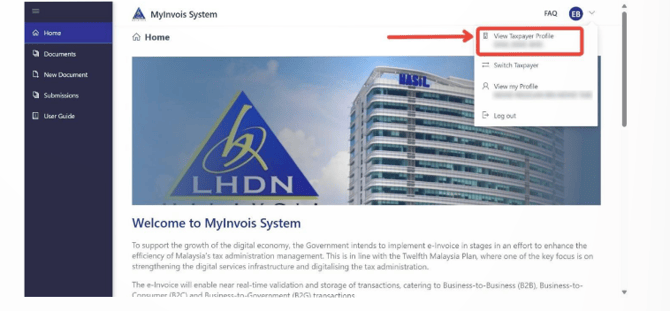
12. Open your company's taxpayer profile
At the top right, click your name and select View taxpayer profile for your company — not your individual profile.
13. Scroll down and open the ERP tab
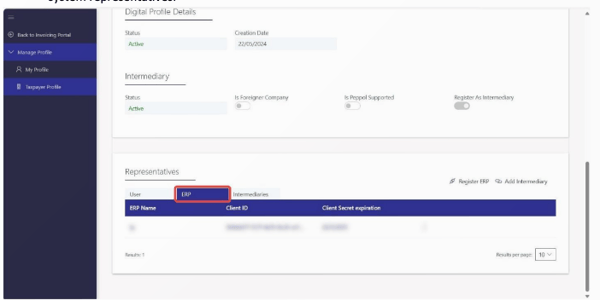
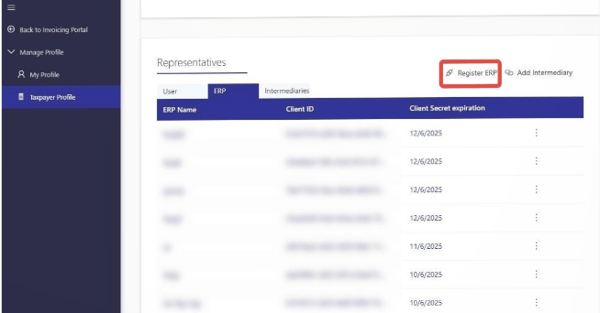
14. Click "Register ERP"
15. Set the ERP name to "Vibefam"
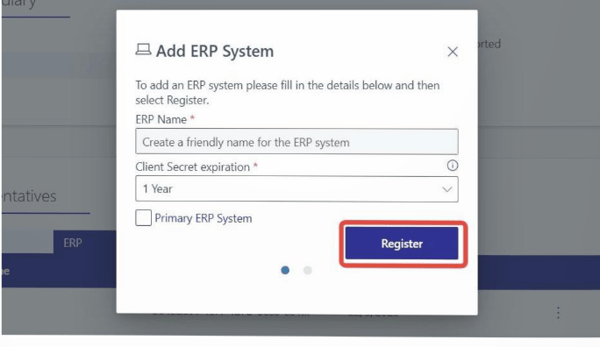
16. Set an expiration date
Choose an appropriate expiration date. Once it expires, you will need to return to this page and register the ERP again.
17. Copy your Client ID and Client Secrets
You will be given a Client ID and two Client Secrets. Copy them and store them somewhere safe — MyInvois will not show the secrets again.
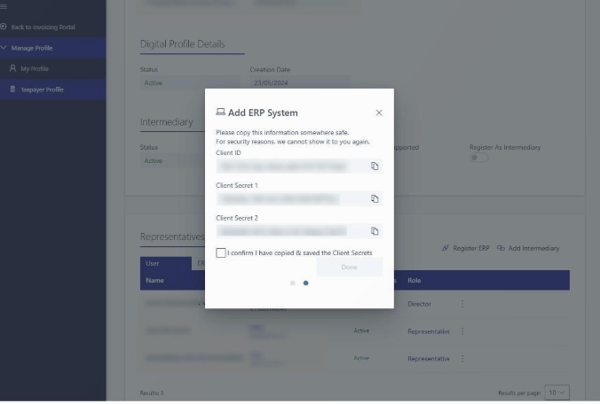
Keep these credentials private. Vibefam uses them to communicate with LHDN on your behalf. We do not store them, and they are used only to submit information with your approval. Anyone with these credentials can submit documents in your name.
Part 2 — Submit your consolidated e-Invoice in Vibefam
1. Set up your business information
In Vibefam, go to the E-Invoice tab and fill in your business information. You will need your company TIN, BRN and MSIC industry code.
2. Click "Add New E-Invoice" and select transactions
Choose which transactions to submit. By default, all transactions from the previous month are selected.
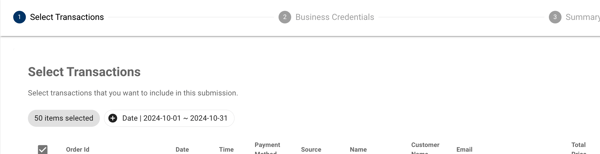
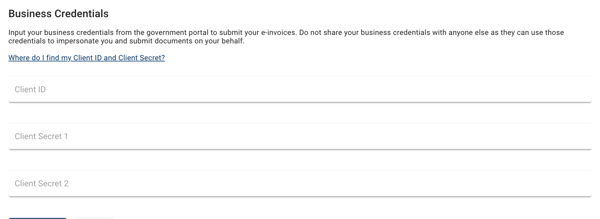
3. Enter your business credentials
Key in the Client ID, Client Secret 1 and Client Secret 2 you saved in Part 1.
4. Confirm and submit
Review the summary, then confirm and submit.
Understanding submission statuses
After submitting, you will see your e-Invoices listed with a status.
| Status | What it means | What to do |
|---|---|---|
| Pending submission | Vibefam is processing the submission and preparing to send it to LHDN. | Nothing — wait. |
| Submitted – Awaiting Validation | LHDN has received the submission and is validating the data. | Nothing — wait. |
| Accepted | LHDN has received and accepted your e-Invoice. | No further action required. |
| Submission failed | LHDN did not receive the submission. Your Client ID or Client Secret may be incorrect. | Check your credentials and submit again. |
| Rejected | LHDN received your e-Invoice and rejected it. | Review the rejection details and resubmit. |
FAQ
Do my members still get receipts? Yes. PDF receipts continue to be sent as normal. No change is needed.
When is the monthly submission due? By the 7th of the following month.
Does Vibefam store my Client ID and Client Secret? No. They are used only to submit your data with your approval.
What happens when my ERP registration expires? Go back to the ERP tab in your MyInvois taxpayer profile and register the ERP again. You will receive a new Client ID and Client Secrets to use in Vibefam.