
Package visibility
Separately from categories, each package has a Public / Private toggle on its card:
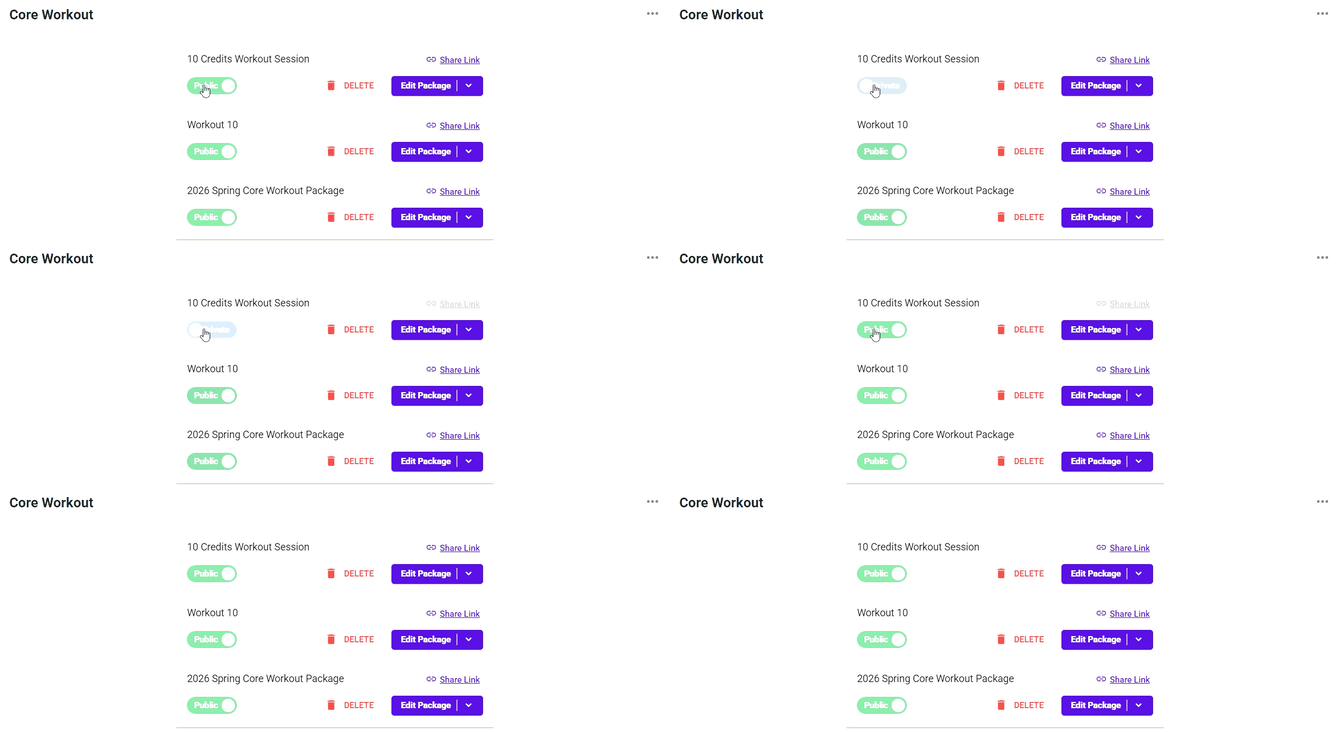
- Public — visible to everyone on your booking website
- Private — hidden from the public page, but still purchasable by anyone with the direct link
Use Private for corporate rates, comeback offers, or packages you only want to send to specific members by manually assigned the package to the member.
Package Link Sharing
Every package in your studio has its own purchase link. Instead of sending members to your booking website and hoping they find the right package, you can send them straight to checkout for the exact package you want them to buy.
Navigate to Configure → Package Options, then choose the One Time Packages or Recurring Packages tab.
Getting a package link
Each package card has a Share Link option in its top-right corner. Click it to get the purchase link for that specific package.
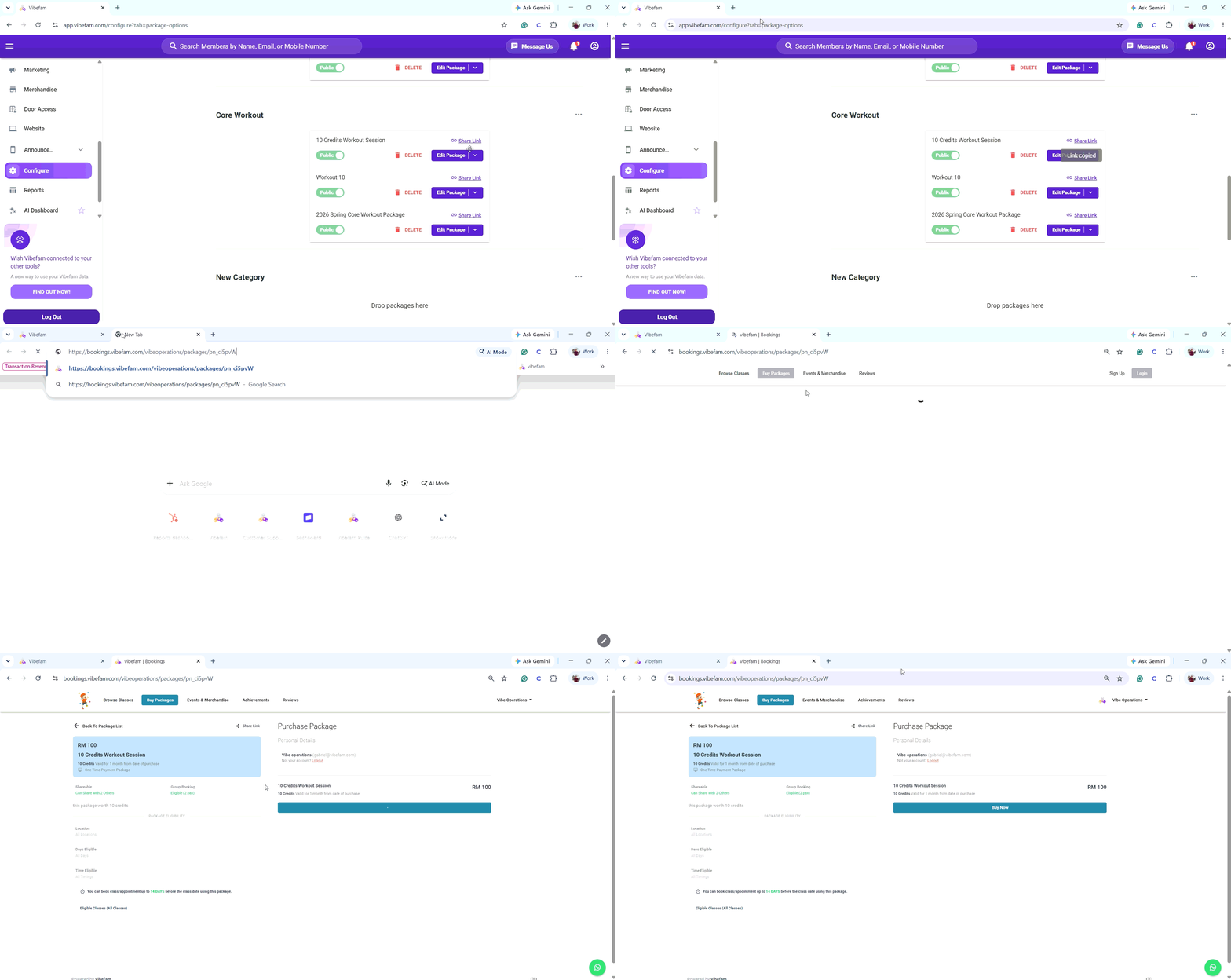
Share Link is only available for packages set to Public. If a package is set to Private, Share Link is greyed out and cannot be used. Switch the package to Public first if you need a shareable link.
When to use package links
| Situation | Why a direct link helps |
|---|---|
| A member asks about a specific package over WhatsApp | Send the link in your reply. They pay without leaving the conversation or hunting through your pricing page. |
| Promoting one offer on Instagram or in a story | Point the link at the offer itself rather than your homepage. Fewer steps means fewer drop-offs. |
| Renewal reminders | Send the same package they already have, so renewing is one click. |
| Trial follow-up | After a first class, send the intro pack link while the member is still enthusiastic. |
| Front-desk sign-ups | Pull the link up on a tablet so a walk-in can pay on the spot. |
| Email campaigns | Use a different link per package so you can tell which offer actually converted. |
Tips for using links well
- Send one link, not a list. The value of a direct link is that it removes the decision. If you send three, you've rebuilt your pricing page in a chat window.
- Say what the link is for. A bare URL in a WhatsApp message looks like spam. One line of context — "Here's the 10-class pack we talked about" — makes the difference.
- Check the link yourself first, especially after editing a package. Open it in a private browsing window to see exactly what a member sees.
- Links reflect live package settings. If you change the price, the link shows the new price immediately. If you delete the package, the link stops working — so any link already sent out will break.
- Members still need to be able to pay. If your Stripe setup under Configure → Payment Integration isn't complete, the link will reach checkout but the purchase won't go through.
Troubleshooting package sharing link
-
Share Link is greyed out — the package is set to Private. Switch it to Public.
-
The link opens but the package isn't there — check the package hasn't been deleted, and that it's still assigned to a category.
-
The member can't complete payment — confirm your Stripe account is connected under Configure → Payment Integration.
-
The member sees a different price than expected — package edits apply immediately. Check the current price under Edit Package.