
It's ideal for members who attend the same class every week — kids' classes, standing 1-to-1 slots, or any regular commitment.
Future sessions are held as unpaid bookings until each payment cycle is processed. This keeps the member's slot reserved without prematurely showing it as paid, and stops those slots from appearing "open" to everyone else in future months.
Why studios use it:
- 🚀 No more manual re-booking, week after week
- 🗓 Consistent weekly schedules, especially for kids' classes
- 🔒 Prevents the "sorry, that slot's taken" scramble
- ⏳ Frees up admin time for higher-value work
How unpaid bookings work
This is the part worth understanding before you start.
When you set up a repeat booking, Vibefam reserves the member's slot in every future session — but it can't charge for sessions that fall in a payment cycle that hasn't happened yet. So those future sessions are held as unpaid bookings: the seat is reserved, but not yet paid for.
As each payment cycle is processed and the member's package covers the session, the booking is confirmed against their package. This is why you assign a package during setup — it's what the reserved sessions draw from as they come due.
The upshot: the member keeps their slot indefinitely, other members can't take it, and you're not manually rebooking anyone.
How to set up a repeat booking
Step 1: Open the class
In the Schedule tab, open the class the member should be booked into every week.
Step 2: Select the member
Find and select the member's name in that class.
Step 3: Toggle on Repeat Booking
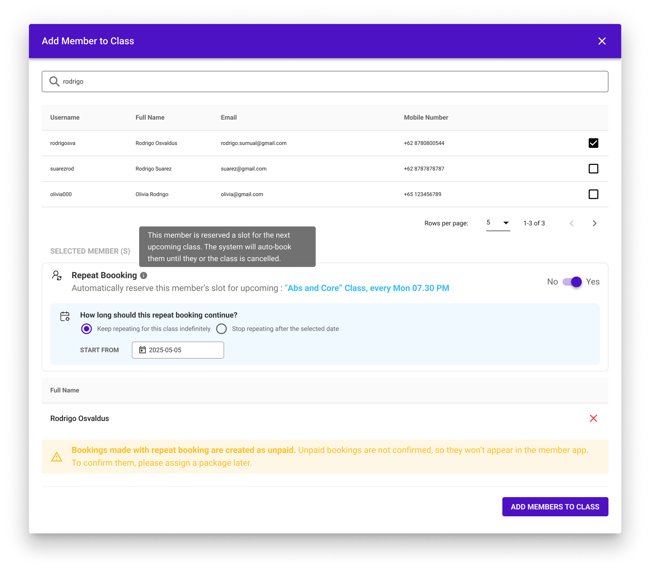
Switch on Repeat Booking for that member.
Step 4: Choose how long it should run
Decide when the repeat booking should stop:
- Repeat indefinitely — the member keeps the slot with no end date, or
- Stop after a selected date — the repeat booking ends on a date you choose.
Use an end date for fixed-term commitments (e.g. a school term); use indefinite for open-ended standing slots.
Step 5: Assign a package
Repeat bookings are added as unpaid, so you need to assign the package they'll draw from.
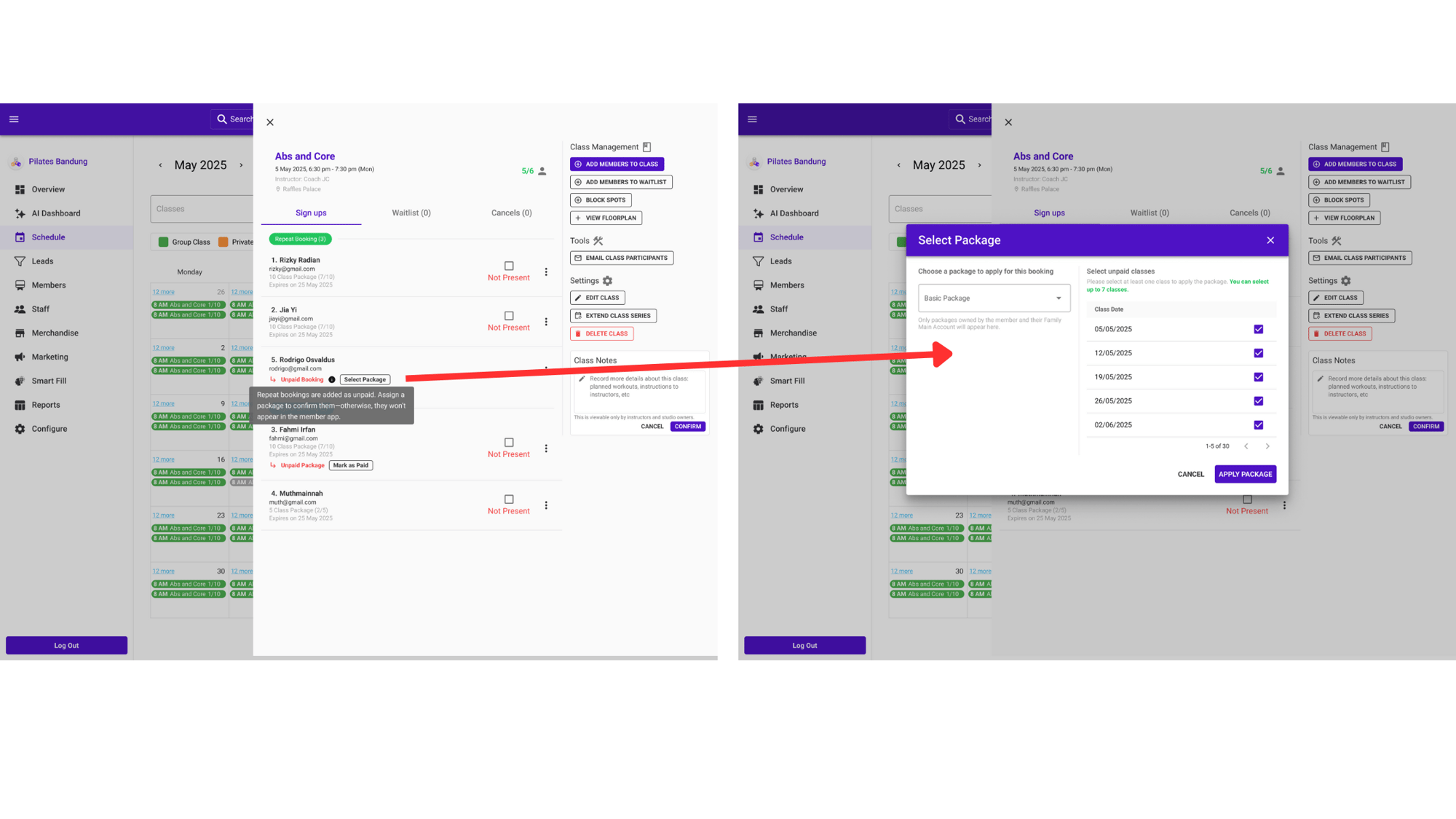
- Assign a package to the member for these repeating bookings.
- Once assigned, select the repeated class dates to attach to that package.
Step 6: Verify
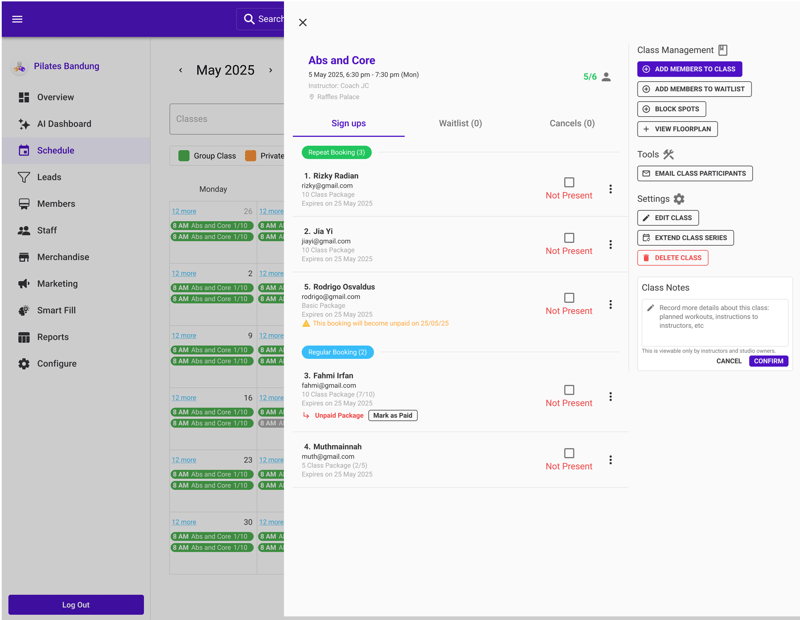 Confirm everything landed correctly:
- Open the Repeat Bookings list to check the new entry appears.
- Check the class calendar to confirm the member shows up in each weekly slot, with the unpaid-booking flags where expected.
Good to know
- Repeat bookings start life as unpaid — that's by design, not an error. They confirm against the member's package as each cycle is processed.
- Keep the member's package funded. If a package runs out of credits or expires, the reserved sessions can't be covered — so watch renewals for members on repeat bookings.
- To end a repeat booking early, set or change the end date rather than deleting individual sessions.