
- What is a family account?
- Adding a family member to a member profile
- Assigning packages, classes, and courses to a family member
- How members assign packages to their own sub-accounts
- How members book for their family
- Managing a child / sub-account profile
What is a family account?
If members have families or children at your studio, they often want to buy packages and book sessions for them — without logging in and out of separate accounts. Family accounts let a parent (the main account) manage their children or sub-accounts from their own login: paying for classes, booking sessions, and more.
A few things to know:
- Sub-accounts can't log in themselves. The main account holder purchases packages and books on their behalf.
- All notifications go to the parent. Booking confirmations and schedule notifications for a child are sent to the main account's email.
- Availability: family accounts are available from the Most Popular plan onwards.
Adding a family member to a member profile
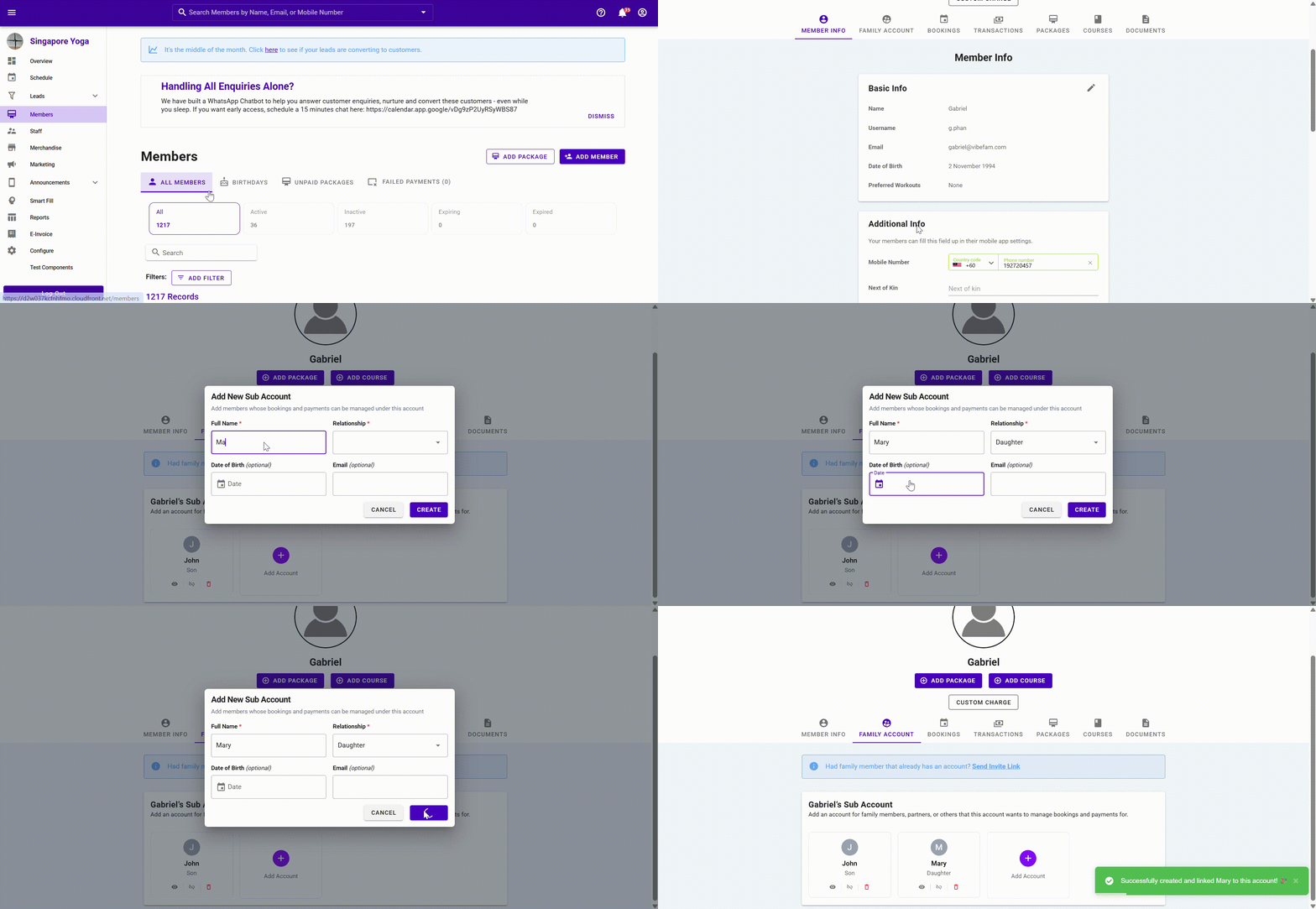
- Go to the Members tab and find the main family account (e.g. the parent's email account).
- Open that profile and go to the Family Account tab.
- Click Add Account and fill in the family member's details: Full Name, Relationship, Date of Birth, and Email address.
- Click Create.
Assigning packages, classes, and courses to a family member
Each child account can hold its own packages, separate from the parent's. This means the parent and each child can have different packages suited to their own needs — rather than everyone drawing from one shared parent account.
Example: Gabriel Paul (parent) buys a child package, then assigns it to John Paul (child). John now owns that package on his own sub-account.
To assign a package to a child account:
- Go to the parent's profile (the main profile).
- Open the Package tab and select the package you want to assign.
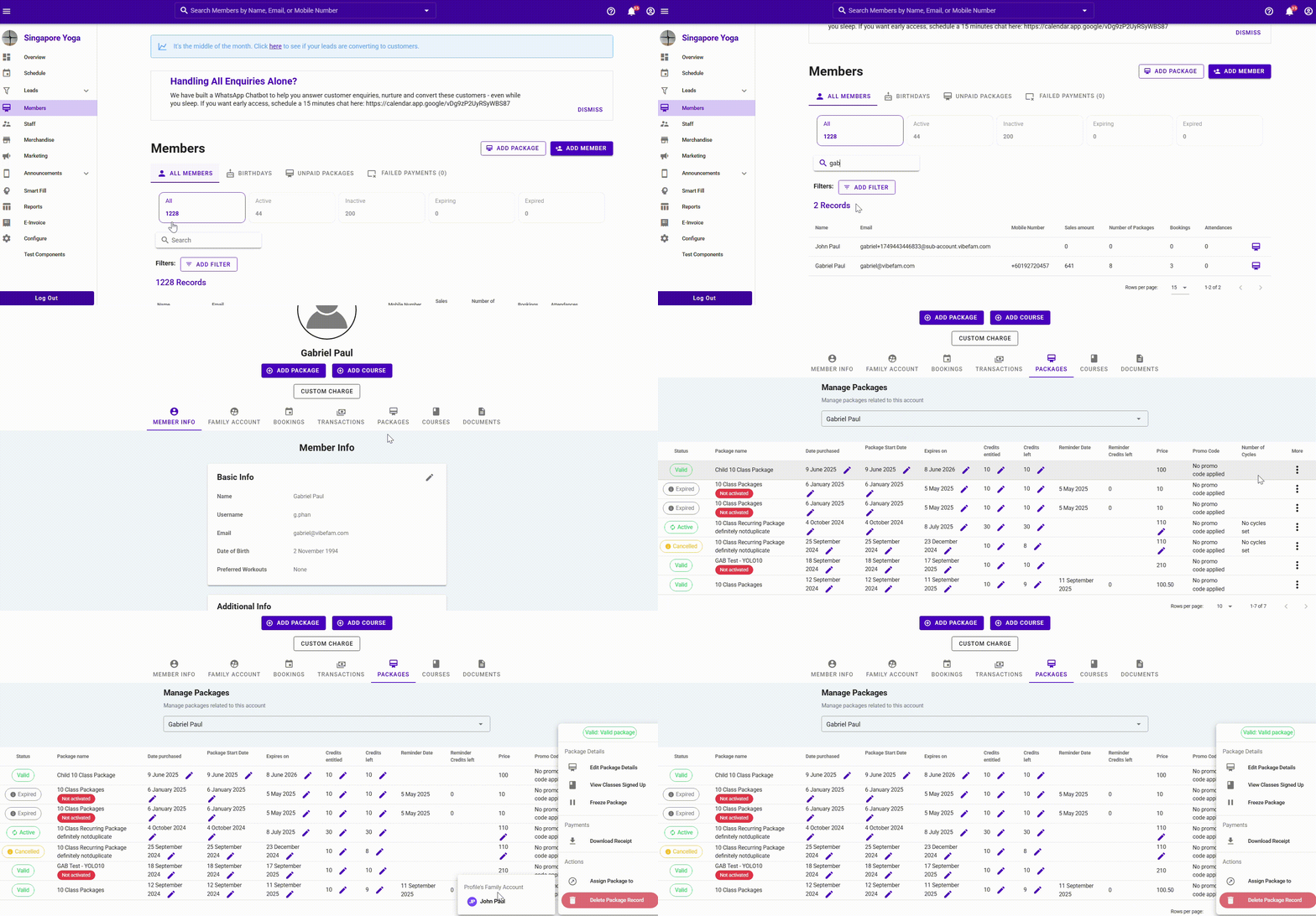
- Assign it to the child's sub-account.
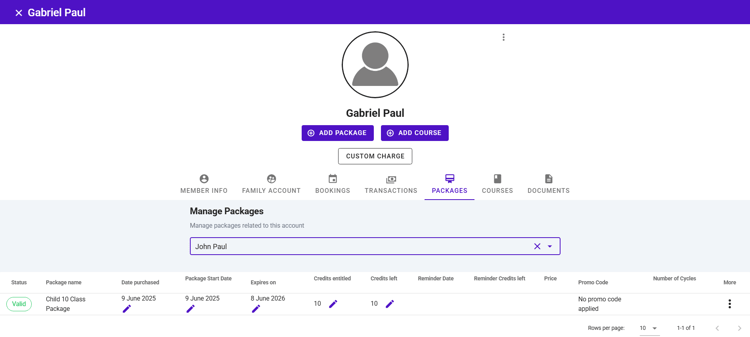
Once assigned, you can manage that package directly from the child's own profile — adding or changing it there, rather than juggling everything on the parent account.
The same logic applies to courses: you can book more than one child into a course from the parent account.
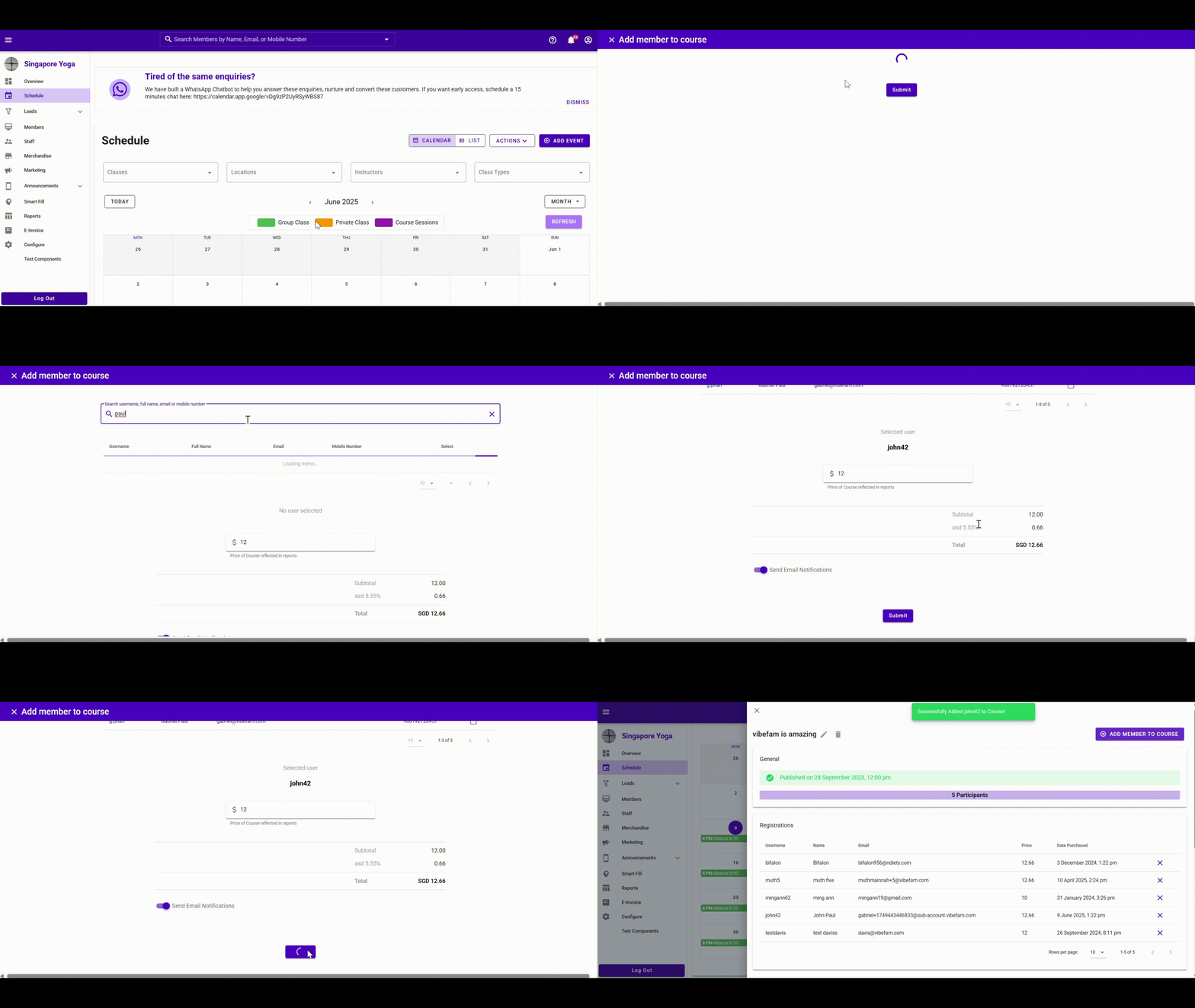
Note: All child bookings and schedule notifications are sent to the parent's email address.
How members assign packages to their own sub-accounts
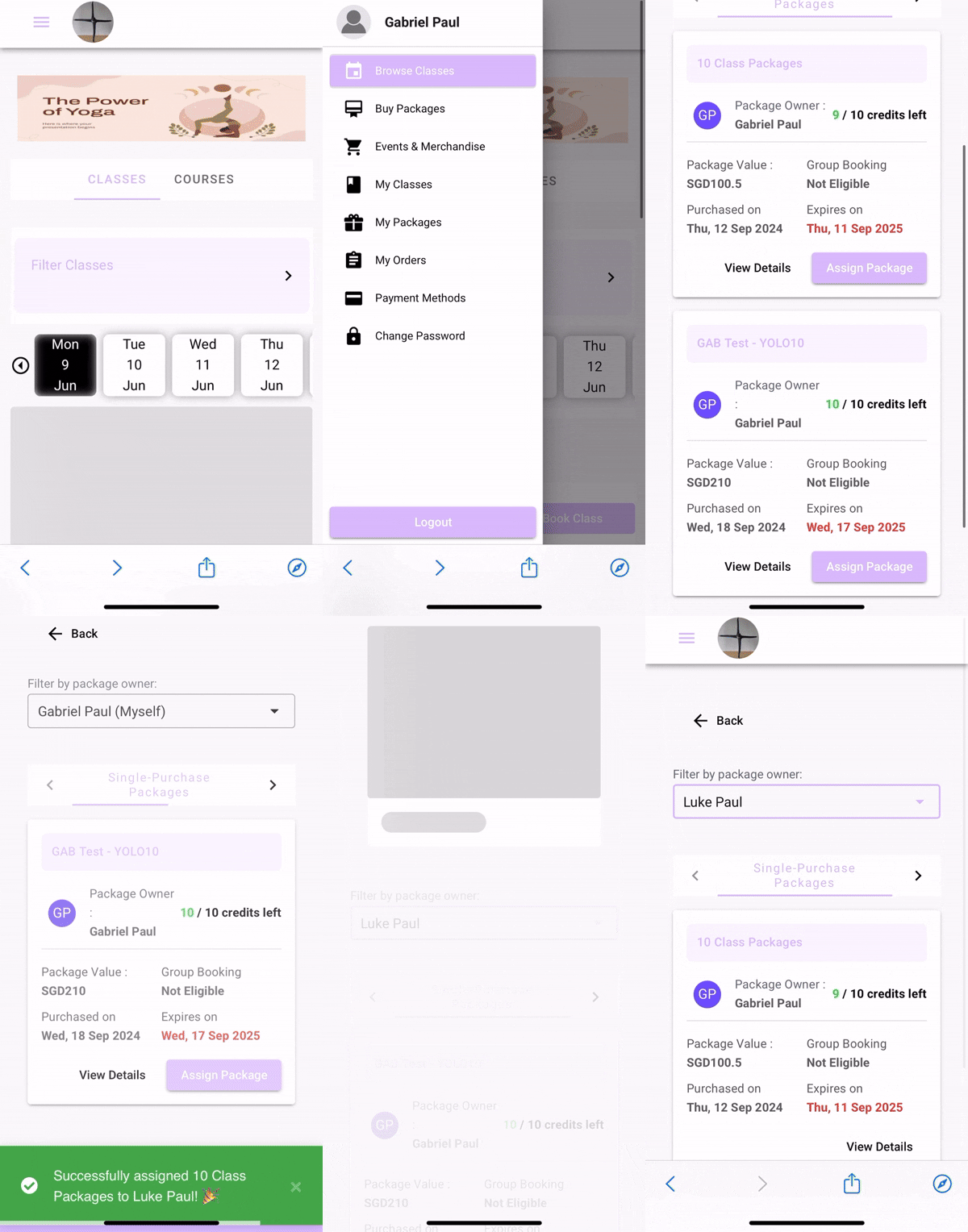
Members don't need to come to you for this. A member can log in to Vibefam, go to their profile, and assign a package they've purchased to their child or sub-account themselves.
How members book for their family
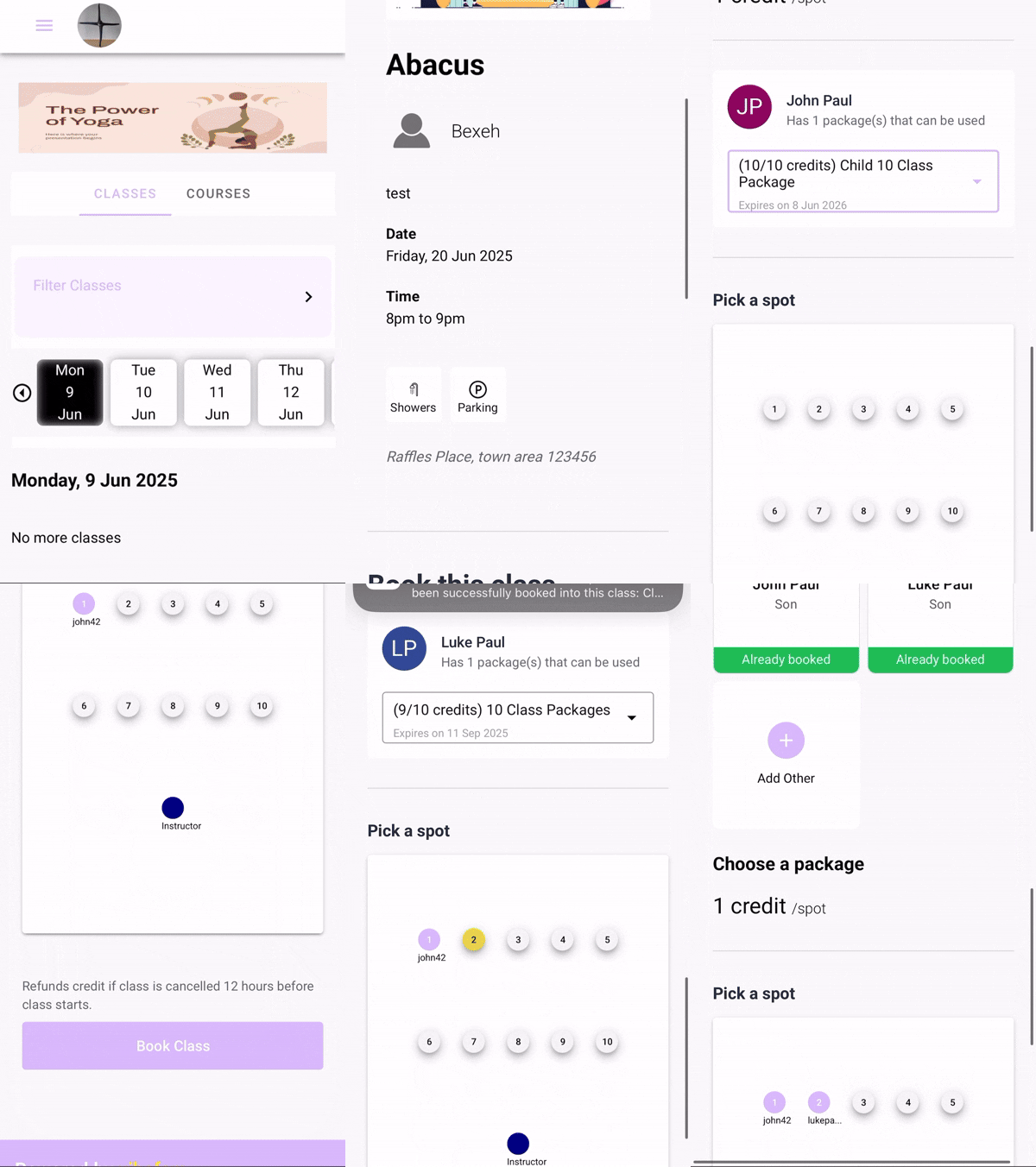
Once a package is assigned to a family member or sub-account, the parent (main account) can book a class for them directly from their own login — no account switching required.
Managing a child / sub-account profile
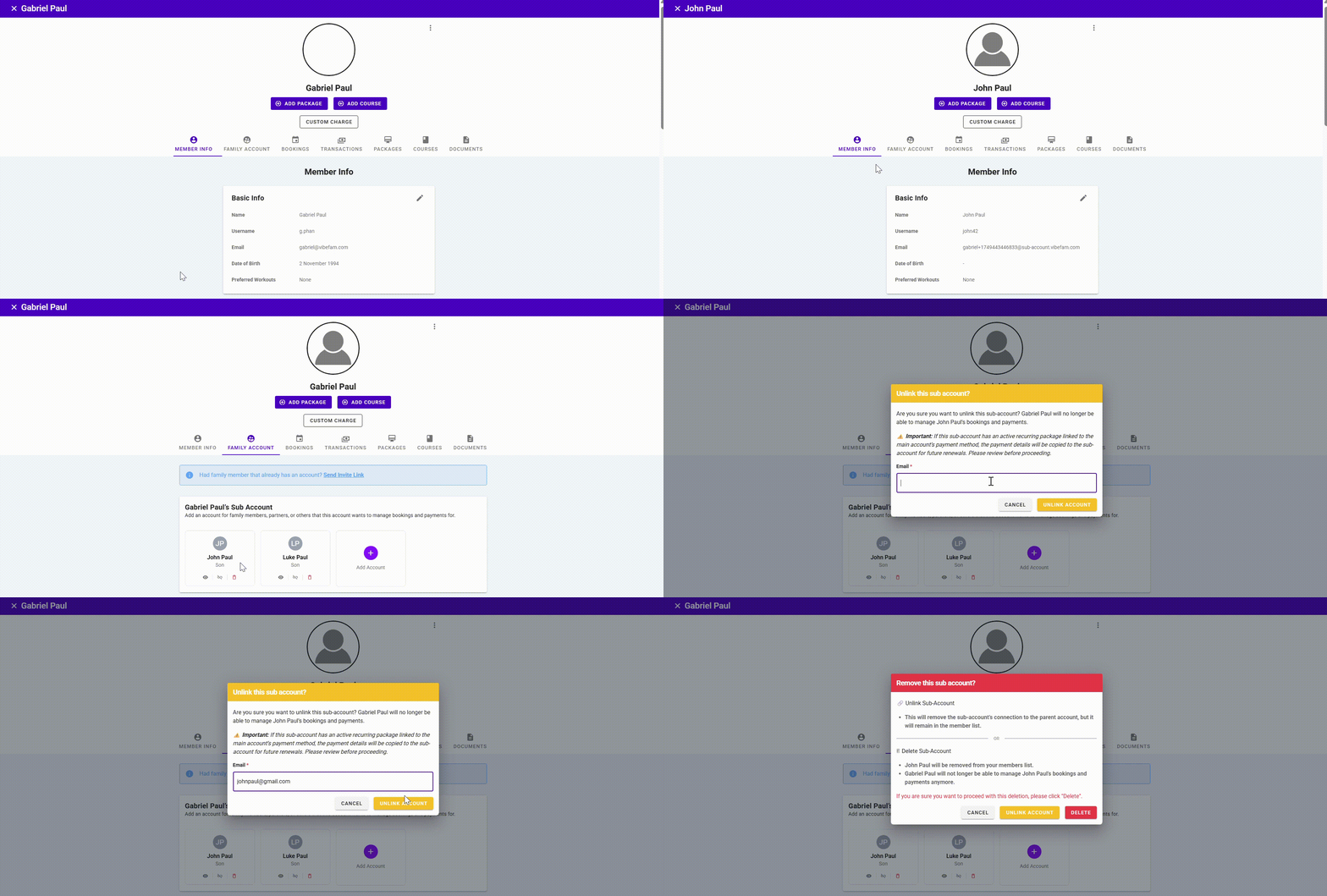 From the parent account, you can:
- Edit — view and edit the child's profile (name, email, date of birth, and so on), just like managing any member profile.
- Unlink — separate a child profile from the parent account. This is ideal when a child grows up: their profile can be converted into a standalone member account with its own payment method. An email address is required to unlink.