
Vibefam uses Stripe to securely collect card and online payments from your members. Setup is a one-time process that takes a few minutes, and once it's done you can accept online payments, save member cards, and run recurring memberships.
- Set up Stripe
- Turn on online payments and customise checkout
- Managing payments, refunds, and payouts
- Connect multiple bank accounts
- FAQs
Online payments are optional. If you only take payment in person, you don't have to complete Stripe setup — but you'll need it for saved cards, recurring memberships, and any online checkout.
Set up Stripe
- Go to Schedule and click Set Up Stripe in the orange banner at the top of the screen.

- Enter your email to get started.

- Already have a Stripe account? Enter it to speed things up.
- New to Stripe? Use the same email as your Vibefam admin account, so everything stays together.
- UEN — if you're a registered company, select "I have a UEN." Otherwise select "I do not have a UEN."

- Fill in your personal information. If you're in Singapore, you can pull your details via Singpass to speed this up.

- Industry — select "Health and Wellness Coaching" as the closest fit.

- Website & description:
- Enter your website if you have one — or your new Vibefam booking site, or your Instagram page.
- The product description is a simple one-liner (e.g. "Yoga studio in Singapore"). It's for Stripe only and isn't shown to members.
- Bank account — enter the account where you'd like your payouts sent.

- Submit to complete setup.
After setup
Most studios need one extra verification step. Stripe often emails you to request documents (ID, business registration, and so on) before you can collect payments live. Watch your inbox and complete it promptly.
Once verified, you're live. Most studios start collecting online payments within 1–2 calendar days of finishing setup.
When do I get paid? Payouts are transferred to your bank 7 calendar days after a member's payment. You can track payouts and transfers anytime in the Stripe dashboard.
Turn on online payments and customise checkout
After Stripe setup, enable online payments and control how members pay.
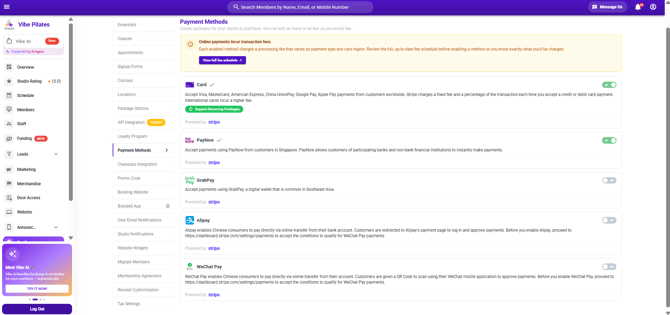
Customising member payment options is available on the Most Popular and Professional plans.
- Go to Configure → Payment Methods.
- Toggle each payment type on or off depending on what you want to accept.
- Transaction fees for each method are shown right on the dashboard, so you can see the cost before enabling one.
- Use checkout page branding to make the checkout match your studio's look.
Managing payments, refunds, and payouts
Day-to-day payment management happens in the Stripe dashboard (or the Stripe app for iOS / Android). There you can:
- Check successful and failed payments
- Issue partial or full refunds
- Monitor payouts to your bank account
Failed recurring payments: when a recurring membership fails to renew, Vibefam emails your studio admin address. Check the reason in the Stripe dashboard — the most common cause is insufficient funds on the member's card.
⚠️ Refunds don't return the transaction fee. You can refund a member through Stripe, but Stripe's processing fee on the original payment isn't returned to you.
Connect Multiple Bank Accounts
If you run several locations from one Vibefam dashboard but want each location's money to land in its own bank account, you can connect multiple bank accounts — one per location.
Why use multiple bank accounts
Running all locations from a single dashboard while routing funds to the right account is ideal when each location has its own business entity or owner: every entity automatically receives what it's owed, and your end-of-period accounting is far simpler. It also lets you offer a single membership (e.g. an Unlimited pass) that works across all — or selected — locations, without duplicating it across separate dashboards.
Franchises: a single shared dashboard may not be the right fit. Contact us about Corporate dashboard access instead.
Because Stripe allows only one bank account per Stripe account, each business entity needs its own Stripe account. Creating a Stripe account is free.
Before you start
- Each location needing a separate bank account requires its own Stripe account (free to create).
- Once a Stripe account is linked to a location, you can't change the link yourself — contact support for changes.
- Saved cards are per Stripe account. A card a member saved at Location A can't be used at Location B — they'll need to save it again at each location.
How to set it up
Step 1 — Enable Track Package Sales by Location
Go to Configure → Package Options → Track Package Sales by Location and switch it on.
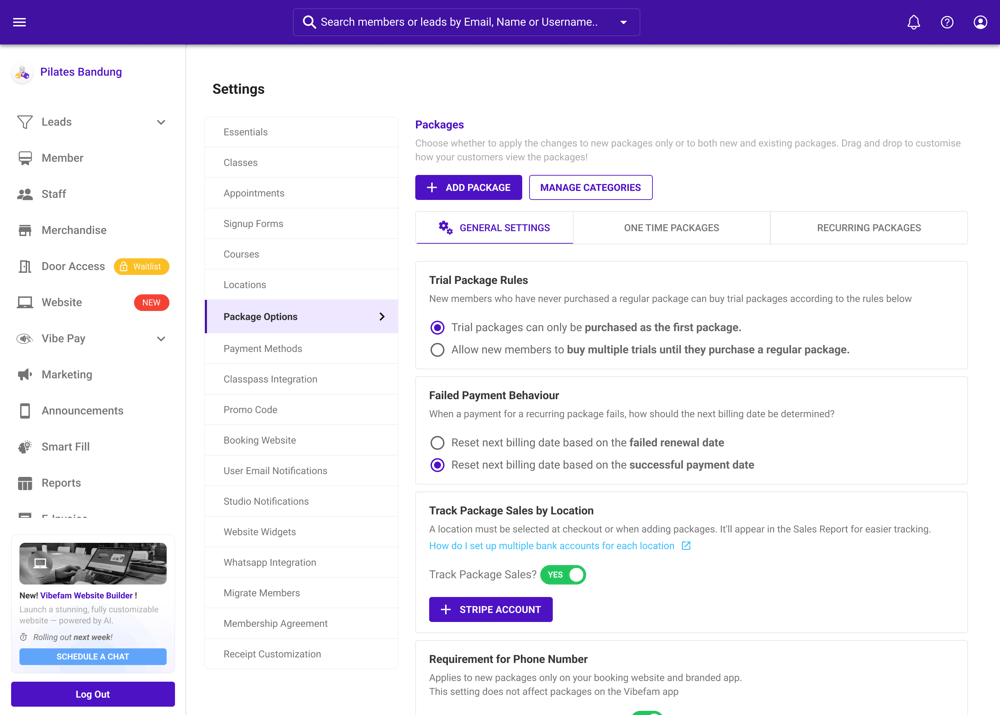
Step 2 — Add your Stripe accounts
Go to Configure → Payment Integration → Add Stripe Account, then follow the prompts to create the account. Repeat for each location that needs its own bank account.
Your Stripe accounts appear in a table showing the Stripe Account ID, linked location, and setup status. If one is incomplete, use Continue Setup to resume anytime.
Step 3 — Submit a support ticket
Once all accounts are created, send a support ticket with your Stripe Account IDs and the matching location names:
| Location | Stripe Account ID |
|---|---|
| Jurong West | acct_1x |
| Tampines | acct_2x |
Step 4 — We link them up
Our team verifies each Stripe account and its KYC (identity verification), then links each one to the correct location.
Step 5 — You're live
We'll notify you when it's done. From then on, payments at each location route automatically to that location's Stripe account and bank.
Adding a new location later
If you add a location after your multi-account setup is live, its payments default to your primary Stripe account until a new Stripe account is linked — and an alert reminds you of this when you add the location. To route it elsewhere, follow Step 2 above and submit a new ticket.
Limitations & Unsupported Actions
Contact support if you need any of these — they're handled case by case:
- Turning off Track Package Sales by Location once multi-Stripe is enabled
- Deleting a location linked to a Stripe account
- Moving a Stripe account from one location to another
- Migrating active recurring packages to a new Stripe account
FAQs
What happens to existing recurring packages when I add multi-Stripe? They keep renewing on the Stripe account they were originally set up on. To migrate them to a new account, contact support — it's handled case by case.
Can members use the same saved card across all locations? No. Cards are saved per Stripe account, so if your locations use different Stripe accounts, members save their card separately at each.