
Studio and instructor notifications alert your team when members take action — booking or cancelling a class, buying a package, purchasing a course or drop-in, or buying merchandise. They keep you and your instructors informed without anyone having to watch the dashboard.
For most actions you can choose separately whether to notify the Studio (you and your admin team) and the Instructor (the person teaching that specific class) — so instructors hear about their own classes without being copied on everything.
Navigate to Configure → Studio Notifications.
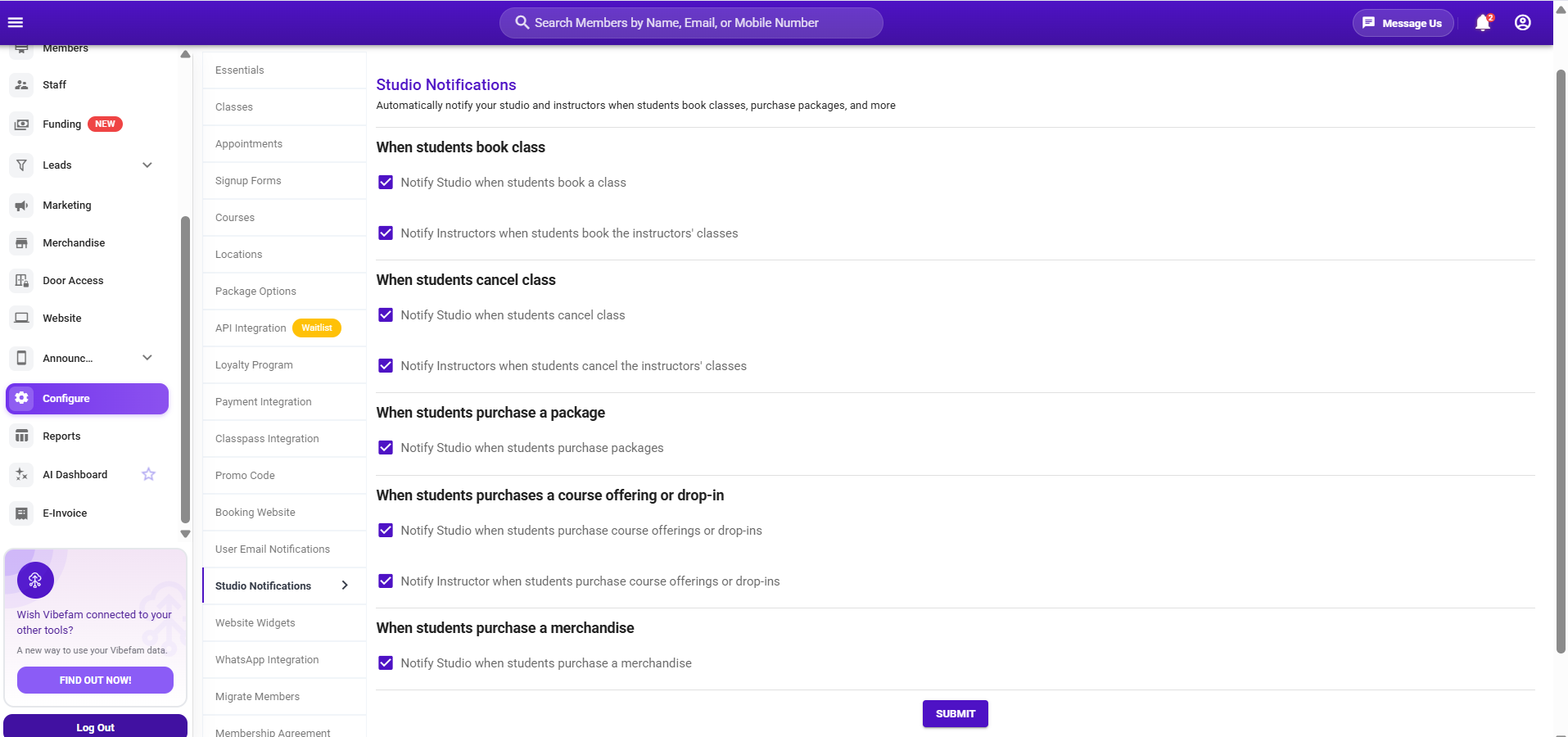
The notifications you can enable
Tick the alerts you want, for the studio, the instructor, or both:
When students book a class
- Notify Studio when students book a class
- Notify Instructors when students book the instructors' classes
When students cancel a class
- Notify Studio when students cancel a class
- Notify Instructors when students cancel the instructors' classes
When students purchase a package
- Notify Studio when students purchase packages
When students purchase a course offering or drop-in
- Notify Studio when students purchase course offerings or drop-ins
- Notify Instructor when students purchase course offerings or drop-ins
When students purchase merchandise
- Notify Studio when students purchase merchandise
Tick your selections, then click Submit to save.
Choosing what to enable
Turn on the alerts that need a timely human response, and leave off the ones that would just add noise.
- Bookings and cancellations are the most useful to instructors — they tell a coach who's coming and flag a late cancellation that could be backfilled. Enabling the Instructor option for these means each coach only hears about their own classes.
- Purchase alerts (packages, courses, drop-ins, merchandise) suit the studio/admin side — handy for keeping an eye on sales as they happen, or for a small team that likes to welcome new sign-ups personally.
If your team finds they're getting too many emails, come back here and untick the noisier ones — every checkbox adds to someone's inbox.
Before you rely on it
- Have a member (or a test account) perform each action you've enabled, and confirm the right people — studio and/or instructor — receive the alert
- Check both the business-app notification and the email arrive as expected
- Review the selection periodically — as your studio grows, alerts that were manageable early on can become noise
- Remember to click Submit after changing anything, or your selections won't save