User email notifications are the automated messages your members receive when something happens on their account — a package purchase confirmation, a package expiry reminder, and similar. These appear both in the Vibefam app and by email.
This article covers turning them on, customising the design, and switching between your own template and Vibefam's default.
Navigate to Configure → User Email Notifications.
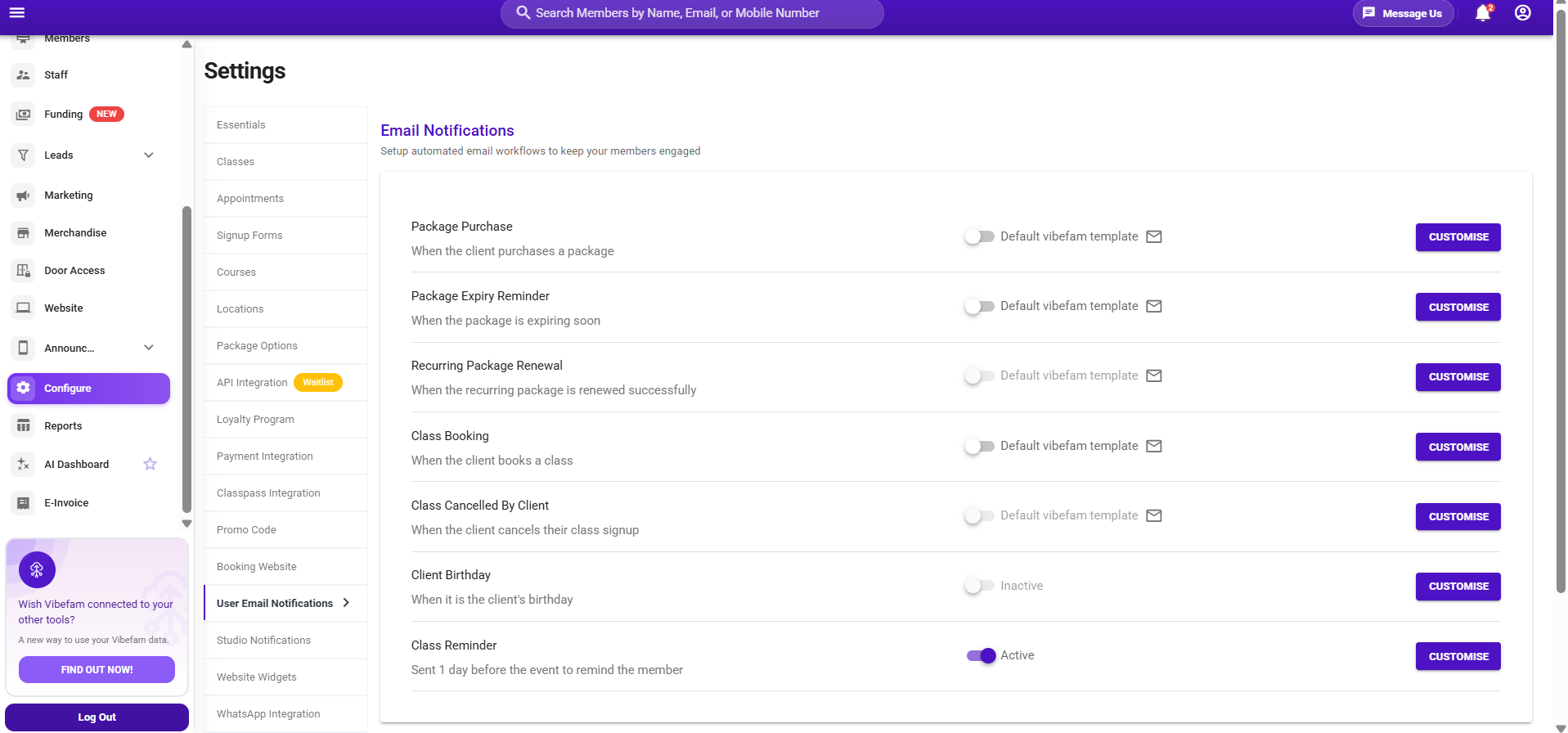
The notifications you can send
Each notification is triggered automatically by a specific member action:
| Notification | Sent when |
|---|---|
| Package Purchase | A client purchases a package |
| Package Expiry Reminder | A package is expiring soon |
| Recurring Package Renewal | A recurring package renews successfully |
| Class Booking | A client books a class |
| Class Cancelled By Client | A client cancels their class signup |
| Client Birthday | It's the client's birthday |
| Class Reminder | Sent 1 day before the event to remind the member |
Turning notifications on
- Go to Configure → User Email Notifications.
- You'll see the available automated messages — for example Package purchase confirmation and Package expiry reminder.
- Enable the notifications you want members to receive.
These are the transactional emails that keep members informed, so most studios leave the key ones (like purchase confirmations) switched on.
Customising an email template
You can send Vibefam's default design, or customise your own to match your studio's branding.
- Next to a notification, click Customize.
- Edit the content and design in the editor.
- Click Save Design.
Your customised version is now saved against that notification — but it isn't applied until you switch to it (below).
Switching between your template and the default
Each notification has a toggle that decides which design actually goes out:
- "Default Vibefam Template" toggled on — members receive Vibefam's standard design.
- Toggle it off — it switches to "Use current template," and members receive the custom design you saved.
So the flow is: customise and save your design first, then toggle off the default template to put your version live. To go back to Vibefam's design at any time, toggle it back on.
Saving a custom design doesn't switch it on by itself. If your branded email isn't going out, check that the default-template toggle is off for that notification.
Previewing the default template
To see what Vibefam's standard design looks like before deciding, click Default Template to preview it.