
- Schedule a group class
- Set up class dates and recurrence
- Availability settings
- Advanced options
- Booking settings
- Class credits settings
- Class auto-cancellation automations
- Save as a template
Setting up appointments (1-to-1 sessions) or courses (workshops, terms, multi-session events)? Those have their own articles — see [Scheduling Appointments] and [Scheduling Courses].
Schedule a group class
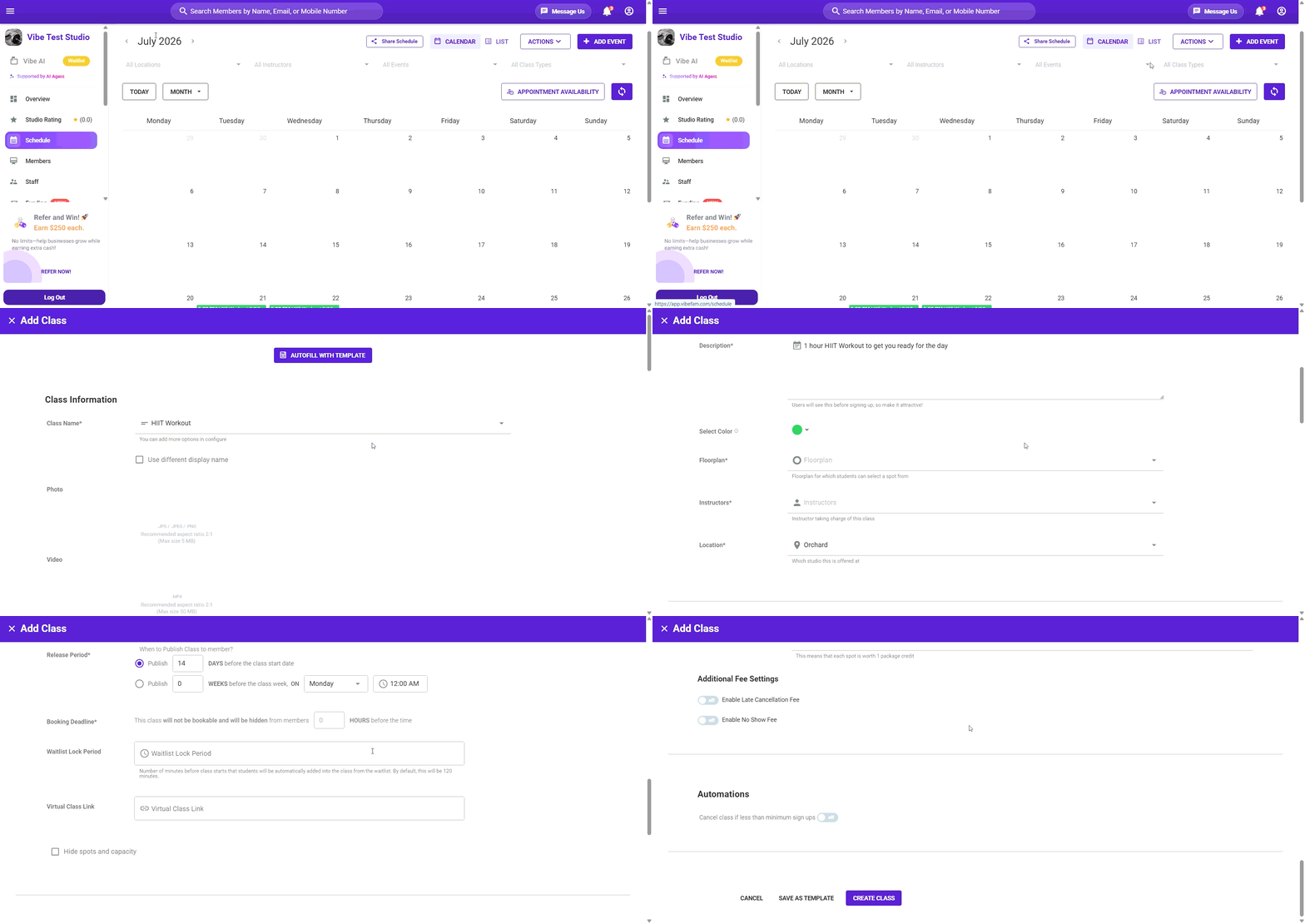
A group class is a public class shown on your app and website for members to browse and book.
- Go to the Schedule tab.
- Click Add Event → Add Group Class.
- Fill in the form as you'd like the class to appear to members.
- Click Create Class to save.
The form is split into sections — Class Information, Class Dates, Availability Settings, and Advanced Options. Each is covered below.
Class Information
- Class Name — pick from your existing class types, or add more under Configure. Tick Use different display name if you want members to see a different name from your internal one.
- Photo / Video — optional, but classes with an image are more inviting. Use a 2:1 aspect ratio (max 5 MB for images, 50 MB for video).
- Description — members see this before booking, so make it appealing.
- Select Colour — how the class appears on your calendar, to help you scan your schedule at a glance.
- Floorplan — this sets the capacity of the class, and lets members pick their spot. If none of your floor plans fit, add a new one (see Manage floor plans).
- Instructors — who's taking the class.
- Location — which venue it's held at.
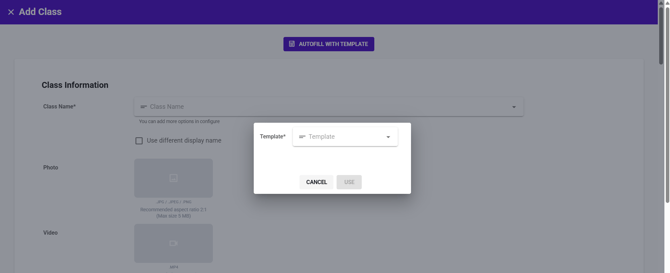
Autofill with template — if you've saved a class template before, use this to fill the form in one click. See Save as a template.
Set up class dates and recurrence
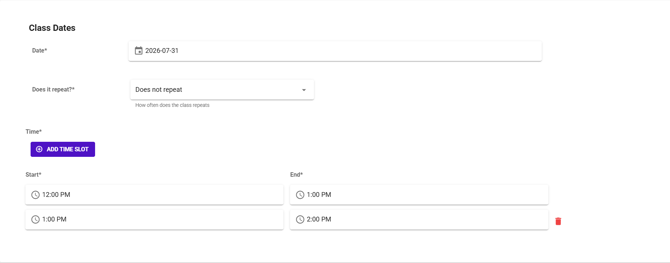
Under Class Dates, set when the class runs.
- Date — the first (or only) date of the class.
- Does it repeat? — most classes recur, so rather than creating them one by one, choose a recurrence pattern: Daily, Weekly, Every 2 Weeks, Every 5 Weeks, Monthly, or Does not repeat for a one-off.
If you set a recurrence, you'll be asked for an end date — this is required. Recurring classes need a point at which they stop.
Don't worry about locking yourself in — you can still edit individual sessions later, or change many at once with bulk edit.
Time slots
Under Time, set the Start and End time.
Click Add Time Slot to add more sessions on the same day at different times — for example a 6–7 PM and a 7–8 PM class. Use the trash icon to remove a slot.
Availability Settings
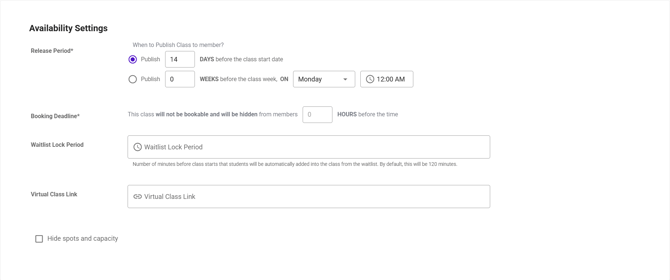
These control when members can see and book the class.
Release Period
Sets when the class is published for booking. Choose one of two methods:
- Publish X days before the class start date — e.g. 14 days means a class on the 20th opens for booking on the 6th. The window moves with each class.
- Publish X weeks before the class week, on a set day and time — e.g. release every class on the Monday of the week before at 12:00 AM. This gives every class a predictable, fixed release moment.
Line this up with your booking window under Configure → Package Options. If classes release 7 days ahead but a member's booking window is 30 days, they'll see classes they can't yet book — and vice versa.
Booking Deadline
The number of hours before the class at which it stops being bookable and is hidden from members. For example, a deadline of 2 means the class disappears from the schedule 2 hours before it starts. Set to 0 to allow booking right up to the start time.
Waitlist Lock Period
The number of minutes before the class at which the system stops auto-promoting members from the waitlist into open spots. This prevents someone being pushed in at the last minute. The default is 120 minutes.
Virtual Class Link
For synchronous online classes, paste a video link (e.g. Zoom) here. When a member books, the link is emailed to them automatically.
Hide spots and capacity

Tick Hide spots and capacity to stop members seeing how many spots are left or if you would like to hide the floor plan. Useful if you'd rather not reveal a quiet class's low numbers.
Advanced Options
Booking Settings
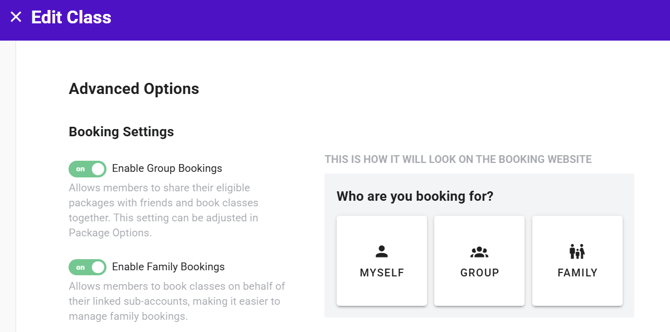
Two toggles here control who a member can book for. Both show a live preview of how the choice appears to members on your booking website ("Who are you booking for? — Myself / Group / Family").
Enable Group Bookings — lets members use their own package credits to book extra spots so friends can join the same class. It's a good way to retain members and reach new ones, since a member can bring a friend along in a single booking flow.
Enable Family Bookings — lets members book on behalf of their linked sub-accounts, so one person can manage bookings for their whole family. This relies on sub-accounts being set up — see Managing family accounts.
Number of Credits

How many credits are deducted from a member's package when they book.
- Example: set to 2, and 2 credits are deducted per booking. If the member brings a guest, 4 are deducted in total.
- A useful way to price peak-hour classes higher than off-peak ones.
Additional Fee Settings
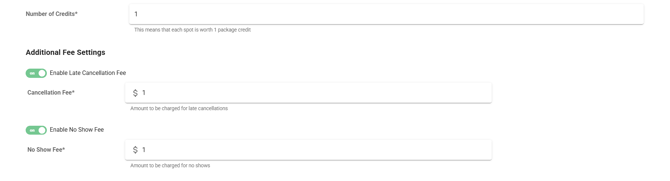
- Enable Late Cancellation Fee — charge members who cancel after your cancellation window.
- Enable No Show Fee — charge members who don't turn up.
These toggles switch the fees on for this class; the fee amount and cancellation window come from your package and studio settings. Turning them on here without the amounts configured elsewhere won't charge anything.
Automations
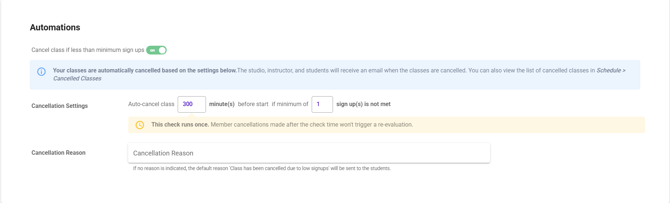
- Cancel class if less than minimum sign ups — automatically cancel a class that hasn't hit a minimum number of bookings before it starts, so you're not running near-empty sessions.
Save as a template
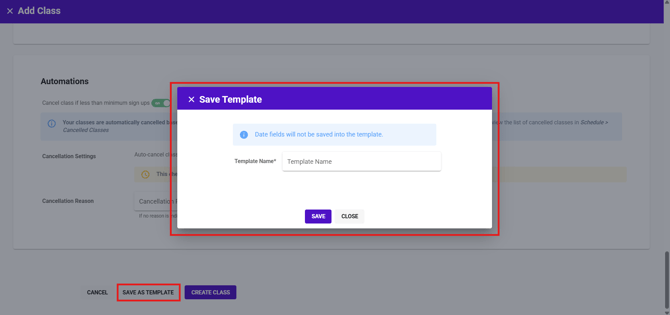
If you set up the same class repeatedly, click Save as Template at the bottom of the form.
A template saves the class details but not the date, time, or recurrence — you'll set those fresh each time. Reuse it later with Autofill with Template at the top of the Add Class form.
Remember to click Create Class to save the class itself.